37
OneScreen
HL7
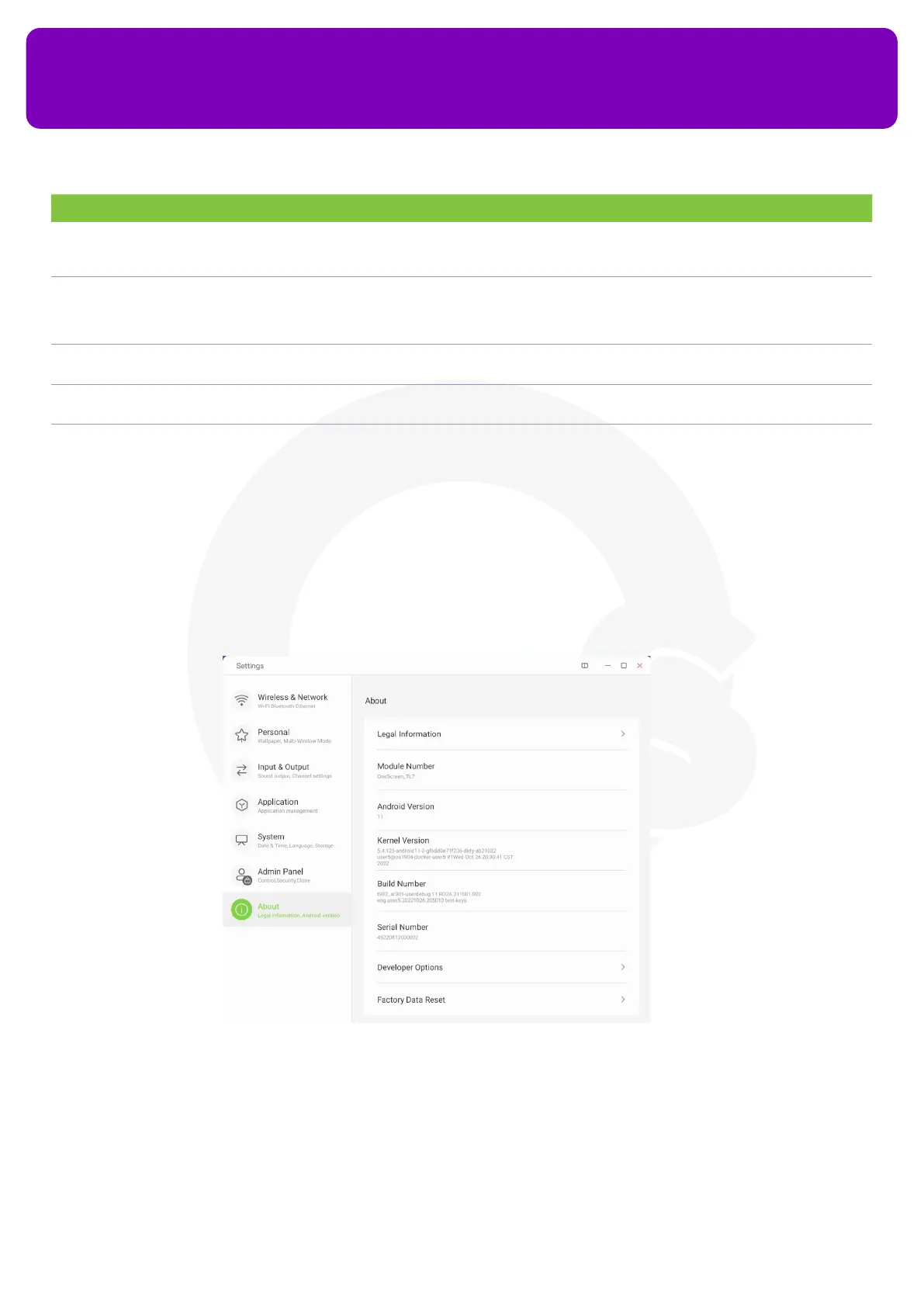
13.7 About
This section provides you all the information about your device such as its model, serial number, rmware
version etc. You can also reset your device using the Factory Data Reset. This wipes out all the data on your
device and resets it to factory default settings.
No. Description Function
6 Default Startup Item Allows you to perform a certain action every time device starts up. This option requires Kiosk Mode to be
turned on. This option is useful for users who want to display a certain webpage or app on screen every
time the screen turns on and want to use OneScreen HL7 as a Kiosk
7 Kiosk Kiosk mode allows you to use your OneScreen as a Kiosk. You can set up any app or webpage as a
default startup item and once you toggle the Kiosk Mode on, the user can only navigate through the
webpage or application that is selected as a Startup item. The users won’t be able to navigate to any
other functionalities of the screen
8 Auto Remove Files Allows you to automatically clear the storage of your OneScreen after the set number of days. You can
also choose the type of les that you need to remove automatically after a certain time frame
9 Security Lock: Settings lock allows admins to lock certain features and settings of the OneScreen that cannot be
changed by other users of the screen
10 Device Settings These allow you to enable or disable connectivity options such as Wi-Fi, Ethernet, USB Ports etc. This
option is useful in high security facilities where users prefer connectivity restrictions
14. Connecting your OneScreen with other devices
14.1 Wired Connectivity
To connect your personal computer with the HL7, follow the steps below:


 To Next Page