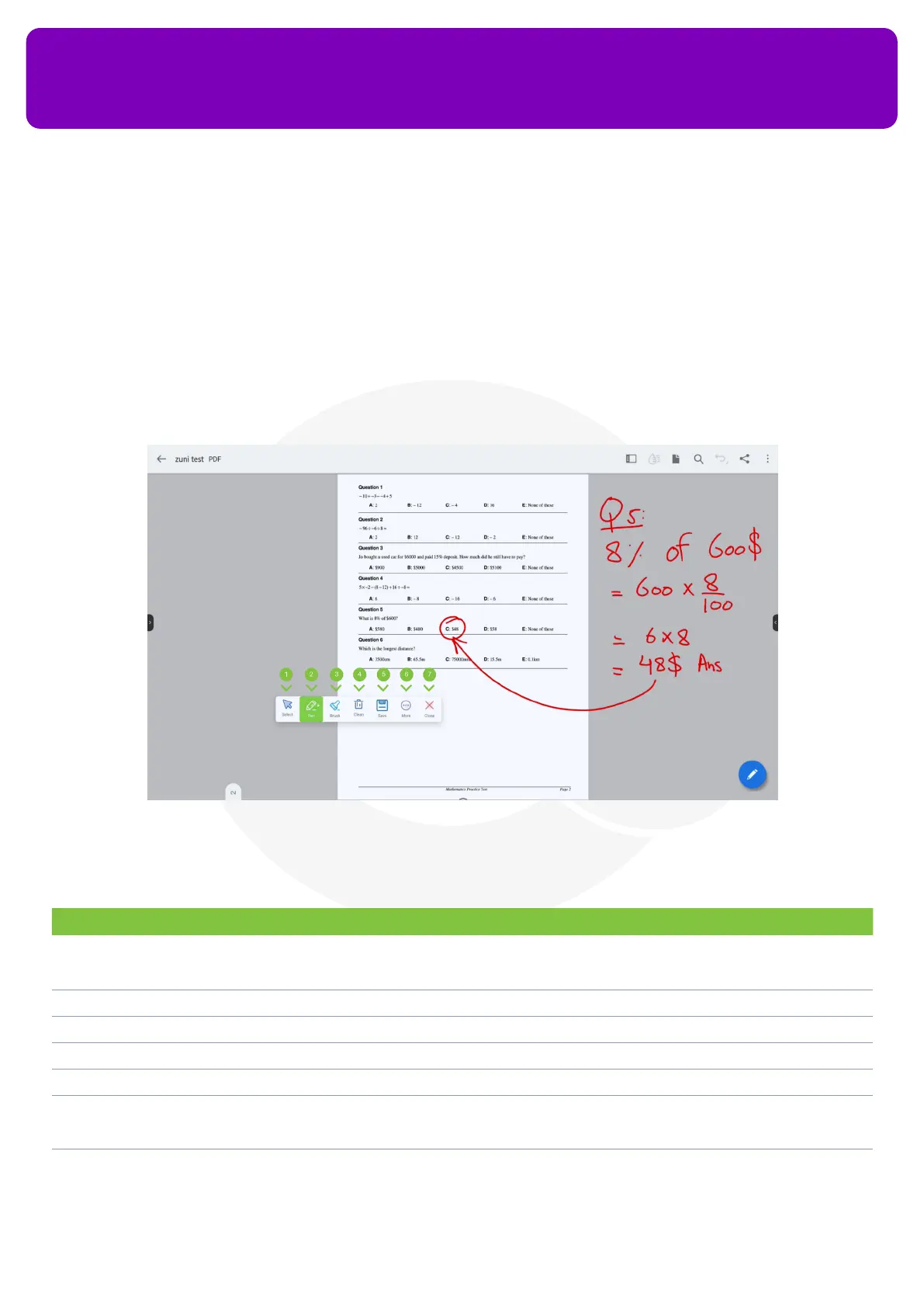
You may follow the steps below to use the Annotate feature on your OneScreen HL7:
1. Navigate to any display, document or le that you want to make annotations on
2. Tap on the Annotate icon on the bottom or side toolbar to enable the Annotate Tool
3. You can use your nger or stylus to draw on any display
4. A toolbar will appear as shown in the picture below to allow you to select multiple tools for your
on-screen annotation
OneScreen
HL7
20
No. Description Function
1 Select On-screen annotation tool freezes all the icons and functions on your OneScreen and thus makes
them unresponsive to touch. You can tap on select tool to navigate through your OneScreen while the
on-screen Annotation is turned on
2 Pen Freezes all the icons and functions on your OneScreen so you can start annotating over them
3 Brush Allows you to use highlighter on your display
4 Clean Clears the screen of all the annotations
5 Saves Allows you to save your on-screen annotations in your device’s storage
6 More Provides you with access to tools like Explore (Open any image to make annotations over it), Insert
(Take a screenshot of your background and send it over to your whiteboard directly), Share (Share your
annotations by scanning a QR Code) and Cloud (Upload your annotation to cloud)
7 Close To close the on-screen Annotation tool
You can access the following tools for your on-screen annotation tools.


 To Next Page