range Pi 用户手册 深圳市迅龙软件有限公司版权所有
www.orangepi.cn
13
www.xunlong.tv
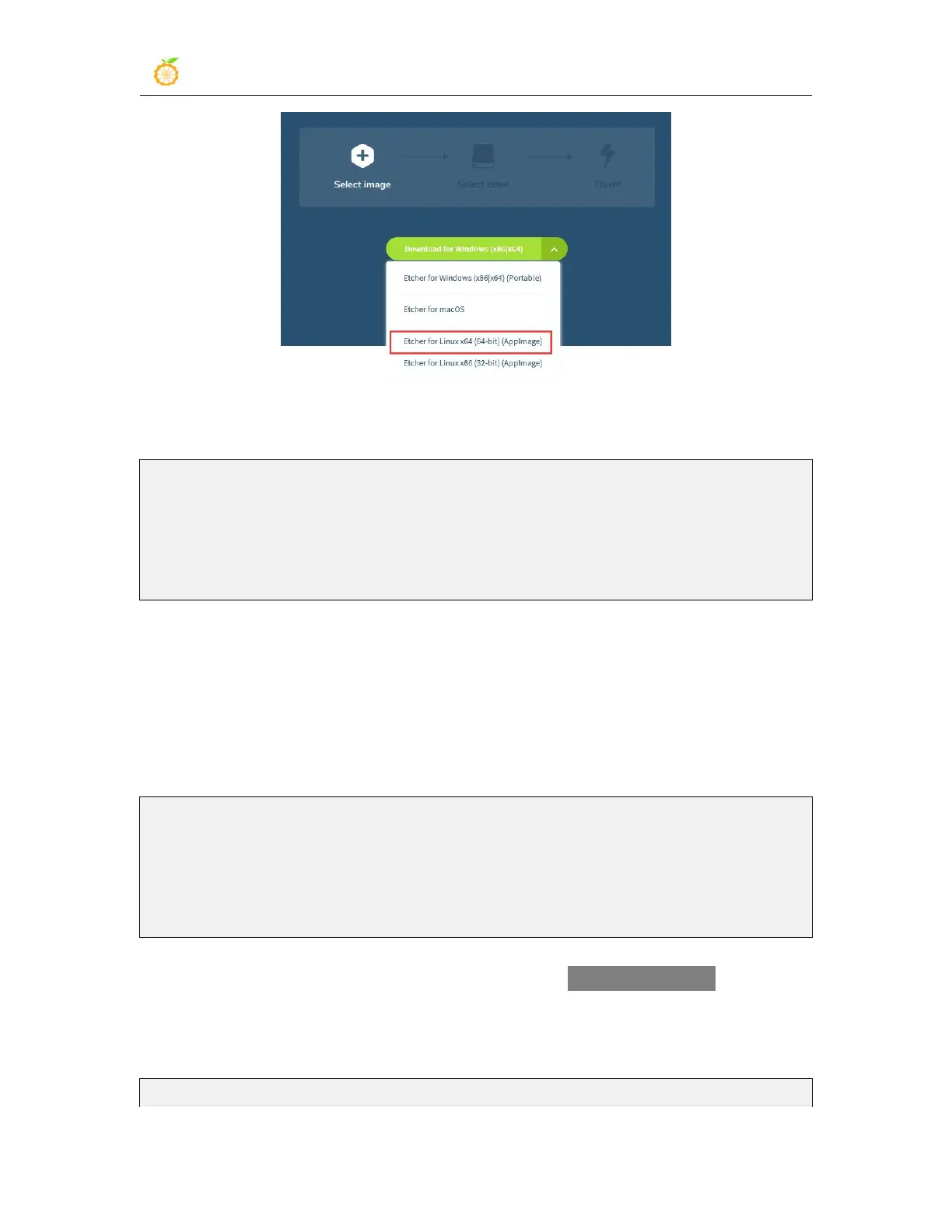
6) After downloading, use unzip to decompress. The decompressed
balenaEtcher-1.5.109-x64.AppImage is the software needed to burn Linux image
test@test:~$ unzip balena-etcher-electron-1.5.109-linux-x64.zip
Archive: balena-etcher-electron-1.5.109-linux-x64.zip
inflating: balenaEtcher-1.5.109-x64.AppImage
test@test:~$ ls
balenaEtcher-1.5.109-x64.AppImage balena-etcher-electron-1.5.109-linux-x64.zip
7) Download the Linux operating system image file compression package you want to
burn from Orange Pi's data download page, and then use the decompression software to
decompress it. In the decompressed file, the file ending with ".img" is the operating
system image file. The size is generally above 1GB
a. The decompression command of the compressed package at the end of 7z is as
follows
test@test:~$ 7z x Orangepir1plus_2.1.0_ubuntu_bionic_server_linux5.8.18.7z
test@test:~$ ls Orangepir1plus_2.1.0_ubuntu_bionic_server_linux5.8.18.*
Orangepir1plus_2.1.0_ubuntu_bionic_server_linux5.8.18.7z
Orangepir1plus_2.1.0_ubuntu_bionic_server_linux5.8.18.img.sha # Checksum file
Orangepir1plus_2.1.0_ubuntu_bionic_server_linux5.8.18.img # image file
8) After decompressing the image, you can first use the sha256sum -c *.sha command to
calculate whether the checksum is correct. If it is prompted that the downloaded image is
correct, you can safely burn it to the TF card. If the checksum does not match, it indicates
There is a problem with the downloaded image, please try to download again
test@test:~$ sha256sum -c *.sha


 To Next Page