User’s Manual
18
NOTE: In addition to using the front panel buttons or the infrared remote control, you can use the virtual keyboard
to assign the password. To display the virtual keyboard click the
button using the mouse (not supplied).
Highlighting the box beside Auto Login allows you to select a User to be automatically logged in when the DVR is
powered up. It can also be set to never automatically login a user.
Highlighting the box beside Auto Logout allows you to select from a list of times that the user will be automatically
logged out. The options are: Never, 1 min., 3 min., 5 min., 10 min., 15 min., 20 min., 30 min. and 1 hr.
Storage
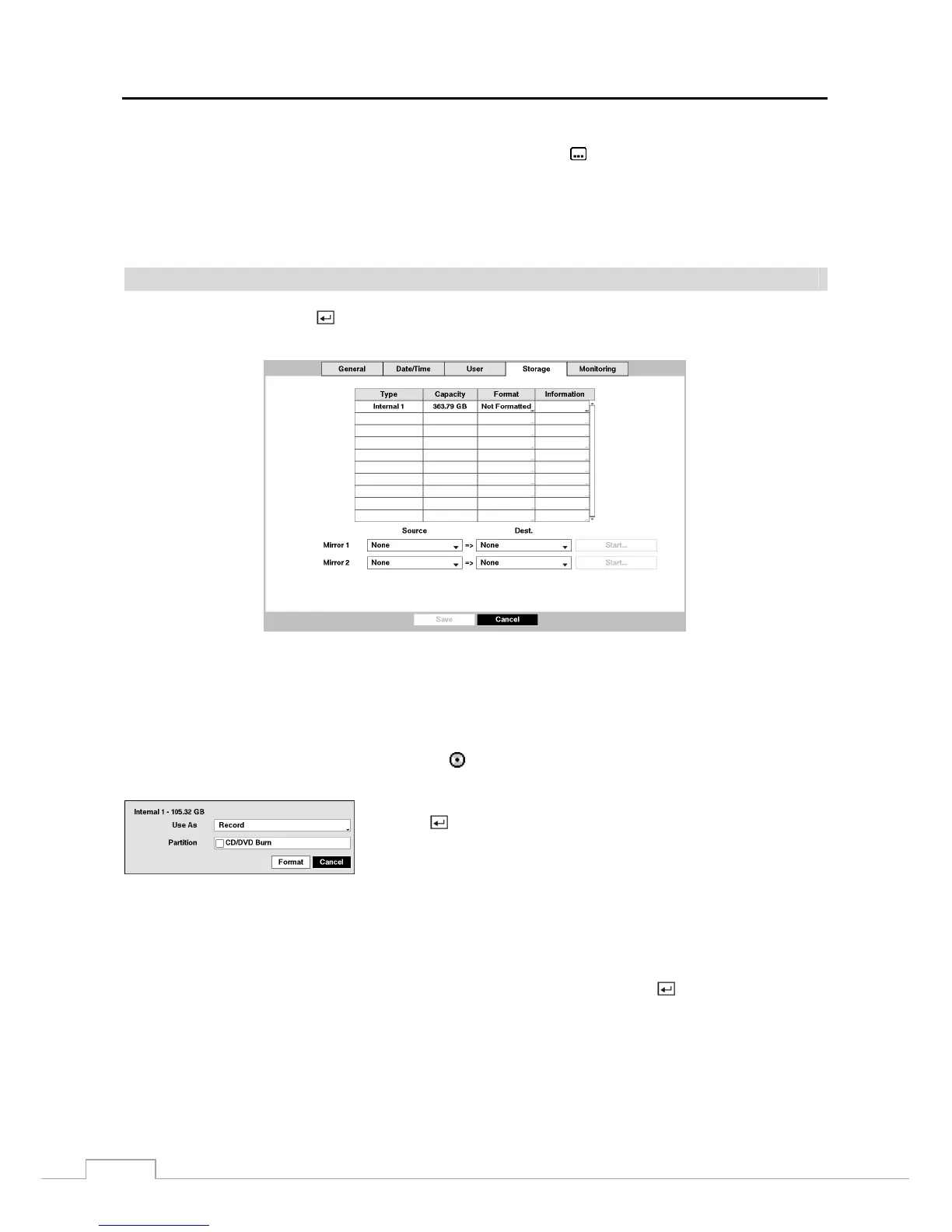
Highlight Storage and press the
button. The Storage setup screen appears and displays information about the DVR’s
storage devices.
Figure 11 : System – Storage setup screen.
The information in the Type column describes the storage device.
The capacity of the storage device is displayed in the Capacity column.
The Format column displays whether the device is used for recording (Record), archiving (Archive) or not (Not Using).
Not formatted indicates the device is not formatted.
indicates when the device has temporary space set aside so
that video clips can be saved on a DVD RW.
Highlight the box in the Format column for the desired storage device and
press the
button. You will be able to format the device for recording or
archiving. When selecting Not Using from Use As and highlighting the
Format button, the device will not be used for recording or archiving. You
can also set aside space to store temporary files for CD or DVD burning by
selecting Partition – CD/DVD Burn.
NOTE: The DVR does NOT support USB hard disk drives with a version lower than 2.0.
The Information column displays whether the device is being used or not. Other indicates the device has been used
for another DVR.
Highlight the box in the Information column for the desired storage device and press the
button. You will be able
to check the model name, serial number and the time information about recorded data.



 To Next Page