User’s Manual
70
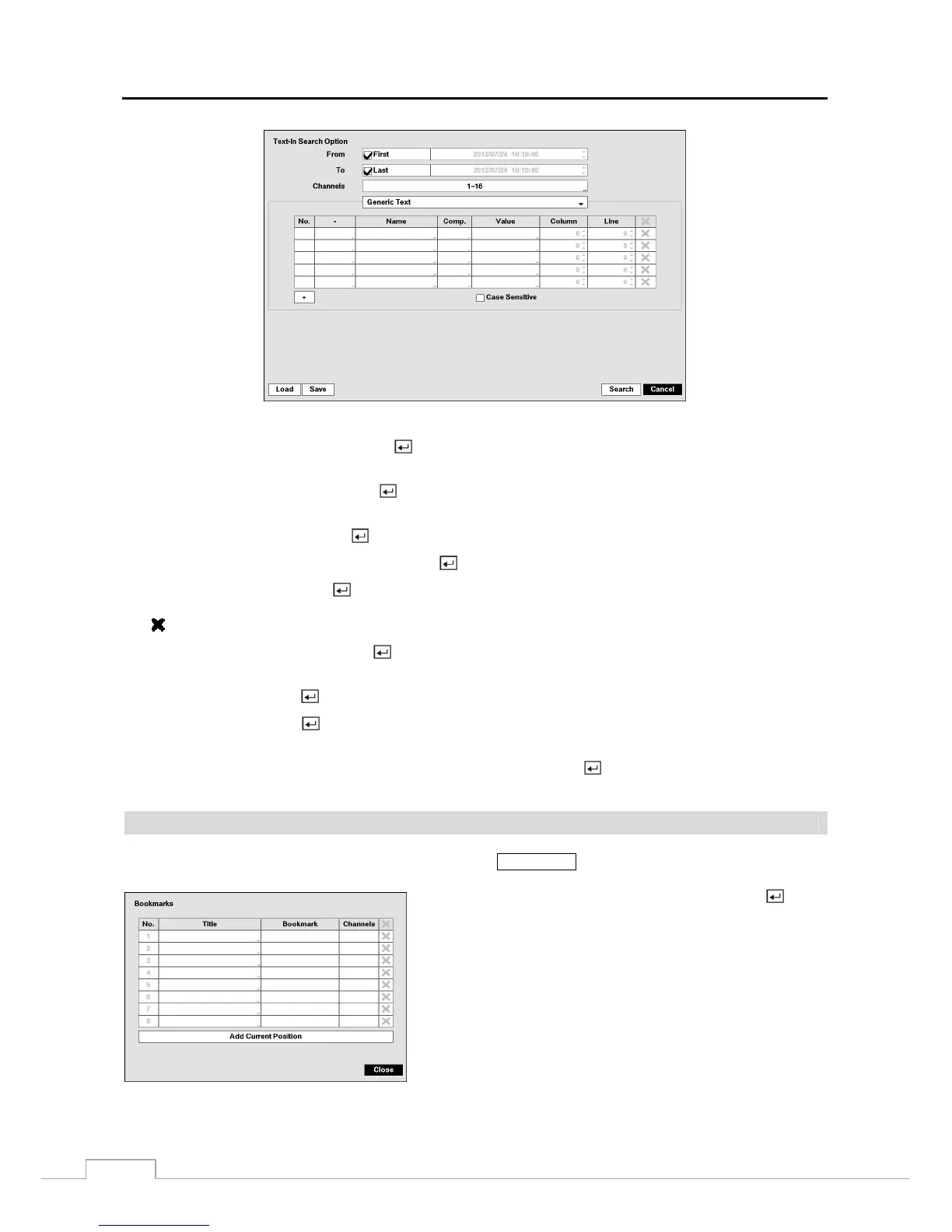
You can search video from the first to last recorded images, or you can set the start and stop times and dates.
Highlight the box beside From and press the button to toggle between On and Off. When set to Off, you can enter
a specific Date and Time. When set to On, the search will be from the first recorded image.
Highlight the box beside To and press the button to toggle between On and Off. When set to Off, you can enter a
specific Date and Time. When set to On, the search will be to the last recorded image.
Highlight the Channel and press the button. Select the text-in devices that you want to search for text input.
Highlight the Text Input Device box and press the button. Select your Text Input Device from the list.
Highlighting the + and pressing the button allows you to add a new set of search parameter. Set up the desired search
parameter. Refer to the Appendix – Text-In Search Examples for further information on setting up search parameters.
The
column can be used to delete a set of search parameter or entire sets of search parameters.
Highlight Case Sensitive and press the button. This will toggle between On and Off. When this feature is On,
the search will find only those text strings in which the case matches.
Highlight Load and press the button to load saved search option settings. Select the desired search option settings.
Highlight Save and press the button to save the current search option settings. A virtual keyboard appears that you
can use to enter the search option name.
Once you set your desired search conditions, highlight Search and press the button to display the search results in
the Text-In Search screen. Selecting Cancel exits the screen without saving the changes.
Bookmarks
The Bookmarks screen can also be accessed by pressing the
BOOKMARK button when in playback mode.
Highlight the Add Current Position box and press the button
to add the current playback point to the bookmark list. Highlight
the Title box and enter the name of the registered bookmark. Use
the virtual keyboard to enter the bookmark name.
NOTE: Up to eight bookmarks can be registered.
Use the arrow buttons to highlight the bookmark point for which
you would like to see video. The selected bookmark will display
on the screen. The playback buttons, Jog and Shuttle can now be
used to review the surrounding video.
Figure 51 : Bookmarks screen.




 To Next Page