User’s Manual
26
Network Setup
General
Highlight General and press the
button, and the General setup screen displays.
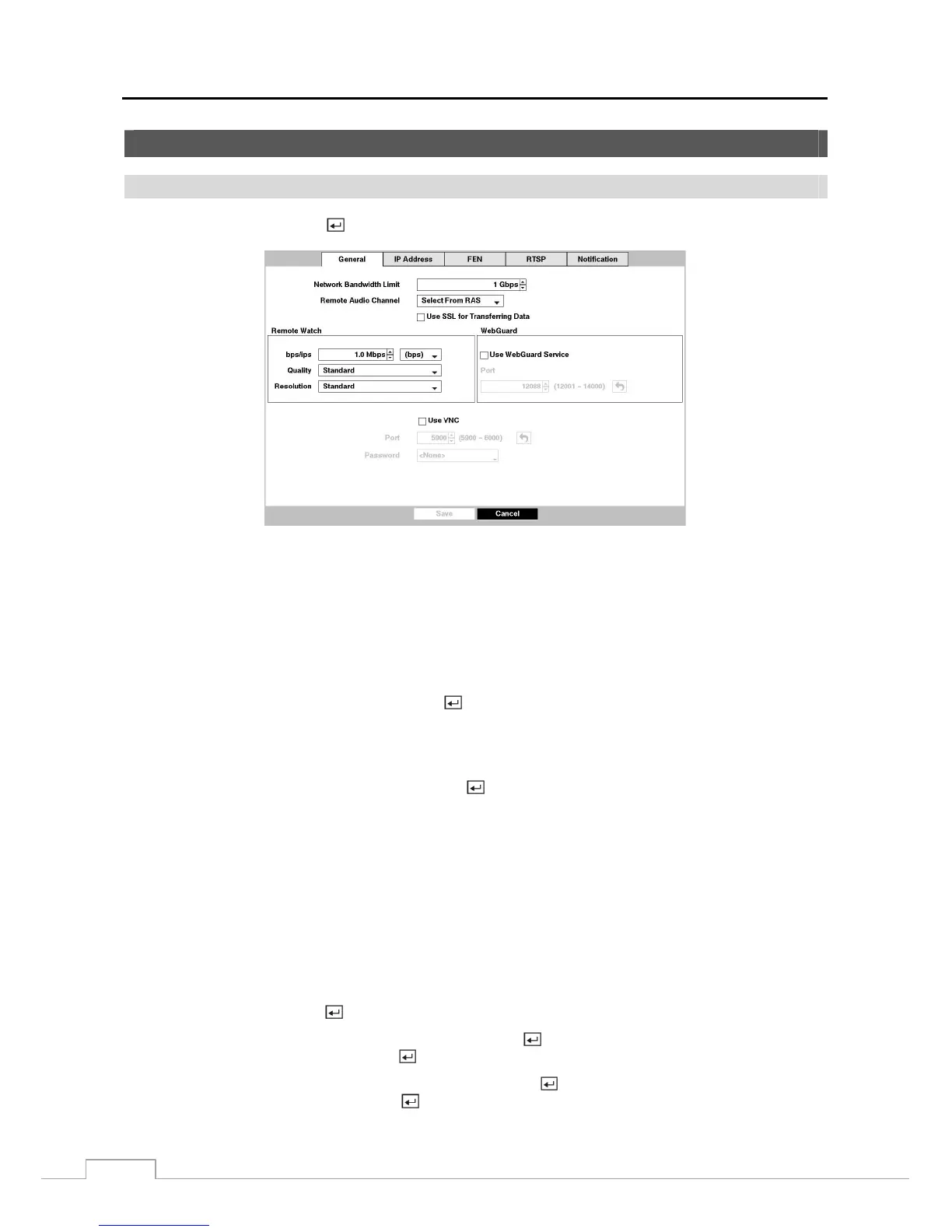
Figure 18 : Network – General setup screen.
You can limit the network bandwidth settings so that system does not consume too much network bandwidth. Highlight
the box beside Network Bandwidth Limit and press the Up and Down arrow buttons to set the desired maximum
bandwidth from 50Kbps to 1Gbps.
NOTE: When limiting the network bandwidth, the remote watch image on the PC running RAS or WebGuard might
not be displayed properly.
The DVR supports two-way audio communication between a local system and a PC running RAS. Highlighting the
box beside Remote Audio Channel and pressing the
button allows you to select the audio channel that sends audio
to the remote site. Selecting Select From RAS will send audio of the channel selected from RAS.
NOTE: Depending on network conditions, audio might be interrupted or out of synchronization during
transmission.
Highlight Use SSL for Transferring Data and press the button to toggle between On and Off. When it is On, the
security of data except video and audio transmitted for remote monitoring or remote recording can be enhanced by
using the SSL (Secure Sockets Layer) authentication. When using the SSL function, the DVR cannot be connected
with a remote program or a network keyboard which does not support the SSL function.
CAUTION: The remote connection will be disconnected temporaril
after changing the SSL settings.
NOTE: This product includes software developed by the OpenSSL Project for use in the OpenSSL Toolkit
(http://www.openssl.org/).
Highlight the first box beside Remote Watch – bps/ips. Press the Up and Down arrow buttons to set the Transfer
Speed from 50Kbps to 1Gbps.
Highlight the second box beside Remote Watch – bps/ips. You can select the unit of measure for the transfer speed
between: bps and ips. Press the
button to set the transfer speed.
Highlight the box beside Remote Watch – Quality and press the button. You can select the Quality from: Very
High, High, Standard and Basic. Press the
button to set the Quality.
Highlight the box beside Remote Watch – Resolution and press the button. You can select the Resolution from:
High (2CIF) and Standard (CIF). Press the
button to set the Resolution.



 To Next Page