User’s Manual
66
Highlight the box beside Text-In and press the
button. You can select the text-in devices which you want any reports
of text input.
Highlight the box beside Record Channels and press the button. You can select the cameras that you want to search
for any reports of event recorded data. The DVR will display the events (not the camera channels) that occurred and
that also are recorded on the camera channel that you selected. If you do not select a camera channel in this field, the
DVR will search events that are not associated with cameras.
You can also toggle On and Off self-diagnostic System Events as part of your search. The choices are:
Panic Record
Check Recording
Check Alarm-In
Disk Almost Full
Disk Bad
Disk Temperature
Disk S.M.A.R.T.
Fan Error
eSATA Disconnected
Once you set your desired search conditions, highlight Search and press the button to display the search results in
the Event Log Search screen. Selecting Cancel exits the screen without saving the changes.
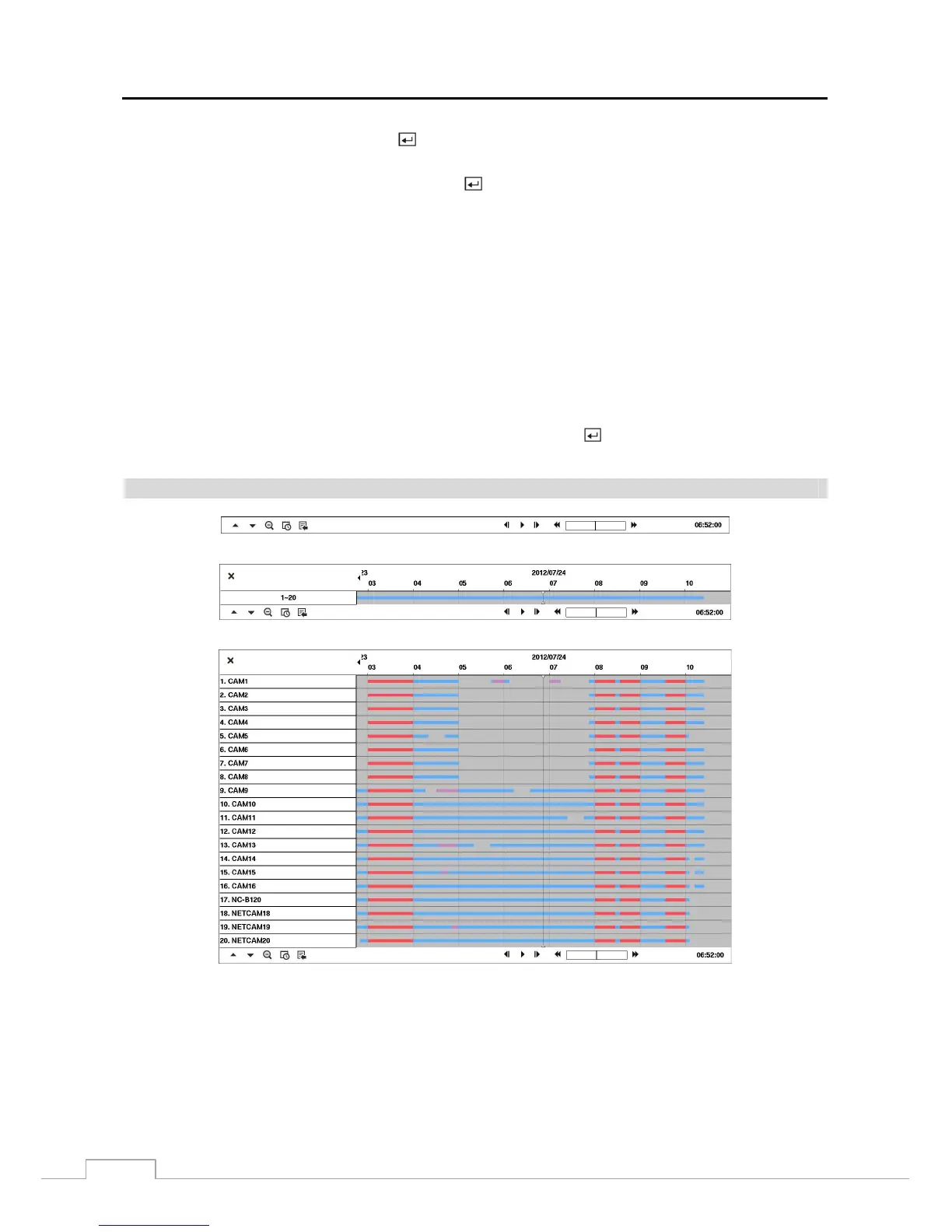
Record Table Search
< Compact View >
< Standard View >
< Expanded View >
Figure 48 : Record Table Search screen.
Recording information about video images currently displayed on the screen displays on the recording status bar. A
grey vertical line indicates the current search position. To search specific video, move the vertical line by using the
Left or Right arrow buttons on the front panel or by clicking the mouse on the desired segment.







 To Next Page