User’s Manual
40
Highlight the box under the Actions and press the
button. The DVR can be set to react to text input. Text input
can be associated with cameras, trigger an Alarm-Out connector, sound the DVR’s internal buzzer, notify a number
of different devices, move PTZ cameras to preset positions, and/or display a camera on a SPOT monitor.
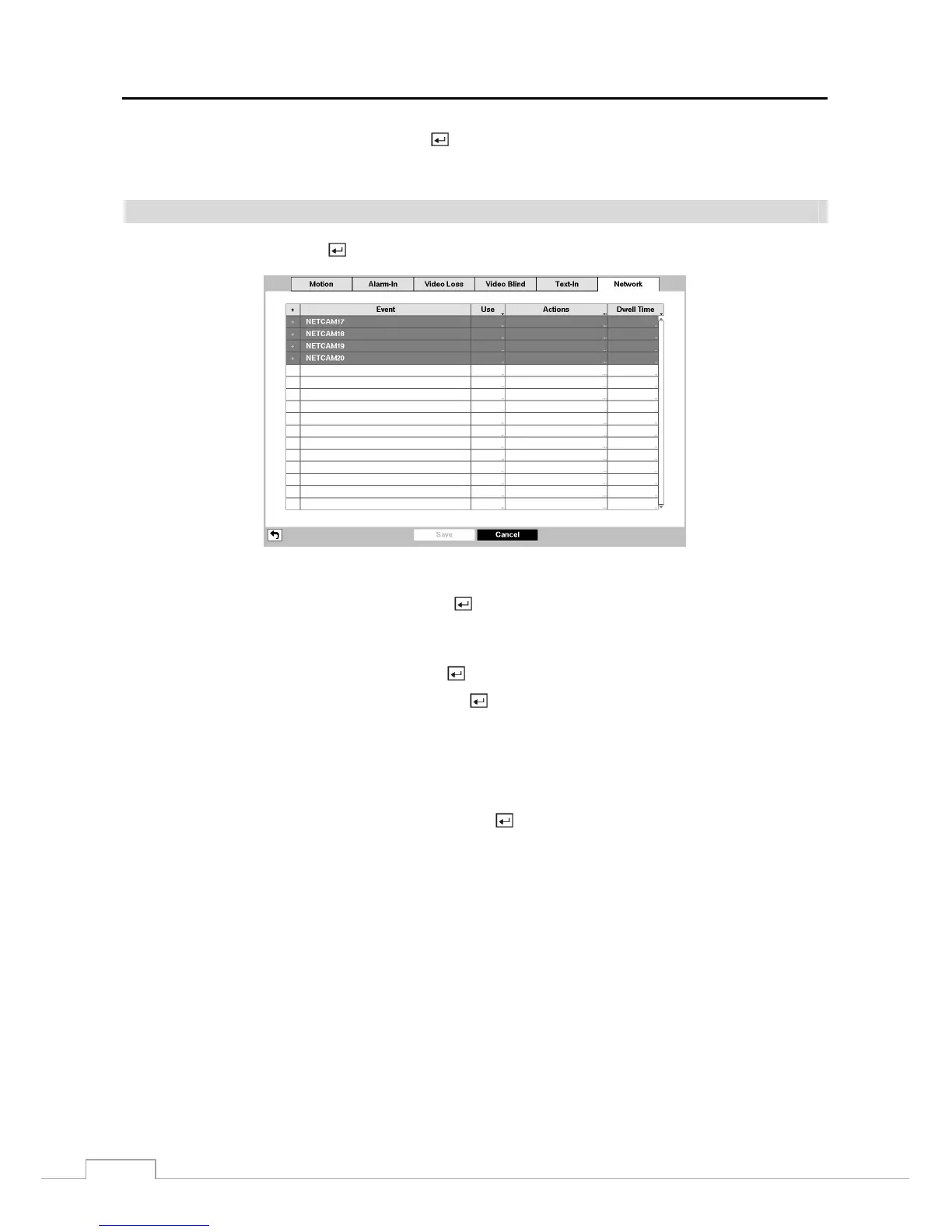
Network
Highlight Network and press the
button, and the Network setup screen appears. (Network Devices Only)
Figure 29 : Event – Network setup screen.
Highlighting the box under the Event and pressing the
button displays events that occurred on the network device
channel that you selected.
NOTE: Displaying events is supported when the network device is networked with the DVR.
Highlighting the box under the Use and pressing the
button turns each selected event On and Off.
Highlighting the box under the Actions and pressing the
button selects how the DVR reacts to network devices
events. The network devices events can be associated with cameras, trigger an Alarm-Out connector, sound the DVR’s
internal buzzer, notify a number of different devices, move PTZ cameras to preset positions, and/or display associated
local cameras on a SPOT monitor.
NOTE: For the event detection and action to work, the event-related settings for network devices should set
properly.
Highlighting the box under the Dwell Time and pressing the
button allows you to set the dwell time of network
devices events. Dwell times range from 1 second to 15 seconds or Not Using.



 To Next Page