User’s Manual
64
Panic
Selecting
(Panic) in the Search menu starts panic recording of all cameras, and selecting again stops panic recording.
It is the same as pressing the
PANIC button.
Camera Menu
Zoom: Selecting
(Camera Menu) → Zoom and choosing the camera number zooms the current playback image
of the selected camera on the screen. It is the same as pressing the
ZOOM button. Selecting Zoom again exits the
Zoom mode.
Audio: Selecting
(Camera Menu) → Audio toggles audio playback On and Off. Recorded audio will be played
when the DVR displays a camera with recorded audio in full screen mode.
Show/Hide Text-In: Selecting
(Camera Menu) → Show Text-In or Hide Text-In shows or hides the text-in
data on the screen if the video was recorded with text-in data.
NOTE: The Camera Menu also can be displayed by clicking the right mouse button on the screen while in the
search mode.
Export
A–B Clip-Copy: Selecting
(Export) → A–B Clip-Copy will set the starting point of the video to be clip copied,
and the
icon displays at the bottom-left corner of the screen. Selecting A–B Clip-Copy again will set the ending
point of the video to be clip copied and displays the Clip-Copy screen. See the following Clip Copy section for details.
Clip-Copy: Select
(Export) → Clip-Copy, and the Clip-Copy screen appears to allow clip copy setup. See
the following Clip Copy section for details.
Print: Selecting
(Export) → Print allows you to print a selected image. See the following Print section for details.
Data Source
Selecting
(Data Source) in the Search menu allows you to select the data source to be searched. Selecting Record
searches recorded data on primary storage installed in the DVR, and selecting Archive searches archived data on secondary
storage installed in the DVR.
Exit
Selecting
(Exit) in the Search menu exits the search mode and enters the live monitoring mode.
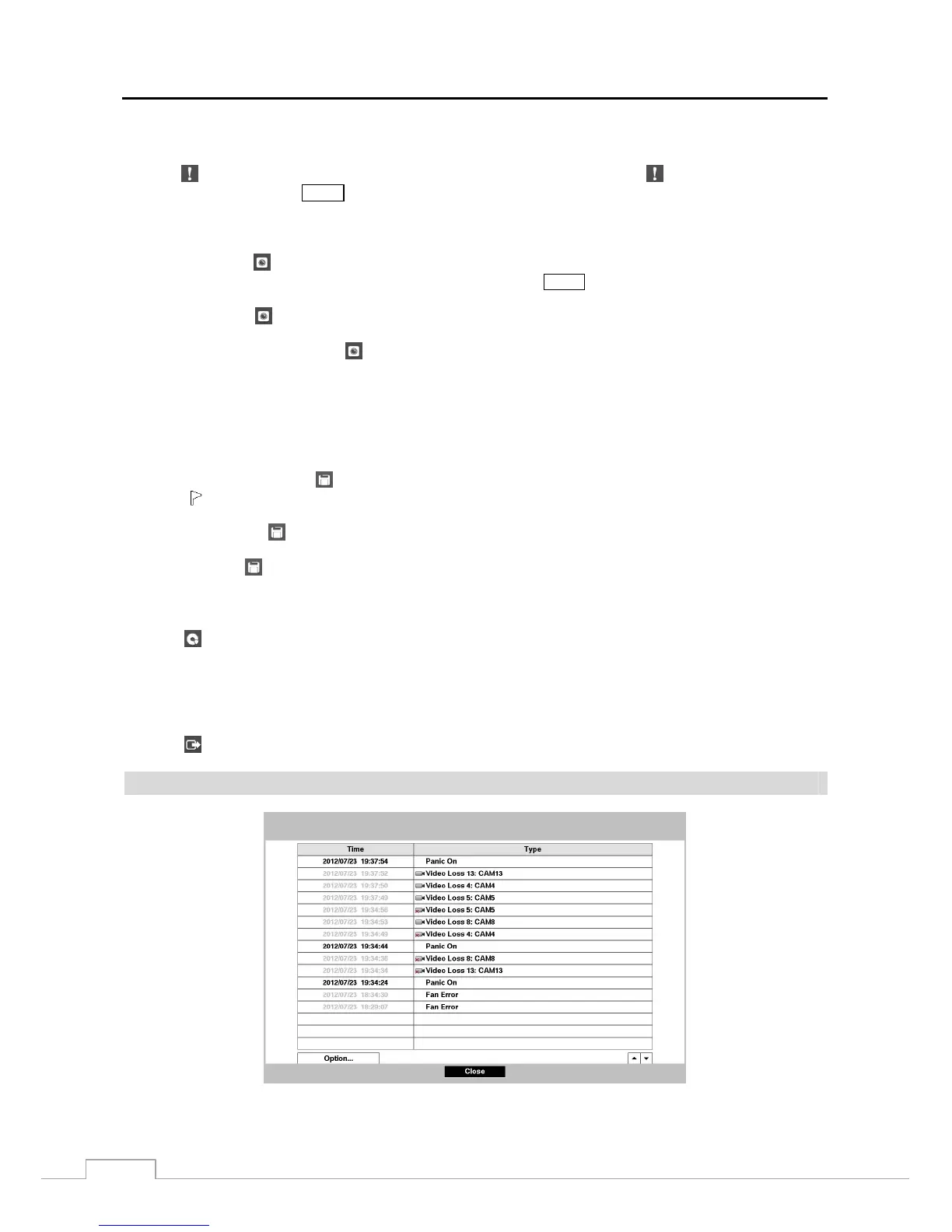
Event Log Search
Figure 47 : Event Log Search screen.







 To Next Page