Digital Video Recorder
37
Video Loss
Highlight Video Loss and press the
button, and the Video Loss setup screen appears. (Local Cameras Only)
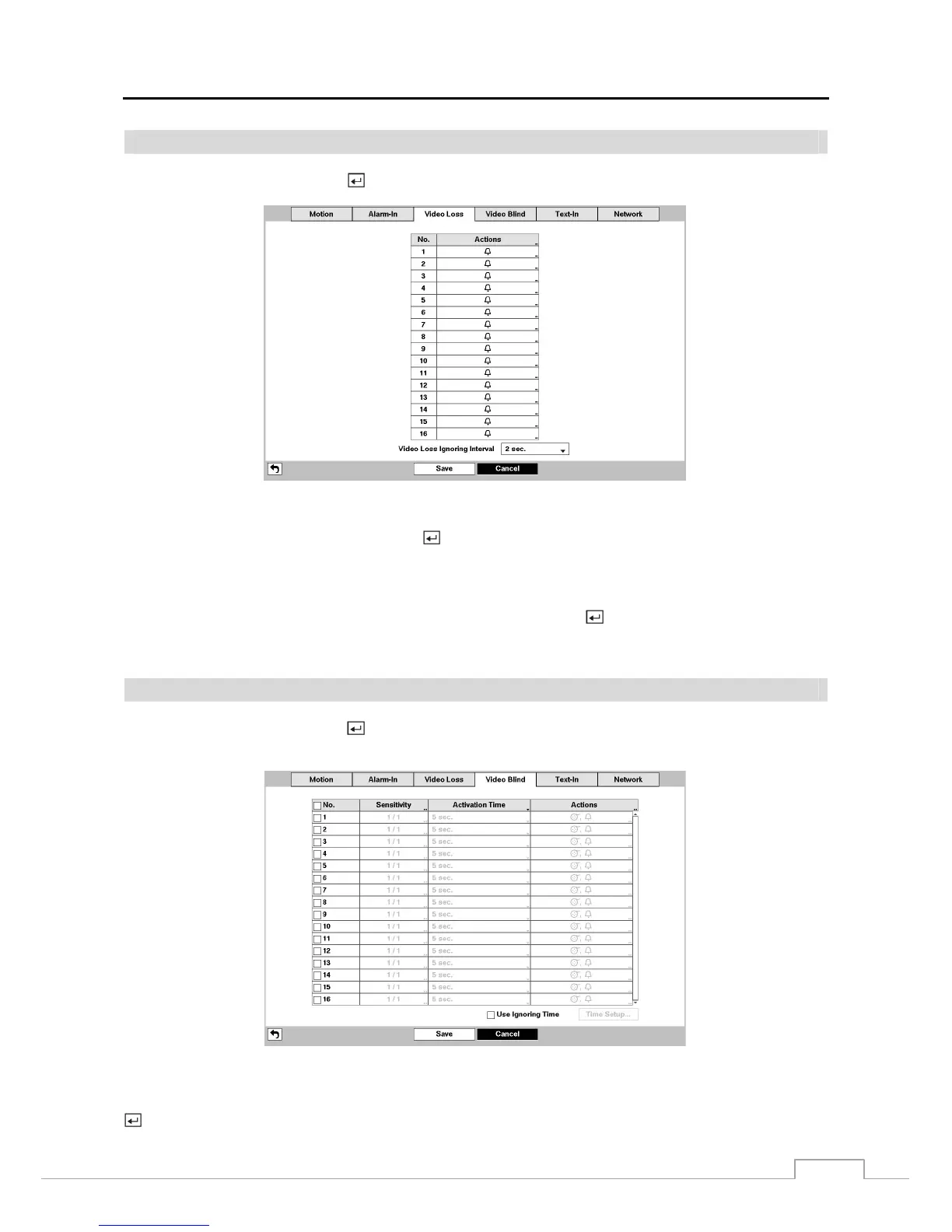
Figure 25 : Event – Video Loss setup screen.
Highlight the box under the Actions and press the
button. The DVR can be set to react to video loss differently for
each camera. Each camera can be associated with another camera, trigger an Alarm-Out connector, sound the DVR’s
internal buzzer, notify a number of different devices, move PTZ cameras to preset positions, and/or display a camera
on a SPOT monitor.
Highlighting the box beside Video Loss Ignoring Interval and pressing the button allows you to set the duration
of a signal loss before the DVR will report a Video Loss. The DVR will not consider any signal loss from a camera
to be a Video Loss if the detected signal loss is shorter than the preset interval.
Video Blind
Highlight Video Blind and press the
button, and the Video Blind setup screen appears. The DVR checks to see if
anything is blinding a camera. (Local Cameras Only)
Figure 26 : Event – Video Blind setup screen.
You can turn individual cameras On or Off for video blind detection by highlighting the camera number and pressing the
button.







 To Next Page