Digital Video Recorder
67
If the DVR’s time and date have been reset to a time that is earlier than some recorded video, it is possible for the DVR
to have more than one video stream in the same time range. In this case, the overlapping time range in the record table
will be separated by a yellow vertical line
.
NOTE: The recorded data in the time range located after the white vertical line is the latest.
There are three view modes. Standard view, Expanded view and Compact view. Standard view (default) displays
combined recording information of all camera channels currently displayed on the screen. In the Standard view mode,
selecting the
icon located at the bottom switches to the Expanded view mode. The Expanded view displays the
recording information of each camera channel currently displayed on the screen. Selecting the
icon in the Standard
view mode switches to the Compact view mode which displays only the toolbar. Selecting the
icon in the Compact
view mode switches to the Standard view mode, and selecting the
icon in the Expanded view mode switches to the
Standard view mode.
Selecting
or
located at the bottom zooms the record table. Selecting
displays eight hours (1-minute based),
and selecting
displays 24 hours (3-minute based) at once. To move to earlier or later times that are not shown in
the current record table screen, select the arrows located at the end of the times by using the arrow buttons on the front
panel.
NOTE: If the DVR has images recorded in more than one recording mode in the same time range, the recording
status bar displays recording information in the following priority order: Panic → Pre-Event → Event →
Time → Irregular (Irregular recording caused by temporary disconnection from the network device). The
color of the bar indicates different recording modes: Red for Panic, Yellow for Pre-Event, Purple for Event,
Blue for Time, and Green for Irregular.
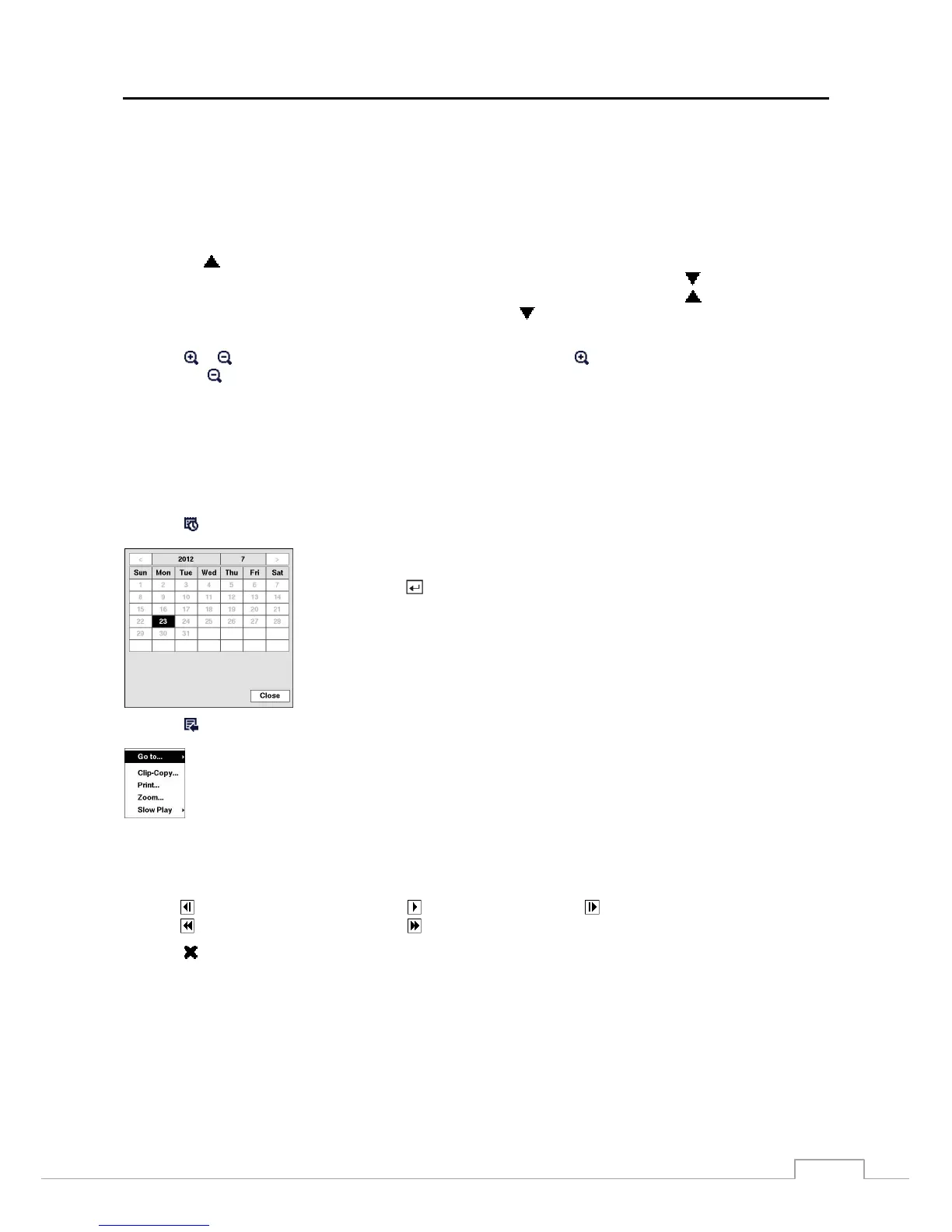
Selecting
located at the bottom displays the Calendar Search screen.
Selecting
located at the bottom displays the Search menu.
Go To: Displays the first or last recorded image, searches by date and time, or adds the current playback
point to the bookmark list (see the previous Searching Video – Go To and Bookmarks sections of this
chapter for more details).
Clip-Copy: Clips a video segment and saves it (see the following Clip Copy section for more details).
Print: Prints the current playback image.
Zoom: Zooms the current playback image.
Slow Play: Plays video at low speed (x1/2, x1/3, x1/4, x1/6 and x1/8).
The individual playback controls at the bottom perform the following functions as described below:
Go to the previous image Play/Pause Go to the next image
Fast backward play Fast forward play
Selecting
in the top-left corner exits the Record Table Search screen.
Days with recorded video display on the calendar with white numbers. You can highlight
the days with recorded video by using the arrow buttons. Once you have highlighted
a day, press the
button to select it. The first recorded image of the selected date will
pause on the screen. Once you have selected the date you want to search, review the
surrounding video by using the playback controls located at the bottom of the Record
Table Search screen.







 To Next Page