Digital Video Recorder
27
NOTE: The higher Quality and Resolution settings require higher Transfer Speed settings. The transfer speed
you set is the maximum speed. Depending on the network environment, this speed may not be achieved.
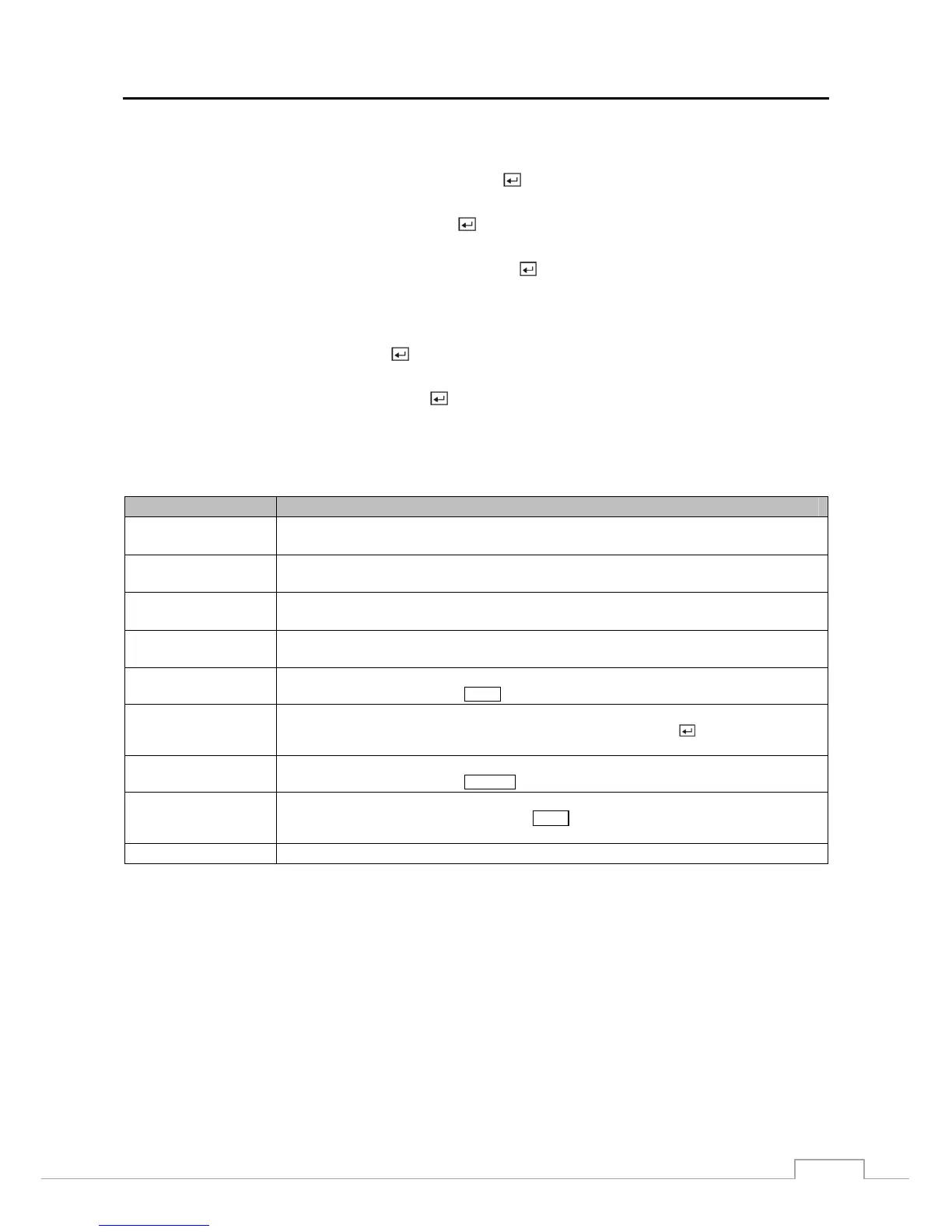
Highlight WebGuard – Use WebGuard Service and press the button to toggle between On and Off. See Appendix
– WebGuard for detailed descriptions of the WebGuard service.
Highlight the box beside WebGuard – Port and press the button. Set the port number used when accessing WebGuard
by using the Up and Down arrow buttons to increase or decrease the numbers.
Highlight Use VNC (Virtual Network Computing) and press the button to toggle between On and Off. You will
be able to change the settings if Use VNC is enabled.
NOTE: VNC service allows you to access the DVR and control it remotely using a PC or mobile devices via
Ethernet.
Highlight the box beside Port and press the button. Set the port number of the VNC server obtained from your
system administrator.
Highlight the box beside Password and press the button. A virtual keyboard appears allowing you to enter the
password for VNC connection.
NOTE: Up to three users at a time can access a DVR remotely via VNC service.
When controlling the DVR remotely using a keyboard, shortcut keys perform the following functions as
described below:
Key Function
“←” or “h”
Pressing the “←” or “h” key moves to the left in the menu. It is the same as pressing the Left
arrow button on the front panel.
“→” or “l”
Pressing the “→” or “i” key moves to the right in the menu. It is the same as pressing the Right
arrow buttons on the front panel.
“↑ ” or “k”
Pressing the “↑ ” or “k” key moves up in the menu. It is the same as pressing the Up arrow
button on the front panel.
“↓ ” or “j”
Pressing the “↓ ” or “j" key moves down in the menu. It is the same as pressing the Down
arrow button on the front panel.
“m” or “” (Windows)
Pressing the “m” or “” key displays the Live Monitoring menu or Search menu on the screen.
It is the same as pressing the
MENU button on the front panel.
“Enter” or “Return”
Pressing the “Enter” or “Return” key selects the highlighted item or completes an entry that
you have made during system setup. It is the same as pressing the (Enter) button on the
front panel.
“d” or “PageUp” or
“PageDown”
Pressing the “d” or “PageUp” or “PageDown” key toggles between different display formats.
It is the same as pressing the
DISPLAY button on the front panel.
“c” or “Home”
Pressing the “c” or “Home” key allows you to copy video clips. While in the playback mode,
it is the same as pressing and holding the
MENU button on the front panel for three or more
seconds.
“F5” Pressing the “F5" key refreshes the current VNC screen.



 To Next Page