Digital Video Recorder
51
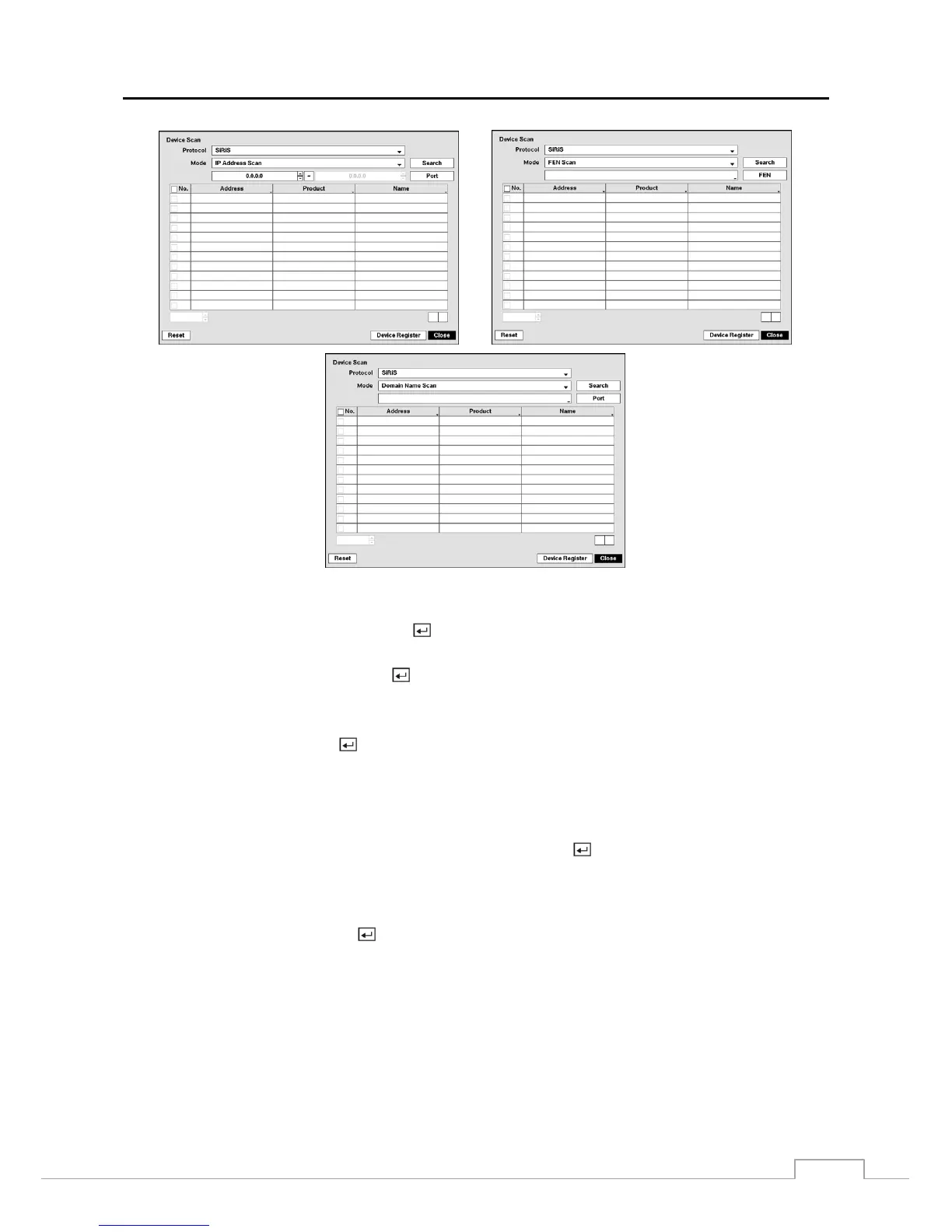
Selecting Auto Scan (LAN) from Mode scans network devices automatically.
Selecting IP Address Scan from Mode scans network devices by entering a specific IP address or adjusting the IP
address range. Highlighting Port and pressing the
button allows you to set the port number used for remote monitoring.
Selecting FEN Scan from Mode scans network devices by entering the IP address or domain name of the network
device. Highlighting FEN and pressing the
button allows you to set the port number of the FEN server.
NOTE: For the FEN Scan feature to work, the network device should be registered on the FEN server.
Selecting Domain Name Scan from Mode scans network devices by entering the domain name of the network device.
Highlighting Port and pressing the
button allows you to set the port number used for remote monitoring.
NOTE: For the Domain Name Scan feature to work, the DNS server should be configured during Network – IP
Address setup.
Using the IP Address Scan, you can search for a network device that cannot be searched for using the
Auto Scan (LAN) mode.
After selecting the desired scan mode, highlighting Search and pressing the button, the system searches for network
devices and displays them in the list. Selecting Reset allows you to delete the search results list.
NOTE: Depending on the model of network device, the device may not be supported even though the DVR supports
the device's protocol. Ask your dealer or distributor about supported device models.
Highlight Device Register and press the button to register the selected network device(s) from the list. An Authentication
screen appears. Setting up the Authentication is required to register the network device to the DVR.
NOTE: If the IP address range of the device is different from that of the DVR, a setup screen appears allowing
you to change the device’s IP address. (Changing the device’s IP address when registering the network
device to the DVR is supported for some network devices using the SiRiS protocol.)



 To Next Page