33
Starting a Job
Start Job
After the unit has been setup, position the vehicle in the field where the job will
begin, when ready press Start Job from the Home Screen.
This launches the ‘Start Job Wizard’ which will guide through the steps for
starting a job :-
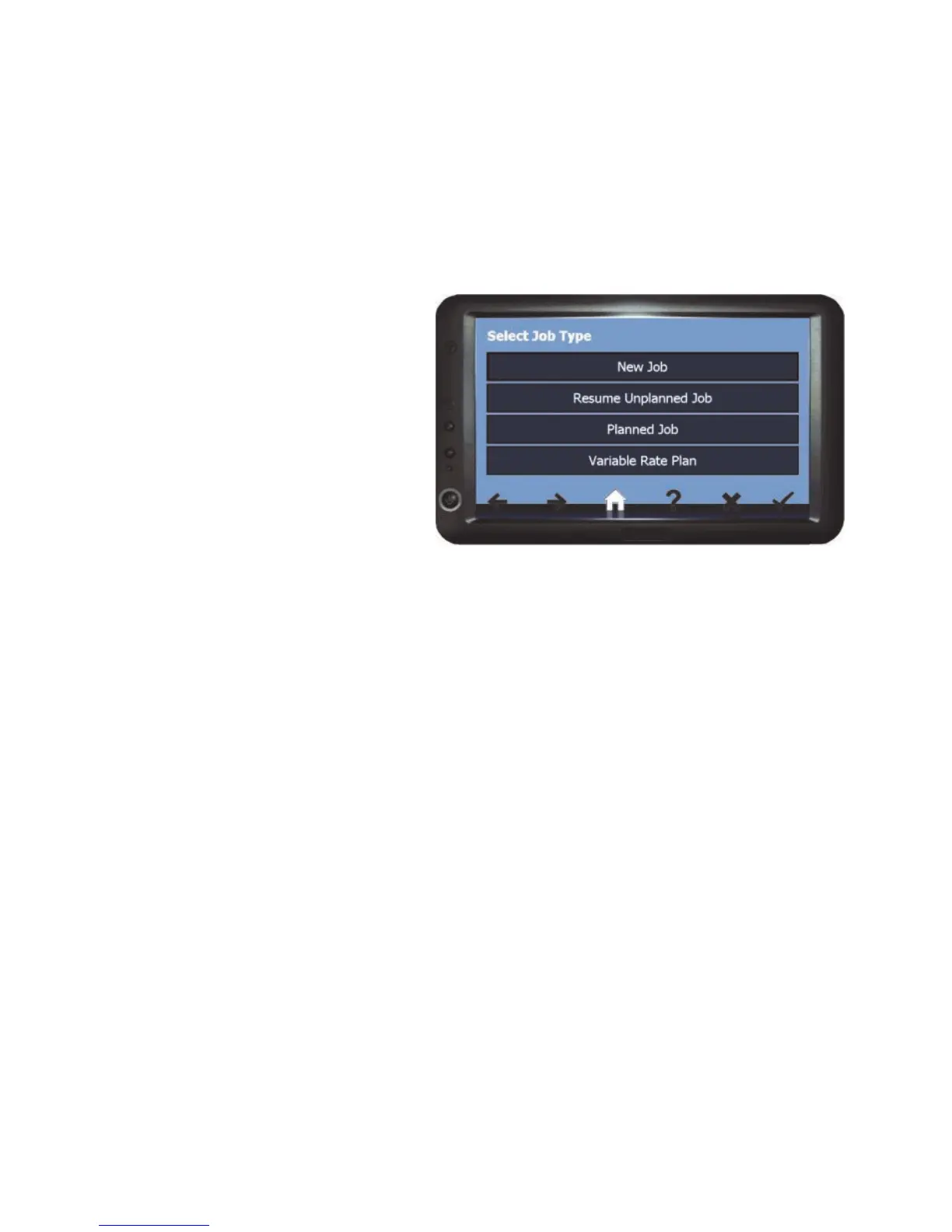
Firstly a Job Type will need to be
select. The job types that are
displayed will depend on whether
a relevant file type is on the
memory card.
New Job - Select to begin a
guidance job with or without recording (also with auto shut off if available) and /
or new boundary job (area measurement). See page 34 for the steps once
selected.
Resume Unplanned Job - This option will only appear if a ’New Job’ has been
paused and is stored on the BlackBox memory card. Use this option when
continuing a paused ‘New Job’. See page 35 for the steps once selected.
Planned Job - When there are plan files on the BlackBox memory card from a
Farm Management Software program this option will be displayed and is used to
open the Farm Management plans on the BlackBox. See page 35 for the steps
once selected.
Note - If a ‘Planned Job’ is paused it can be resumed by re-opening the
plan.
Variable Rate Plan - For this option to appear the VRT software module needs
to be unlocked and variable rate files in the relevant folder on the BlackBox
memory card. Select this option when doing a variable rate application job. See
Quick Start Guide labelled ‘VRT and Auto Shut Off’ supplied with the VRT
Software for the steps on loading a plan.
Note - If a ‘Variable Rate Plan’ is paused it can be resumed by re-opening
the plan.



 To Next Page