13
Unit Setup
Overview
Navigation Bar
On various screens within the BlackBox software a Navigation Bar will appear
across the bottom of the screen. It allows the user to move back and forth
between setup screens when entering details and settings.
If any of the icons appear black they have no function on the current setup
screen.
Entering details and settings
When using the BlackBox there will be a requirement to enter information or
select an option from a list to continue. This will occur in the menus or when
starting a job and there are Four different input methods:-
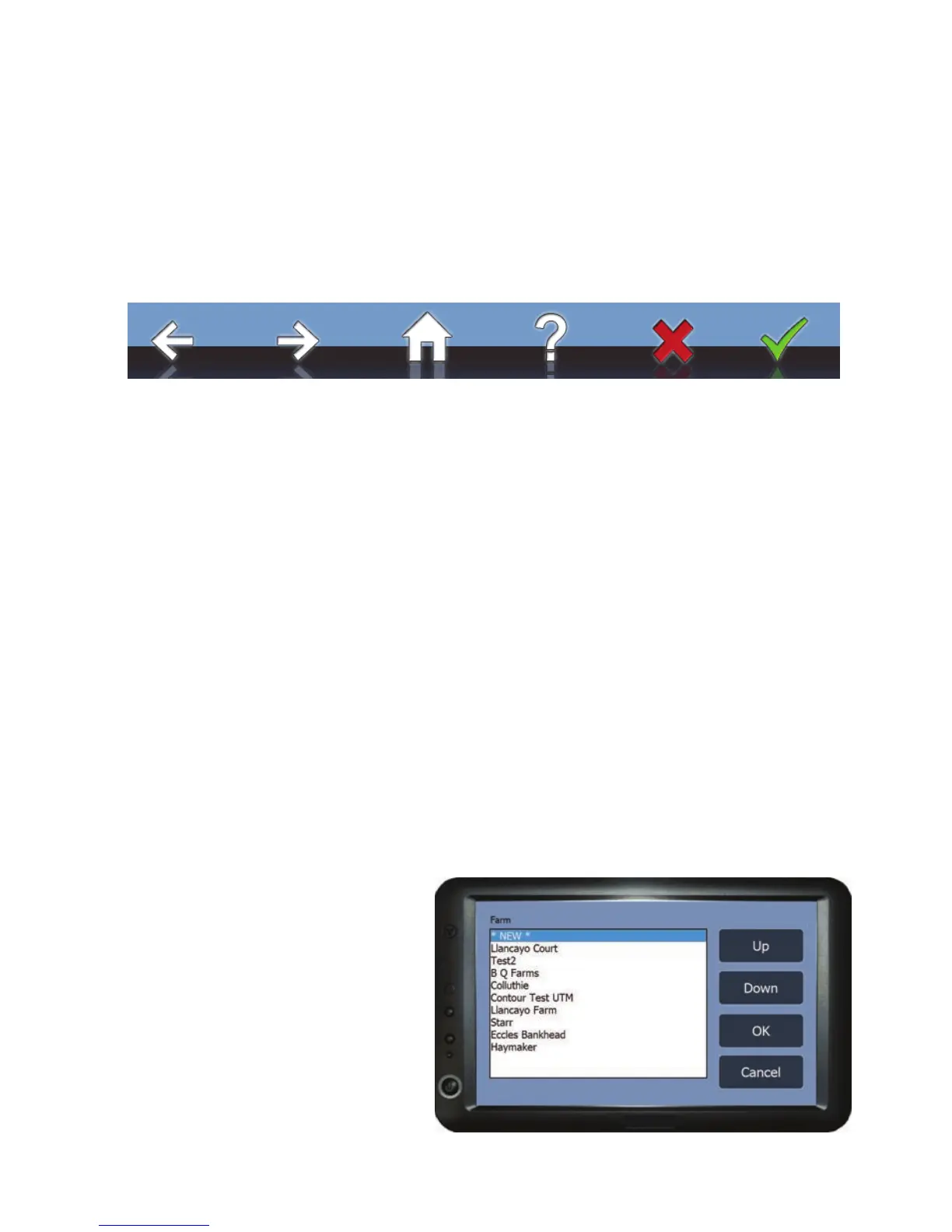
Selection list
Some of the selection lists are predefined in the BlackBox, others can be setup
by the user on WebTrack in the My Units Setup section (see page 49 for
details). The selection lists that can be setup by the user have a *NEW* option
which if selected will open the text entry screen so the information can be
entered manually (see ‘Text Entry’ on page 14 for more details).
To use the Selection List firstly
highlight the option in the list by
pressing on it or use the Up and
Down buttons. Once the desired
option is highlighted set it by
pressing OK. To exit the selection
screen without making changes
press Cancel.
Previous Next Home Information
Cancel Confirm



 To Next Page