37
Job Screen
Overview
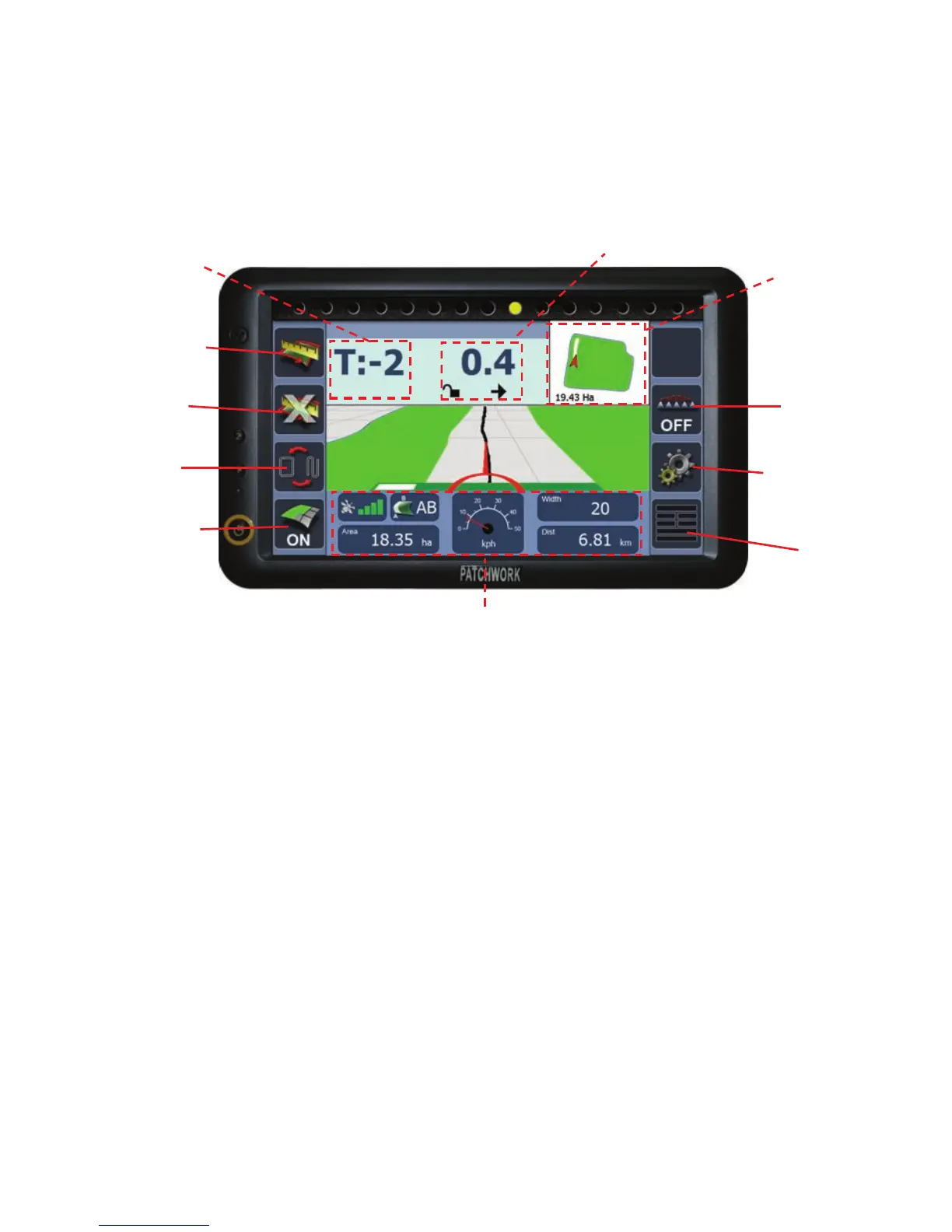
The Job screen uses a 3D guidance view to display area covered, guide lines
and off track information.
Start/Pause
Boundary
End
Boundary
Toggle
Guidance
Recording
On/Off
*Purge
On/Off
*Purge
Settings
Menu
Lock / Unlock
Information Panel
Start/Pause Boundary - Starts and
pauses a field boundary map job, see
page 40 for details.
End Boundary - Manually closes a
field boundary map, see page 41 for
details.
Toggle Guidance - Switches between
AB line and Headland guidance. The
‘Guidance Line Number’ will display
‘T:’ for AB line and ‘H:’ for Headland.
Recording On/Off - Displays the
current status of the Coverage Area
Recording and pressing switches it on/
off (if the On/Off method is set to ‘On
Screen’ see page 28).
Lock / Unlock - Locks / Unlocks the
current guidance line. In AB line mode
the line is automatically unlocked
when turning greater than 60 degrees.
Mini Map - Displays a 2D overview of
the field boundary and area covered.
N.B. If using Headland Warning (see
page 23) the mini map needs to be
hidden (see Menu below)
Menu - Opens the job screen options,
see page 39 for details.
Information Panel - Displays various
information relating to the system and
the current job, see page 38 for
details.
Mini Map
*Only available when
using section control
Guidance Line Number



 To Next Page