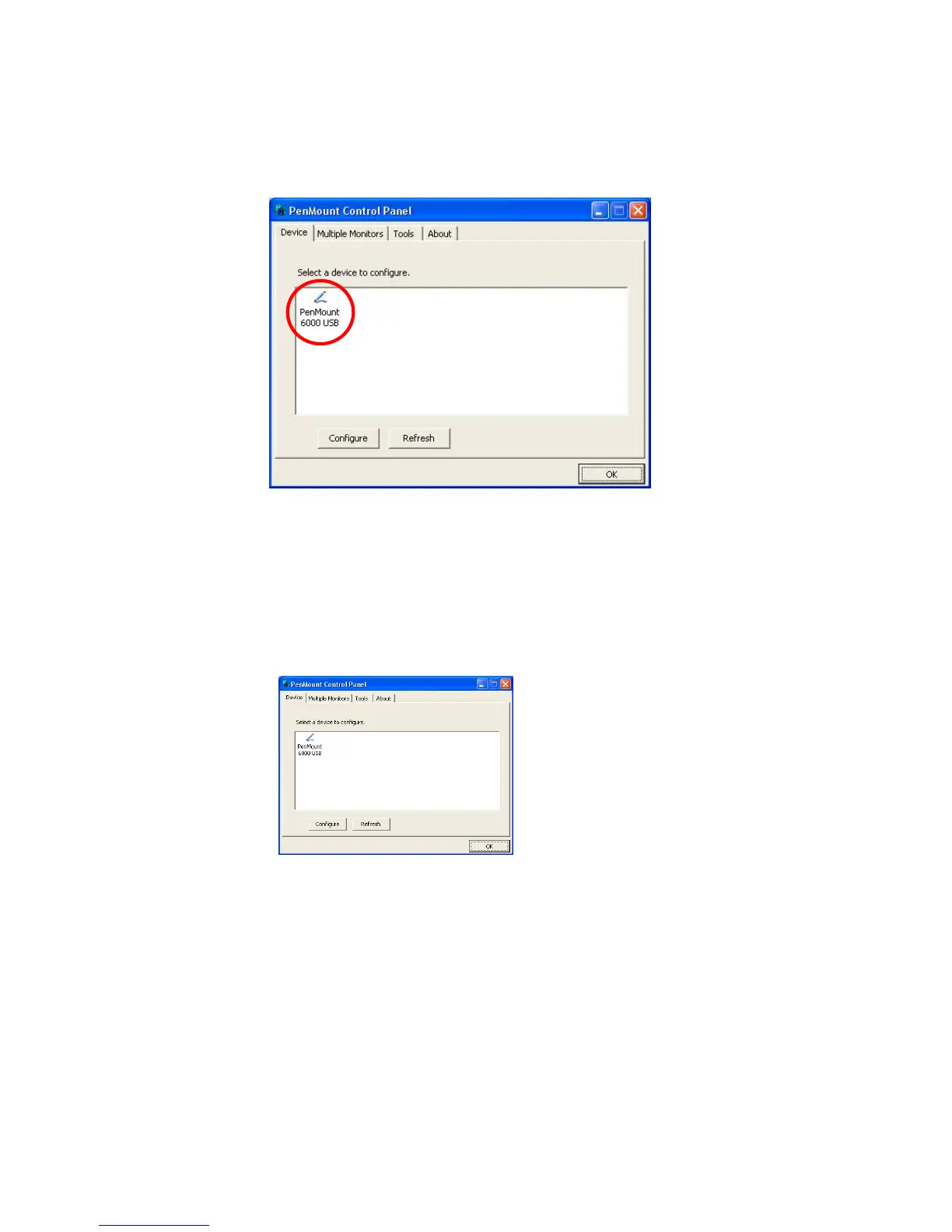
Installing Drivers for 6000 Boards
PenMount Control Panel
opens. You will be able to see the icon of PenMount
6000 USB under
Device
tab. In
Device
tab, you can see the devices detected
on your system. Select a device and press the
Configure
button to configure
it.
3.2.3.1 PenMount Control Panel
This section will guide you to the functions of PenMount Control Panel such
as Device, Calibrate, Setting, Multiple Monitors ,Tools and About.
Device
In this window, you can find out how many devices are detected on your
system.
Calibrate
This function offers two ways to calibrate your touchscreen. ‘Standard
Calibration’ adjusts most touchscreens while ‘Advanced Calibration’
adjusts aging touchscreens.
Standard Calibration
Click this button and arrows appear pointing to red
squares. Use your finger or stylus to touch the red
squares in sequence. After the fifth red point
calibration is complete. To skip, press ‘ESC’.
Advanced
Calibration
Advanced Calibration uses 9, 16 or 25 points to
effectively calibrate touch panel linearity of aged
touchscreens. Click this button and touch the red



 To Next Page