EasyManua.ls Logo

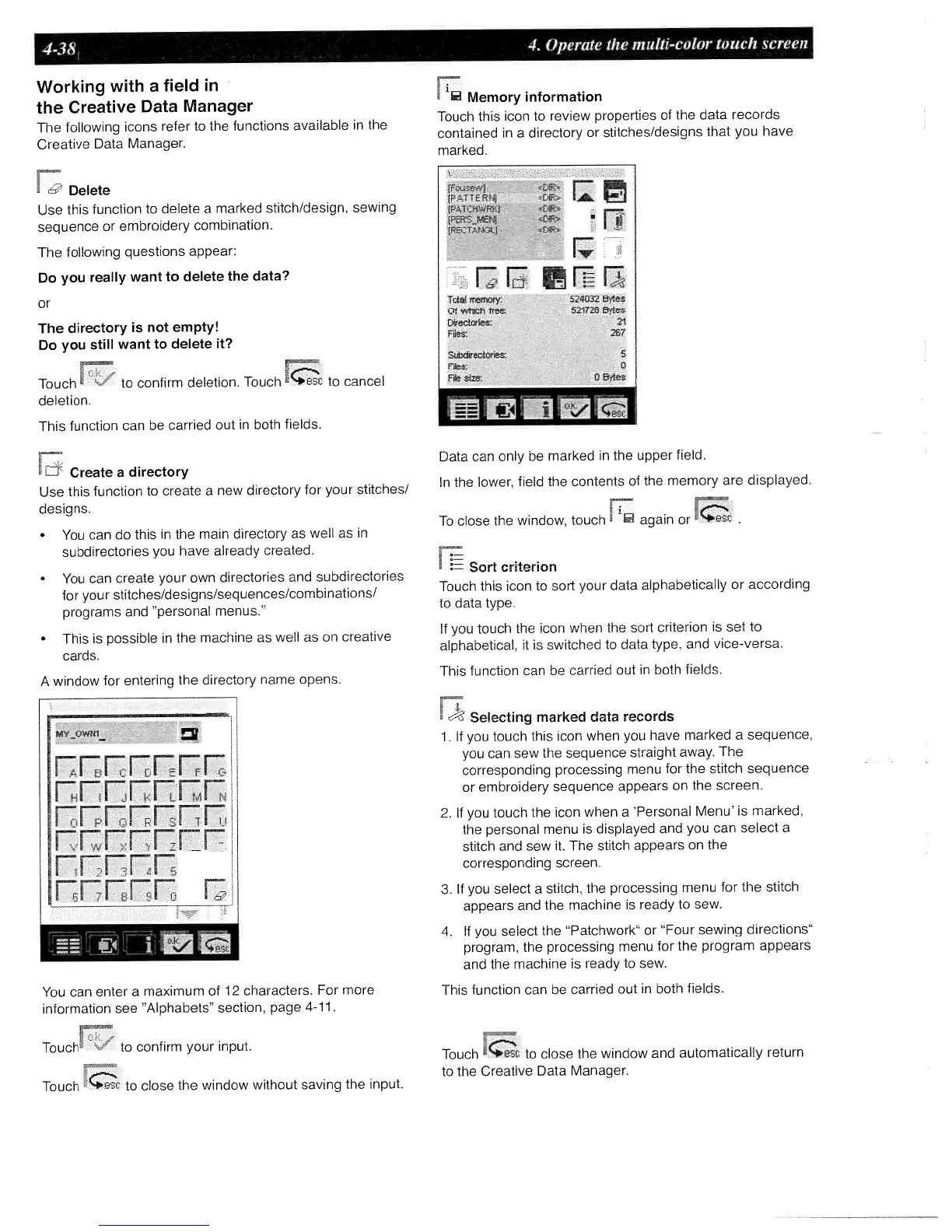
Pfaff Creative 2140 - Working with a Field in the Creative Data Manager; Create a Directory; Memory Information; Selecting Marked Data Records

Pfaff Creative 2140
191 pages
Print Icon
To Next Page IconTo Next Page
To Previous Page IconTo Previous Page
Loading...
4-38
4.
Operate
the
multi-color
touch
screen
Working
with
a
field
in
the
Creative
Data
Manager
The
following
icons
refer
to
the
functions
available
in
the
Creative
Data
Manager.
ô’
Delete
Use
this
function
to
delete
a
marked
stitch/design,
sewing
sequence
or
embroidery
combination.
The
following
questions
appear:
Do
you
really
want
to
delete
the
data?
or
The
directory
is
not
empty!
Do
you
still
want
to
delete
it?
Touch
to
confirm
deletion.
Touch
to
cancel
deletion.
This
function
can
be
carried
out
in
both
fields.
Li
Create
a
directory
Use
this
function
to
create
a
new
directory
for
your
stitches/
designs.
You
can
do
this
in
the
main
directory
as
well
as
in
subdirectories
you
have
already
created.
You
can
create
your
own
directories
and
subdirectories
for
your
stitches/designs/sequences/combinations/
programs
and
“personal
menus.”
This
is
possible
in
the
machine
as
well
as
on
creative
cards.
A
window
for
entering
the
directory
name
opens.
You
can
enter
a
maximum
of
12
characters,
For
more
information
see
“Alphabets”
section,
page
4-11.
Touch
to
confirm
your
input.
Touch
to
close
the
window
without
saving
the
input.
Memory
information
Touch
this
icon
to
review
properties
of
the
data
records
contained
in
a
directory
or
stitches/designs
that
you
have
marked.
-CAP
tPA,TTEFA]
[A
....
fPATHiJ<
lP
4iif
01
IPET
C
r
rrr
Total
memory
524032
Bytes
Of
which
free
521728
Bytes
Directorie
I
FlIes:
67
Subdirect
nez
Files
3
File
size.
0
591
1LI:
Data
can
only
be
marked
in
the
upper
field.
In
the
lower,
field
the
contents
of
the
memory
are
displayed.
To
close
the
window,
touch
again
or
Sort
criterion
Touch
this
icon
to
sort
your
data
alphabetically
or
according
to
data
type.
If
you
touch
the
icon
when
the
sort
criterion
is
set
to
alphabetical,
it
is
switched
to
data
type,
and
vice-versa.
This
function
can
be
carried
out
in
both
fields.
Selecting
marked
data
records
1.
If
you
touch
this
icon
when
you
have
marked
a
sequence,
you
can
sew
the
sequence
straight
away.
The
corresponding
processing
menu
for
the
stitch
sequence
or
embroidery
sequence
appears
on
the
screen.
2.
If
you
touch
the
icon
when
a
‘Personal
Menu’
is
marked,
the
personal
menu
is
displayed
and
you
can
select
a
stitch
and
sew
it.
The
stitch
appears
on
the
corresponding
screen.
3.
If
you
select
a
stitch,
the
processing
menu
for
the
stitch
appears
and
the
machine
is
ready
to
sew.
4.
If
you
select
the
“Patchwork”
or
‘Four
sewing
directions”
program,
the
processing
menu
for
the
program
appears
and
the
machine
is
ready
to
sew.
This
function
can
be
carried
out
in
both
fields.
Touch
to
close
the
window
and
automatically
return
to
the
Creative
Data
Manager.
hW
OWNI
rrEE.rFr
rnErEElr
FrrFEEF
Errr
r

Table of Contents

Related product manuals