E9480UD_EN.qx3 04.7.22 8:26 PM Page 39 (}
Still Picture/Frame-by-Frame Play, Sound 39
Still Picture/Frame-by-frame Play
To quickly pause play, press PAUSE on the remote. To advance the still pic-
ture one frame at a time, press PAUSE repeatedly.To resume play, press
PLAY I_.
To fi'eeze the picture using the Menu Bar, follow these steps,
®;Before you begin, make sure the Recorder is in DVD mode. Press DVD so
the DVD light appears on the fi'ont of the Recorde_:
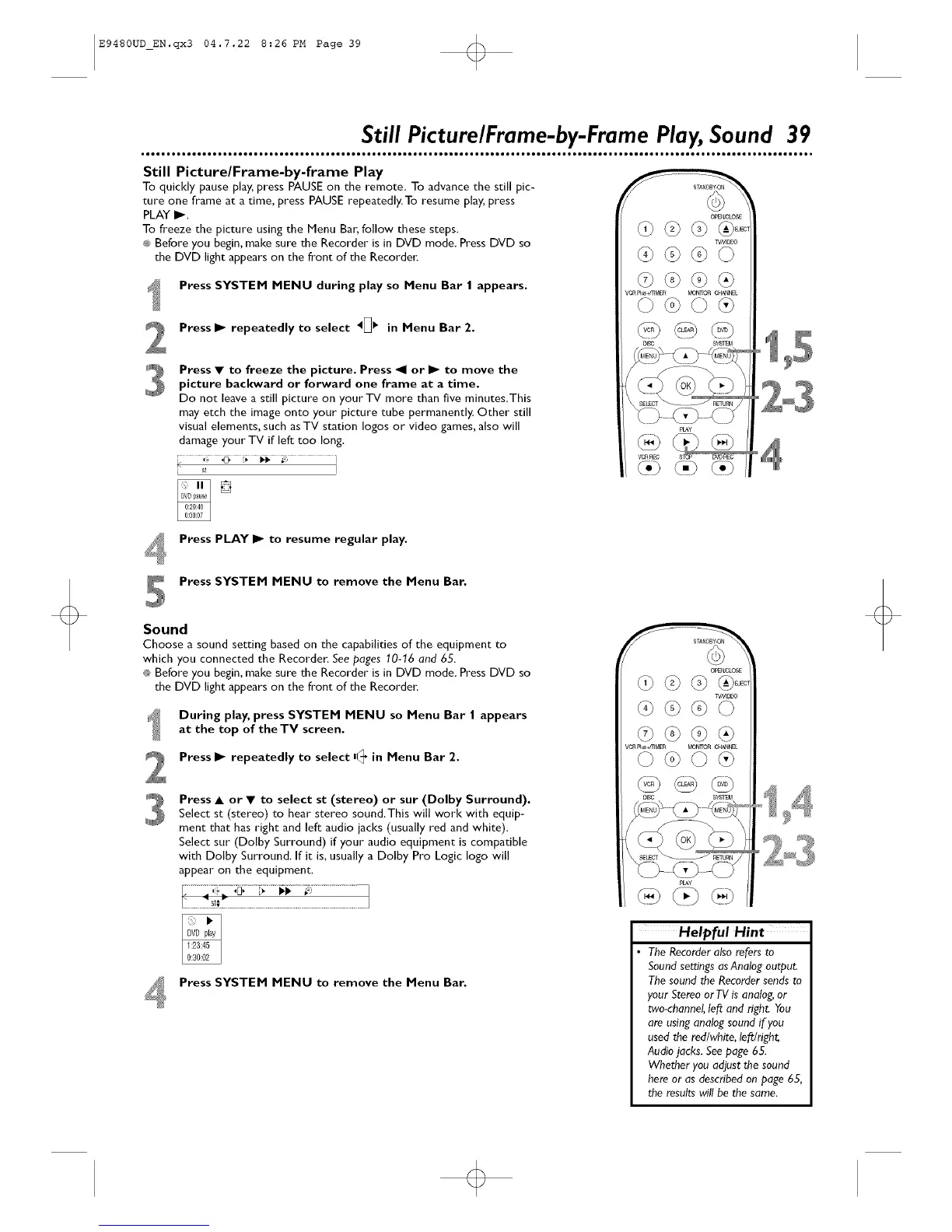
Press SYSTEM MENU during play so Menu Bar | appears.
Press I_ repeatedly to select 4_1_ in Menu Bar 2.
Press • to freeze the picture. Press _1 or I_ to move the
picture baclovard or forward one frame at a time.
Do not leave a still picture on your TV more than five minutes, This
may etch the image onto your picture tube permanently. Other still
visual elements, such as TV station loges or video games, also will
damage your TV if left too long.
[]
_E_O_
?¢N_O
@@@@
VCR P]_ _l_R _N_ C_L
©@©@
@@@
pLAy
VOR_C
Press PLAY I_ to resume regular play,
Press SYSTEM MENU to remove the Menu Bar.
Sound
Choose a sound setting based on the capabilities of the equipment to
which you connected the Recorder. See pages 10-16 and 65.
_ Before you begin, make sure the Recorder is in DVD mode. Press DVD so
the DVD light appears on the front of the Recorder:
During play, press SYSTEM MENU so Menu Bar I appears
at the top of the TV screen.
Press I_ repeatedly to select n_, in Menu Bar 2.
Press • or • to select st (stereo) or sur (Dolby Surround).
Select st (stereo) to hear stereo sound,This will work with equip-
ment that has right and left audio iacks (usually red and white).
Select sur (Dolby Surround) if your audio equipment is compatible
with Dolby Surround. If it is, usually a Dolby Pro Logic logo will
appear on the equipment.
Press SYSTEM MENU to remove the Menu Bar.
O_E_'JLOSE
?¢NB_O
@@@Q
@@@@
VCR Fl_44]MER MONITOR CHANNEL
©@©@
Helpful Hint
The Recorder als0 refers to
Sound settings as Analog output.
The sound the Recorder sends to
your Stereo orTV is analog, or
two-channel, left and right. You
are using analog sound if you
used the red/white, left/right,
Audiojacks. Seepage 65.
Whether you adjust the sound
here or as described on page 65,
the results wil! be the same.
o








 To Next Page