E9480UD_EN.qx3 04.7.22 8:26 PM Page 66 <_
66 Language Settings
In the Language menu, select a different language for the Audio soundtrack
or Subtitles of a DVD. O_; change the language of the Recorder's System
Menu.You also can determine whether you receive TV channels in Stereo
or a Second Audio Program language by following these steps.
_* Before you begin, make sure the Recorder is in DVD mode. Press DVD so
the DVD light appears on the front of the Recorde_:
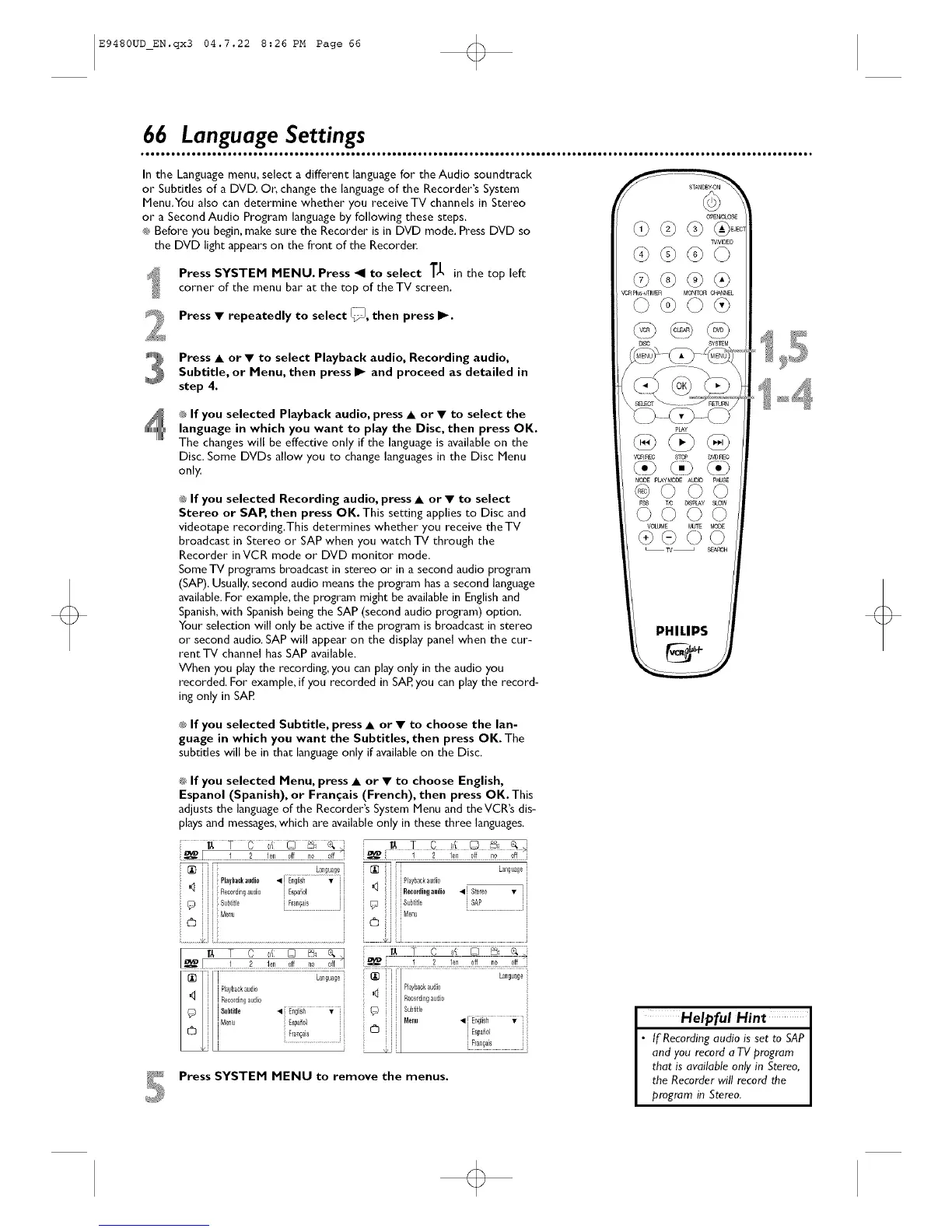
Press SYSTEM MENU. Press _1 to select T_, in the top left
corner of the menu bar at the top of the TV screen,
2
Press • repeatedly to select [_, then press II_.
Press • or • to select Playback audio, Recording audio,
Subtitle, or Menu, then press I_ and proceed as detailed in
step 4.
® If you selected Playback audio, press • or • to select the
language in which you want to play the Disc, then press OK.
The changeswill be effective only if the language is available on the
Disc. Some DVDs allow you to change languages in the Disc Menu
only.
® If you selected Recording audio, press • or • to select
Stereo or SAP, then press OK. This setting applies to Disc and
videotape recording, This determines whether you receive the TV
broadcast in Stereo or SAP when you watch TV through the
Recorder inVCR mode or DVD monitor mode.
SomeTV programs broadcast in stereo or in a second audio program
(SAP), Usually, second audio means the program has a second language
available, For example, the program might be available in English and
Spanish,with Spanish being the SAP (second audio program) option.
Your selection will only be active if the program is broadcast in stereo
or second audio. SAP will appear on the display panel when the cur-
rent TV channel has SAP available.
When you play the recording, you can play only in the audio you
recorded, For example, if you recorded in SAP,you can play the record-
ing only in SAP
pLAy
VOR_C STCO DVDt_O
MODE pLAYMODE AUDD pAU_
@©©©
VOLUME MUlE MODE
@@©©
PHILIPS
t# If you selected Subtitle, press • or • to choose the lan-
guage in which you want the Subtitles, then press OK. The
subtitles will be in that language only if available on the Disc,
® If you selected Menu, press • or • to choose English,
Espanol (Spanish), or Fran_ais (French), then press OK. This
adjusts the language of the Recorder's System Menu and theVCR's dis-
plays and messages,which are available only in these three languages,
[_ Lallguage [_ Lallguage
i Playbookuudi0 • Eng]isil................_ .... _ Playbackaudio
i Reo0rding audio i Espafiol i i i i Reoo.ling audio •J Stereo • i
(_ i Subtige Rangais _ ; i Subtige i SAP i
Me u _ i Me_u ..................................
..................................................................................................i
La_guage
i gfa_gais [[
i E_pa_ol
Press SYSTEM MENU to remove the menus.
I Helpful Hint
• If Recording audio is set to SAP
and you record a TV program
that is available only in Stereo,
the Recorder will record the
program in Stereo.






 To Next Page