E9480UD_EN.qx3 04.7.22 8:26 PM Page 65 <_
Analog Output 65
If you connected the Recorder's white/red AUDlO OUT L/Rjacks to a Stereo or
TV as shown on pages 12-15, choose a setting for Analog Output.
Check your Stereo orTV and see if it is compatible with Dolby Surround,
Then follow the steps below to choose the Analog Output setting that is
most compatible with your Stereo or TV.
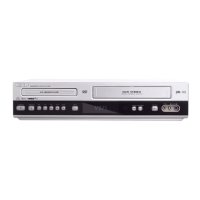
_* Before you begin, make sure the Recorder is in DVD mode, Press DVD so
the DVD light appears on the front of the Recorden
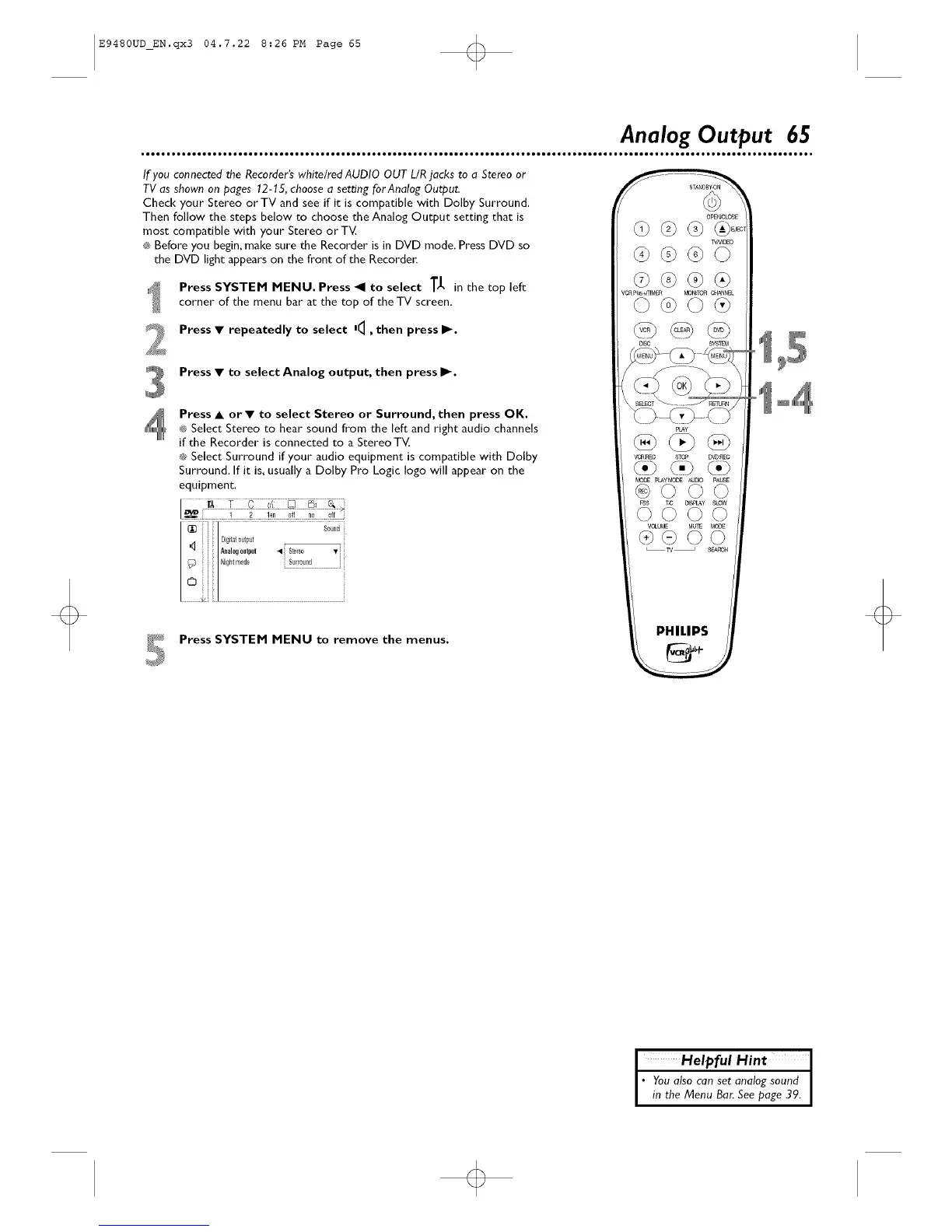
Press SYSTEM MENU. Press _1 to select T_, in the top left
corner of the menu bar at the top of the TV screen,
Press • repeatedly to select '4 , then press II-.
Press • to select Analog output, then press I1-.
Press • or • to select Stereo or Surround, then press OK.
® Select Stereo to hear sound from the left and right audio channels
if the Recorder" is connected to a Stereo TV,
_ Select Surround if your audio equipment is compatible with Dolby
Surround. If it is, usually a Dolby Pro Logic logo will appear" on the
equipment.
_ Press SYSTEM MENU to remove the menus.
pLAy
VORREC STO_ DVDt_O
<,><.>
pLAy MODE AUtO pAUSE
@©©©
VCWME MUTE MODE
@@©©
PHILIPS
I Helpful Hint I
• Youalsocanset analogsound I
in the Menu Bar.Seepage39. I
o



 To Next Page