Step-by-step development of an example project
105724_en_01 PHOENIX CONTACT 63
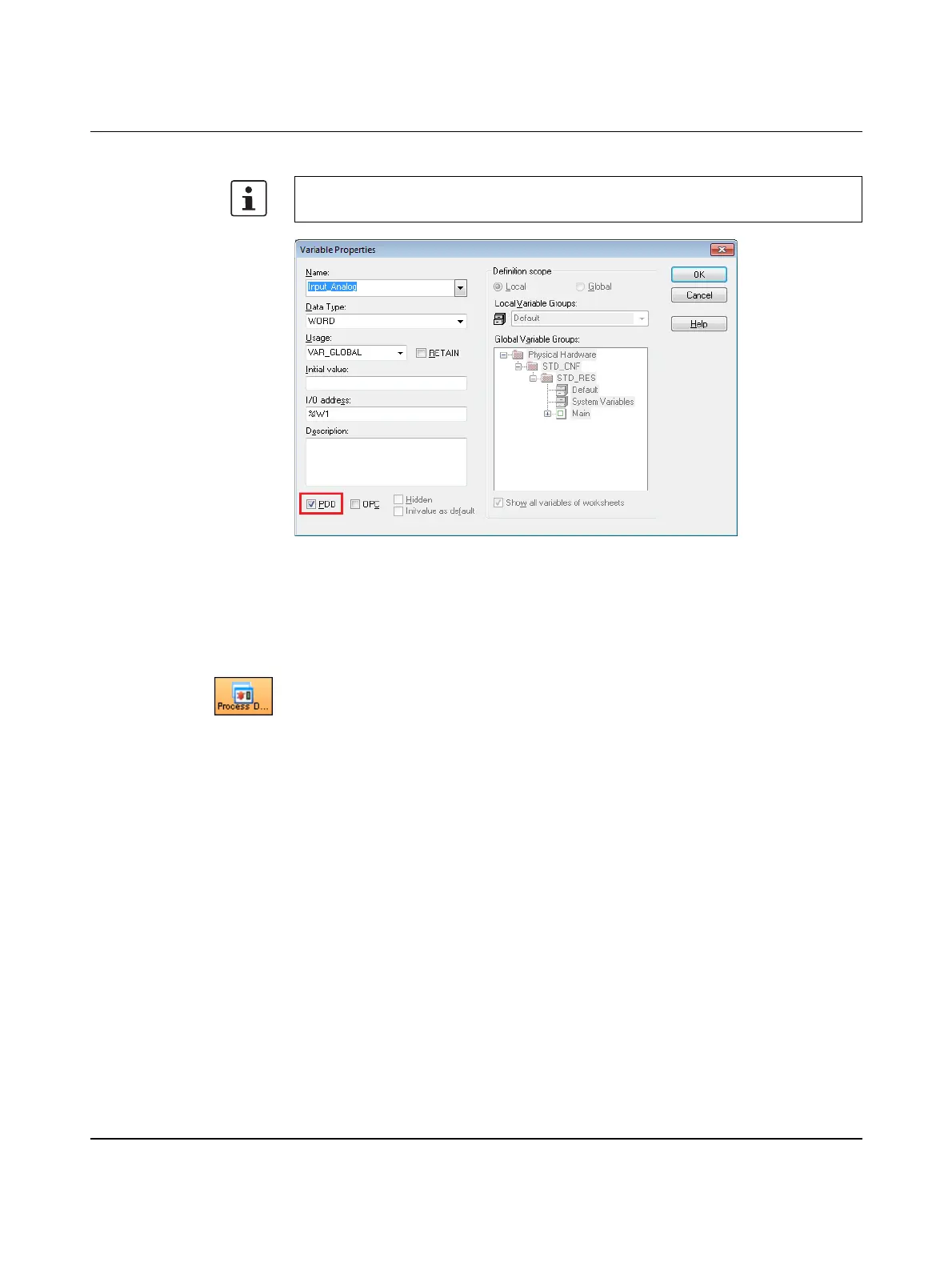
• Select the “PDD” checkbox.
Figure 5-45 Variable Properties (analog value)
• Confirm your entries by clicking on “OK”.
• Insert the “Output_Analog” variable.
• Connect both variables according to Figure 5-44 on page 62.
Assigning process data Process data and control variables are assigned in the Process Data workspace.
• Switch to the Process Data workspace.
Link the process data from the analog input terminal to the “Input_Analog” variable (see
Figure 5-46 on page 64).
• Click on the controller in the top right window. The standard configuration is displayed
in the top left window (“Symbols/Variables”).
• In the top left window, “Symbols/Variables”, click on the “STD_RES : ILC131_42”
resource.
• In the top right window, click on the device for which you would like to link the process
data to variables (here: IB IL AI 2/SF-ME).
• Click on the process data item to be linked (here: terminal point 1.1).
Since the “Input_Analog” variable was created as a global variable (VAR_GLOBAL), it is
displayed in the bottom left window.
• Use drag and drop to link the selected “terminal point 1.1” process data item to the
“Input_Analog” variable.
• Place the selected process data item on the “Input_Analog” variable.
When the “PDD” checkbox is activated, process data is transferred to visualization
programs (WebVisit in the example). The process data is transferred using a CSV file.



 To Next Page