PicoQuant GmbH HydraHarp 400 Software V. 3.0.0.1
Monochromator Initialization
Before use, the monochromator must be initialized. This means, it has to seek its mechanical reference
position (determined by a micro switch). Physical calibration values are kept in a monochromator configuration
file (monochromator.cfg) which is generated by the system supplier at the time of delivery. Do not edit this file
unless you have exact instructions for doing so.
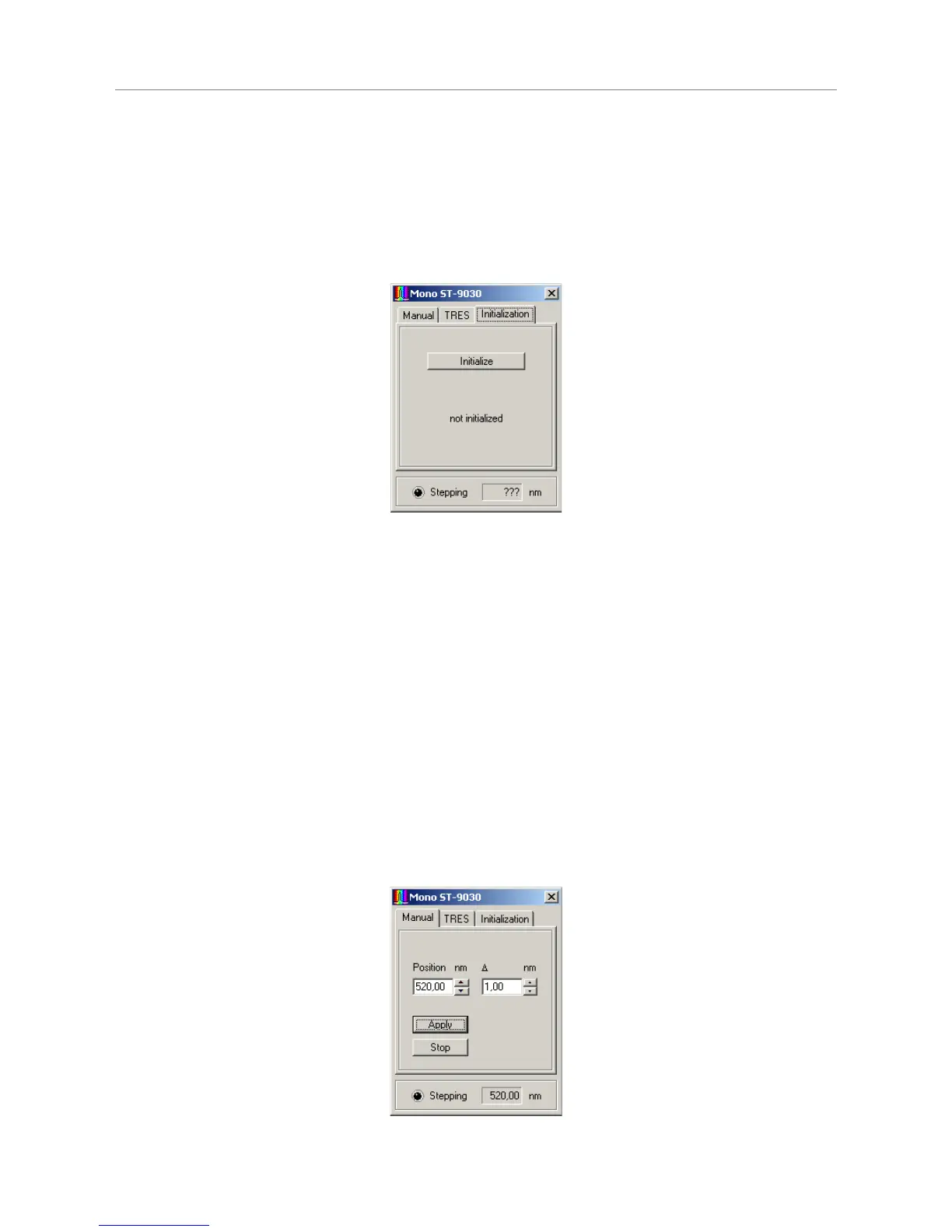
Position initialization is required each time the software is started. It can be controlled on the Initialization page
of the dialog. At first startup the dialog shows the state "not initialized". This means the software has no infor -
mation about the current monochromator / stepper position.
The position initialization is started by the Initialize button. If the initialization is running, the caption of the
button will change to Stop and the LED will start flashing. You should also hear the stepper motor. If the
initialization is successful, the string "not initialized" will change to "Initialization OK", otherwise it will change to
"Initialization failed!". In this case, check cabling and power supply of the system. This may happen if either the
Stop button was pressed or an error occurred during the initialization process. The Manual and TRES pages
will not be available unless the initialization was successfully performed. If for any reason the initialization
becomes invalid (e.g. if the monochromator was turned manually and subsequently accidentally reached the
end point switch) the Initialization page will be activated and access to the Manual and TRES pages will be
blocked.
Manual Monochromator Control
The Manual page of the dialog can be used to position the monochromator manually at a given wavelength.
The desired position can be entered in the Position edit box. Clicking Apply or Pressing <Enter> will cause the
monochromator to move to the specified position. Alternatively, the spin buttons right to the edit box can be
used to modify the position. The step width of this action is defined in the D (delta) edit box. Pressing arrow
buttons will make the change take effect immediately; entering values by keyboard require pressing Apply or
<Enter> to show an effect.
Page 37


 To Next Page