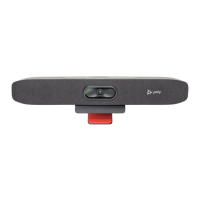
Video Calls on Poly Trio Systems
Topics:
• Tips for Video Calls
• Video Call Settings
• Place a Video Call
• Stop Sending Video
• Start Video During an Audio Call
• Adjust the Camera Position During a Call
• Adjust Video Quality
• Adjust Camera Tracking Settings
• Switch Between Video and Content during Video Calls
• Handling a Mixture of Audio and Video Calls
• Camera Presets on Poly Trio Systems
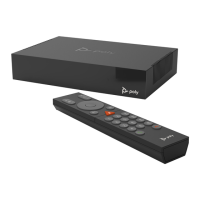
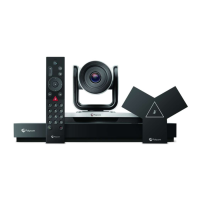
When your Poly Trio system is paired with a Poly Trio Visual+, Trio VisualPro, or RealPresence Group
Series system, you can send and receive video.
Poly Trio system support for the Poly Trio Visual+ and VisualPro systems varies by model:
• You can pair any Poly Trio system with a Poly Trio Visual+ system.
• You can pair a Poly Trio 8500 or Poly Trio 8800 system with a Poly Trio Visual+ or VisualPro
system. The Poly Trio 8300 system does not support the Trio VisualPro system.
Poly Trio systems support the following cameras when paired with a Poly Trio Visual+:
• Polycom
®
EagleEye
™
Mini USB camera
• Polycom
®
EagleEye
™
IV USB camera
• Polycom
®
EagleEye
™
Cube USB camera
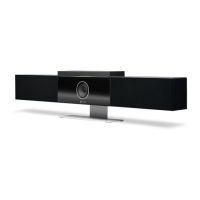
• Polycom Studio camera
• Logitech C930e webcam
Poly Trio systems support the following cameras when paired with a Trio VisualPro or RealPresence
Group Series system:
• Polycom
®
EagleEye
™
IV camera
• Polycom
®
EagleEye
™
Director II camera
• Polycom
®
EagleEye
™
Producer camera
• Polycom
®
EagleEye
™
Acoustic camera
If you do not have a camera connected to your paired device when you receive video during calls, you
can see your contact’s video but they cannot see video from you.
Related Information
39


 To Next Page