EasyManua.ls Logo

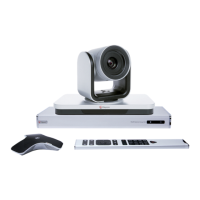
Polycom realpresence group series - User Manual

Polycom realpresence group series
113 pages
Print Icon
To Next Page IconTo Next Page
Loading...
5.1.0 | February 2016| 3725-63715-008A
USER GUIDE
Polycom RealPresence Group
Series

Table of Contents

Other manuals for Polycom realpresence group series

Questions and Answers

  • A
    Anthony CainAug 15, 2025
    How to configure the second monitor on the Polycom Conference System?
    • K
      Kevin HillAug 15, 2025
      If the second monitor is blank, the room system may not be configured for more than one monitor. Go to Admin Settings > Monitors and configure the second monitor to Auto or Manual.
  • J
    jjacksonAug 18, 2025
    What to do if the Polycom realpresence group Conference System remote control is not responding?
    • S
      stephanie87Aug 18, 2025
      If the Polycom Conference System remote control isn't responding, it could be due to several reasons. First, ensure the remote control battery is charged. If that doesn't work, the room lights might be interfering with the remote control signals; try turning them off. Finally, if a touch control device is paired, unpair it, as only one device can be paired at a time.
  • R
    ramirezjesusAug 21, 2025
    What to do if the Polycom realpresence group monitor remains blank after waking up the system?
    • A
      Amanda CunninghamAug 21, 2025
      If the monitor remains blank after you pick up the remote control, check if the monitor is powered on and the power cord is correctly plugged in. Also, verify that the monitor is correctly connected to the room system according to the setup sheet you received with the system.
  • A
    Audrey MasonAug 25, 2025
    Why is the Polycom Conference System picture blank on the main monitor?
    • A
      amandaandersonAug 25, 2025
      If the picture is blank on the main monitor, the room system might be sleeping due to inactivity. Pick up the remote control to wake up the system.
  • A
    Anthony RussellAug 27, 2025
    Why Polycom Conference System cannot make calls?
    • S
      Shelley PetersAug 27, 2025
      If your Polycom Conference System cannot make calls, it might be because the number dialed is incorrect. Ensure that you have dialed the correct number and try the call again.
  • C
    Crystal VargasAug 30, 2025
    What to do if having problems making video calls on Polycom realpresence group Conference System?
    • A
      Anthony SandovalAug 30, 2025
      If you are experiencing issues with video calls on your Polycom Conference System, call a Polycom video site to test your setup.
  • C
    Claire HowardSep 2, 2025
    What to do if no signal indication appears for a specific microphone on Polycom Conference System?
    • G
      Gail ThompsonSep 2, 2025
      If you see no signal indication for a specific microphone on your Polycom Conference System, the EagleEye Director might not be functioning properly. Manually power off the EagleEye Director and then power it back on.
  • A
    ashley19Sep 5, 2025
    What to do if Polycom realpresence group Conference System cannot receive calls?
    • S
      Shane StevensSep 6, 2025
      To resolve the issue of your Polycom Conference System not receiving calls, make sure that your system is configured with the correct number.
  • C
    Cameron HuffmanSep 8, 2025
    How to test and verify Polycom Conference System functionality?
    • T
      Tammy PerezSep 8, 2025
      To test and verify the functionality of your Polycom Conference System, use the system diagnostics features such as Near End Loop, PING, Trace Route, Color Bars, Speaker Test, and Audio Meter.
  • M
    Mallory SmithSep 12, 2025
    Why color bars generated during the test are not clear, or the colors do not look correct on Polycom realpresence group Conference System?
    • M
      Michelle WilsonSep 12, 2025
      If the color bars generated during the test on your Polycom Conference System are not clear, or the colors do not look correct, the monitor needs to be adjusted.

Summary

Before You Begin

Introduction and Support

Defines the guide's audience, purpose, and provides access to help, partner solutions, and community forums.

Getting Started with Polycom RealPresence Group Series

System Power and Health Checks

Covers powering the system on/off and performing crucial system health checks.

Using the Polycom RealPresence Group Series Remote Control

Remote Control Overview and Maintenance

Details remote control buttons, battery charging, and system wake-up procedures.

Contacts and Directory Management

Explains managing contacts, viewing presence states, and browsing the global directory.

Call Initiation and Handling

Covers initiating calls via various methods and managing active and incoming calls.

Polycom realpresence group series Specifications

General IconGeneral
Video StandardsH.264, H.263, H.264 High Profile
Audio StandardsG.711, G.728
Content SharingPeople+Content
NetworkH.323, SIP
SecurityAES encryption
Video InputHDMI
Video OutputHDMI
Audio InputHDMI
Audio OutputHDMI
Audio FeaturesNoise Reduction, Automatic Gain Control
ConnectivityEthernet
PortsEthernet, HDMI
CompatibilityMicrosoft Lync / Skype for Business, BlueJeans, Zoom

Related product manuals