33
•Before ying, ensure your mobile device is fully charged. Even though the remote controller can
recharge the mobile device, the device’s batte may still drain.
•When using the Potensic Eve App, mobile cellular data is required. Please contact your wireless carrier
for data charges.
•Be sure to read and understand the prompts and warning messages that pop up in the Potensic Eve
App to stay aware of the drone’s current status.
•If your mobile device is outdated, it may aect your user experience of the Potensic Eve App and
could pose safety risks. It is recommended to replace your mobile device. Potensic is not responsible
for any issues caused by outdated mobile devices.
18. Auto Takeo
Press and hold any blank area on the ight inteace, and a "Swipe to Take o" pop-up
window will appear. After swiping , the drone will automatically take o, hovering
at a height of 1.2 m.
19. Auto Landing/RTH: Tap then swipe to initiate either auto landing or RTH.
20. Warning Prompt Bar
Displays abnormal status and warning prompts for the drone. Tap to view more
information.
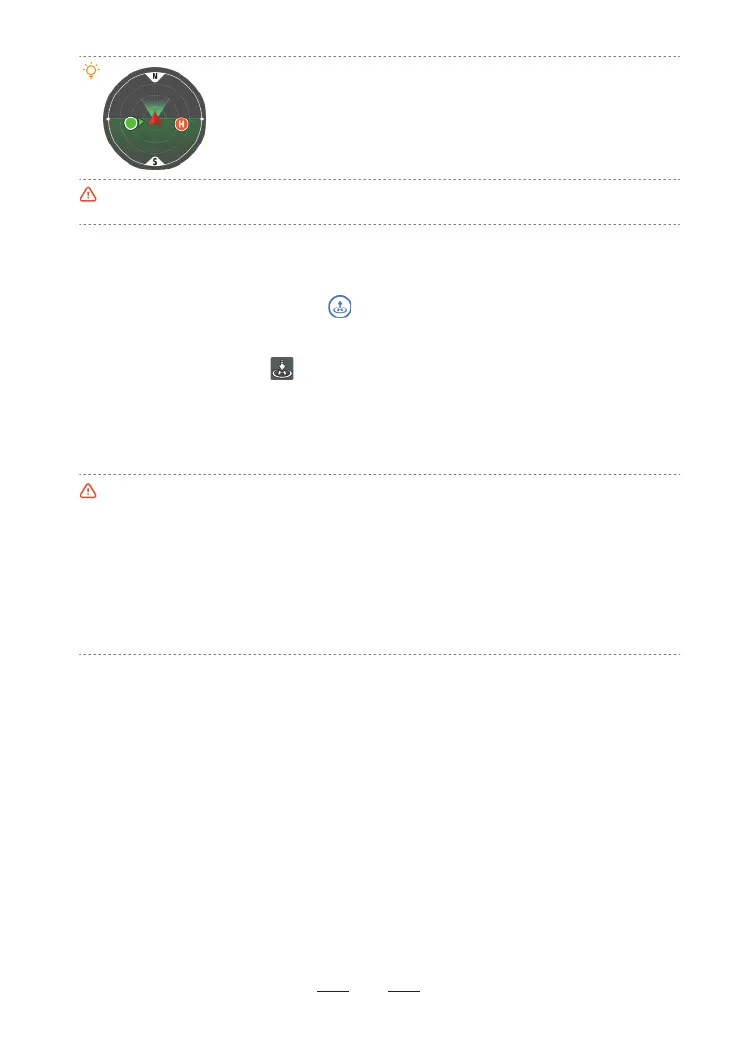
•When the icons of the drone and the remote controller both turn green, it
indicates that the remote controller is facing the drone which guarantees
the optimal communication signal.
•After the drone is powered on and enters GNSS mode, the current GNSS
coordinates will be updated as the HOME point. Pay attention to the update
prompt of the HOME point.
•When the drone takes o in OPTI mode and then enters GNSS mode, the HOME point might not be
the takeo point. Pay attention to the return safety.



 To Next Page