16
5.6 Gimbal and Camera
5.6.1 Three-Axis Gimbal
•Before powering on the drone, remove the gimbal protector. When storing or transpoing, attach the
gimbal protector.
•Each time the drone is powered on, the gimbal tilt angle defaults to 0° (horizontal view). If the gimbal
rotates, switch the gimbal tilt angle using Potensic Eve App or the remote controller as follows:
1. In the Potensic Eve App, go to Settings > Control > Gimbal Settings, and select the current tilt angle
(0°/-90°).
2. Press once the C1 button on the remote controller. The default function of the C1 button is
switching the gimbal tilt angle (0°/-90°), which can be customized.
•Before takeo, ensure there are no foreign objects around the gimbal and that the lens is clean.
•The gimbal is composed of precision pas. When the drone is powered on, avoid applying excessive
force to the gimbal (such as strong impacts or forcibly twisting the gimbal). If the gimbal is subjected
to a collision or damage, its peormance may degrade.
•Keep the gimbal clean and avoid the intrusion of sand or other foreign objects, which may reduce the
gimbal’s accuracy or cause damage.
•To ensure stable footage, the gimbal may automatically adjust its pitch angle around -90° or 0° during
strong winds or sharp maneuvers to avoid limits that cause jitter.
•The gimbal is connected to the drone via an elastic shock-absorbing mount, which helps eliminate
camera vibration. Do not pull the gimbal forcefully. If you notice any damage to the shock-absorbing
mount, please contact customer suppo promptly.
•Do not modify the gimbal or attach other objects to it, as this may cause the gimbal to shake or lead
to motor damage.
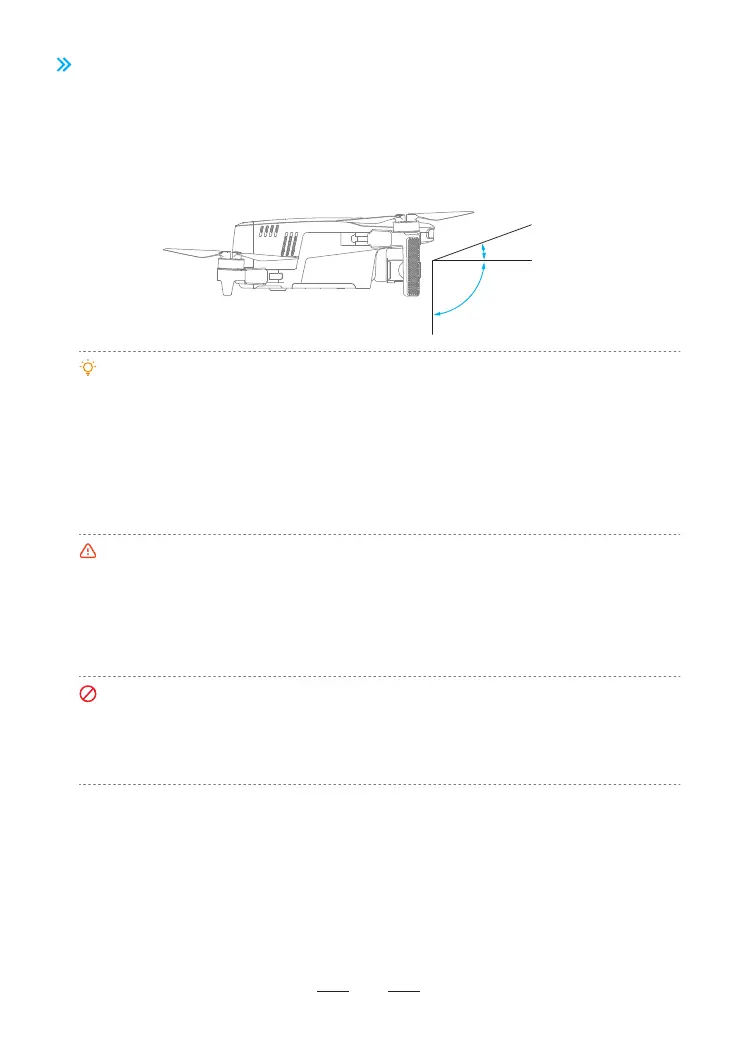
The ATOM 2 camera is equipped on a three-axis gimbal. The gimbal allows for tilt adjustment from +20° to
-90° and yaw and roll oset adjustments from +10° to -10°. The gimbal tilt angle can be adjusted by moving
the gimbal dial on the remote controller. When the ight mode is set to Video Mode, the gimbal’s tilt
adjustment range is from +20° to -90°; when the ight mode is not set to Video Mode, the gimbal’s tilt
adjustment range is from 0° to -90°.
0°
20°
-90°
Gimbal Modes
The gimbal can operate in Stable Mode and FPV Mode to meet dierent recording needs. You can select
the gimbal mode in the Potensic Eve App under Settings > Control > Gimbal Settings.
• Stable Mode: The gimbal’s roll direction remains level at all times. The gimbal tilt angle can be adjusted
using the gimbal dial on the remote controller. This mode is suitable for capturing stable footage.
• FPV Mode: The gimbal’s roll direction follows the drone’s roll attitude changes. The smoothness of the
roll can be adjusted in the Potensic Eve App under Settings > Control > Gimbal Settings > Gimbal Mode.
The gimbal tilt angle can be adjusted using the left dial on the remote controller. This mode is ideal for
experiencing rst-person view (FPV) ight and capturing dynamic footage.



 To Next Page