Gimbal Fine-Tuning
•During the calibration process, do not move the drone signicantly, otherwise the calibration will fail.
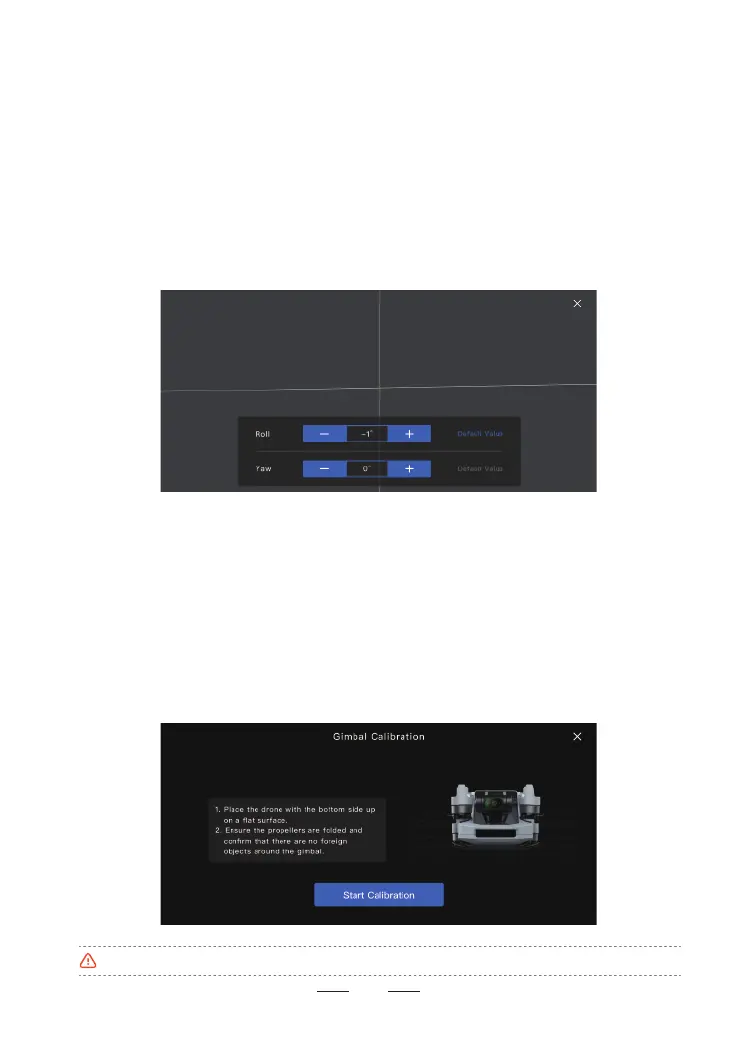
When the drone is placed on a level suace and the gimbal is slightly tilted, you can use gimbal ne-tuning
to correct it.
•How to Peorm Gimbal Fine-Tuning
1. In the Potensic Eve App, go to Settings > Calibration > Gimbal Fine-Tuning to adjust the gimbal’s
horizontal and yaw angles. The adjustment range is ±10°. Each tap on the "+" or "–" button adjusts the
gimbal angle by +0.1° or –0.1°. You can also directly enter the angle value using the keyboard for
adjustments.
2. Horizontal Adjustment: Tap "+" to roll to the right, and tap "–" to roll to the left.
Yaw Adjustment: Tap "+" to yaw to the right, and tap "–" to yaw to the left.
3. Tap "Default" to reset the gimbal to the default angle (both set to 0°).
Gimbal Calibration
If the gimbal experiences staup issues, t restoring it through gimbal calibration.
•Calibration Procedure
1. Go to the Potensic Eve App > Settings > Calibration > Gimbal Calibration to begin the calibration process.
Flip the drone upside down with its bottom facing up, and place it on a level suace.
2. After tapping "Sta Calibration", the gimbal will begin to calibrate automatically. During this process, the
calibration inteace will display the drone’s live video feed.
3. Wait for the progress bar to complete. When the on-screen prompt shows "Calibration Succeeded", the
gimbal calibration is complete.
17



 To Next Page