48
•During Cruise Control, the throttle stick and yaw stick can be controlled in real-time, but throttle and
yaw stick inputs cannot be incorporated to the cruise control, meaning altitude and heading are not
suppoed for Cruise Control.
•Cruise Control can be activated while ying the drone in Normal, Video, or Spo Mode.
•Cruise Control cannot be activated without a control stick input.
•The drone cannot enter or will exit Cruise Control in the following situations:
1. No GNSS signal;
2. Drone batte level is ≤10%;
3. Low batte return is triggered;
4. Connection between the drone and the remote controller is lost;
5. The drone is near the viual fence, or GEO Zone limits.
8.9.3 Cruise Control
The cruise control feature enables the drone to lock the current control stick input of the remote controller
when conditions permit, and to automaticaIly y at the speed corresponding to the current control stick
input. Without the need to continually move the control sticks, long distance ights become more eoless.
The cruise control feature also suppos control stick input incorporation (pitch stick and roll stick), allowing
for more creative ight paths.
Set the Cruise Control Button: By default, press twice the C2 button on the remote controller
to enable, disable, or update Cruise Control. Users can customize the cruise control button in
the Potensic Eve App by going to Settings > Control > Remote Controller Settings > Button
Customization.
During ight, by moving either the pitch or roll stick and then press twice the C2 button on the
remote controller (or the custom Cruise Control button if you have recongured it), the drone
will activate Cruise Control, ying at the current speed corresponding to the control stick input.
During Cruise Control, if the control sticks are toggled again, the drone will incorporate
the new stick input into its ight. If the custom Cruise Control button is pressed again at
this time, Cruise Control will be updated, and the drone will continue ying at the new
cruise speed based on the incorporated control stick inputs.
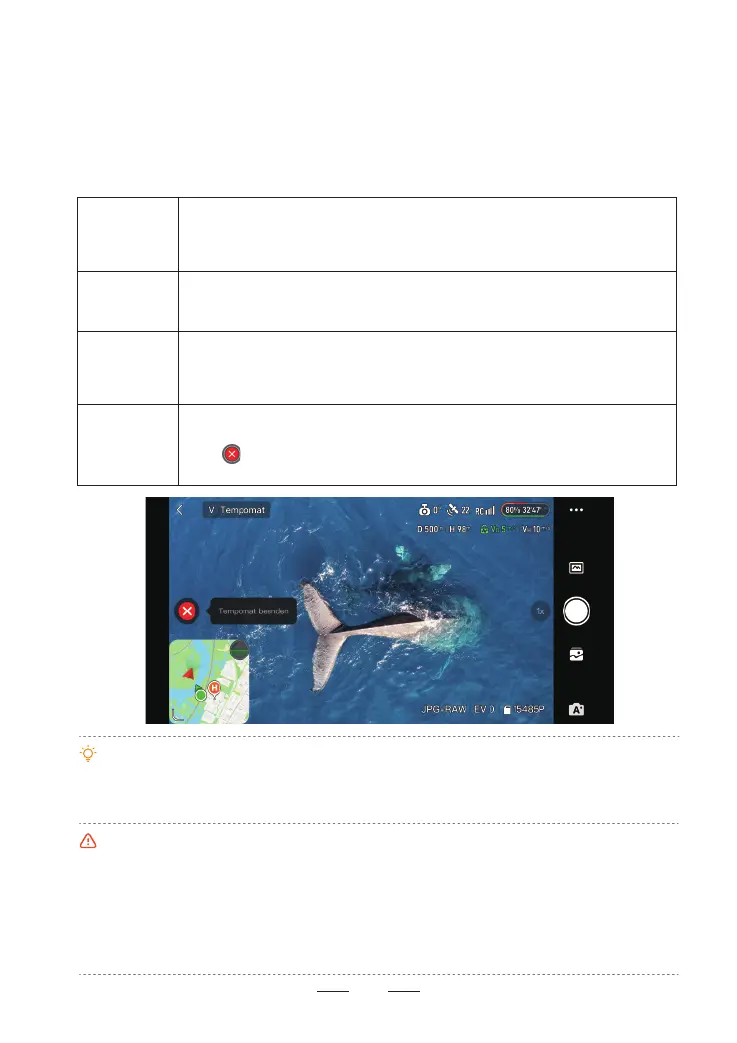
1. Press the cruise control button without a control stick input;
2. Press the RTH button on the remote controller;
3. Tap on the left of the ight inteace.
* After exiting Cruise Control, the drone will hover in place.
Using Cruise
Control
Enter Cruise
Control
Update Cruise
Control
Exit Cruise
Control
Using Cruise Control



 To Next Page