21
www.powerbox-systems.com
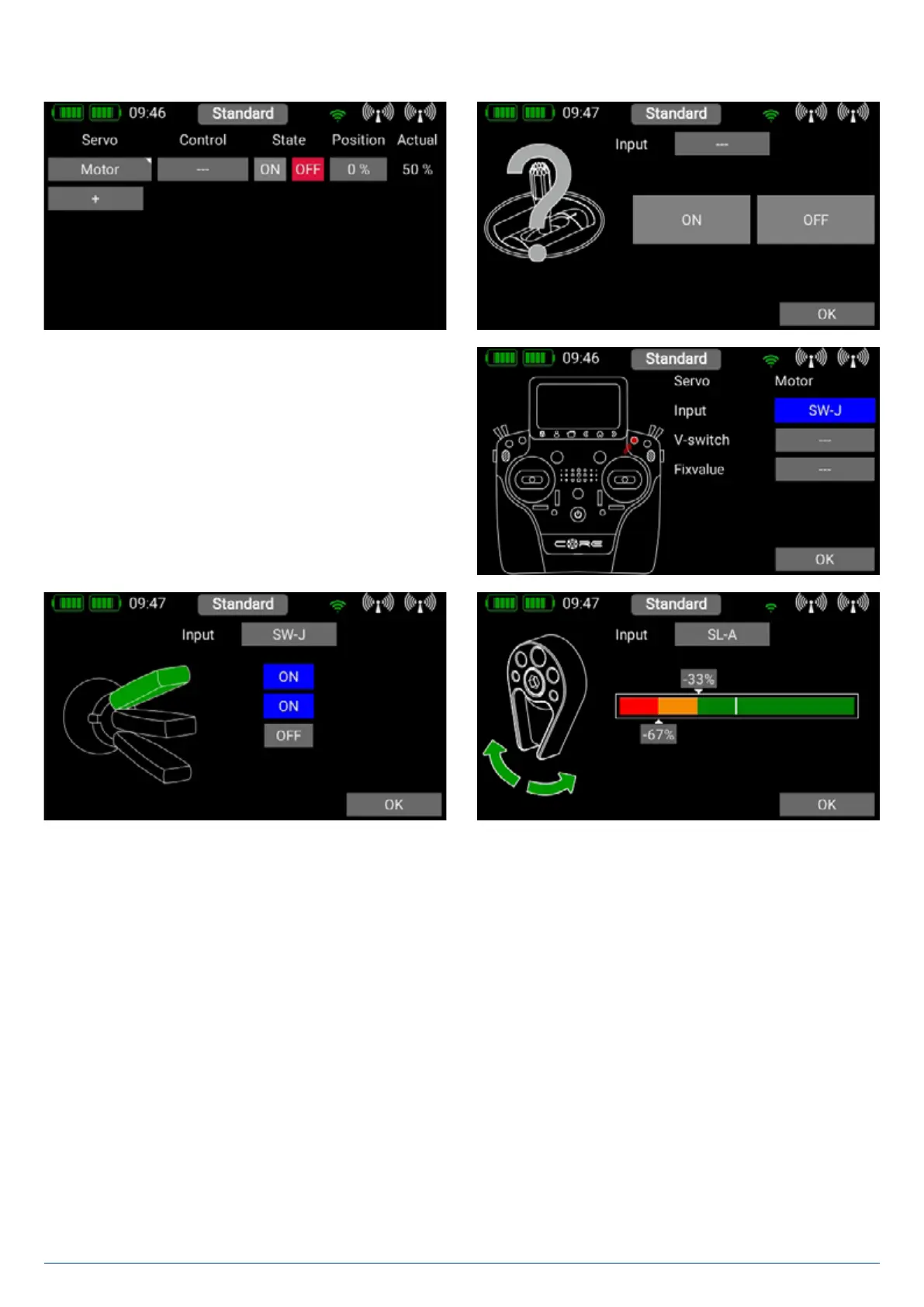
First select a transmitter control by briefly pressing the blank field (three dashes) under Control; press Control again at the next
screen. You can now select a switch or linear control as transmitter control by operating it.
Yet another option is to use the output of a previously defined
logical switch in turn as a transmitter control input. Press OK
when you have made your selection.
In the following section you will see your transmitter control on
the left. Depending on whether you have selected a linear input
or a switch, you will see one of these screens:
When you have selected a linear transmitter the two switching points can be placed in any position you like by moving them with
your finger. The red area indicates the “Off state”; the green area the “On state”. The orange area indicates “hysteresis”, i.e. the
area in which no switching takes place. You can very easily reverse the “Off state” and the “On state” by moving one of the two
switching point sliders in front of or behind the other.


 To Next Page