32
PowerBox-Systems − World Leaders in RC Power Supply Systems
A further interesting application for the sequencer would be any kind of brake flaps, spoilers or landing flaps. You know what
happens: the spoiler retracts, and the servo buzzes a little because there is a slight residual mechanical resistance. Use the se-
quencer to move the spoilers slowly in the usual way, but set them to run past the retracted point by about 5%, then immediately
back again; you will discover that the servos no longer buzz. Since the sequencer has the special feature of being able to reverse
its direction at any time, the spoilers behave exactly as if they were operated by a normal transmitter control, programmed with a
timed delay!
3.12 File Manager
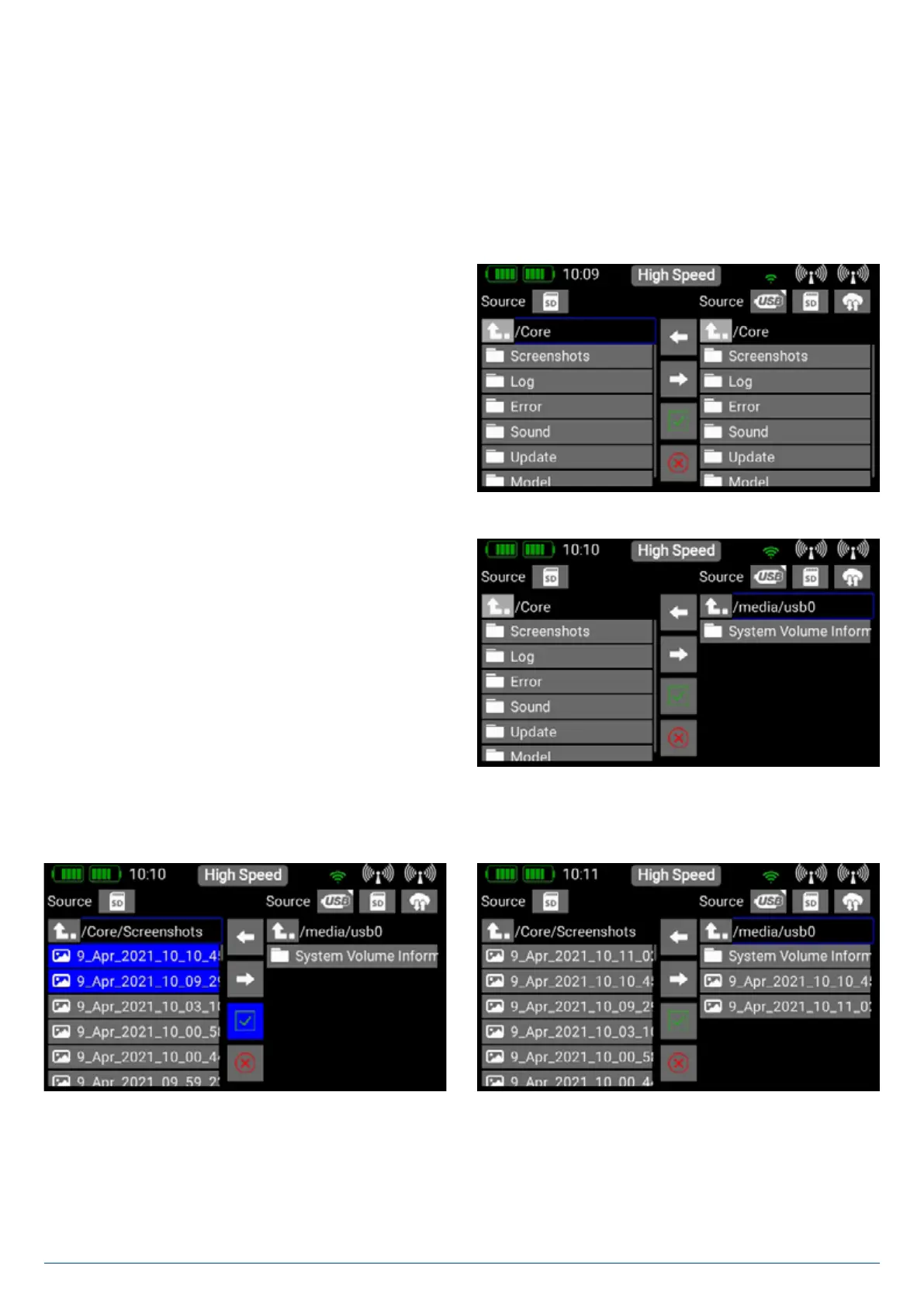
The File Manager enables you to exchange files on the SD
card in the CORE transmitter with files stored on a USB
memory stick. File types include model data, log files and also
audio files for audible signals.
We have kept the structure and operation of this function
simple. On the left-hand side you will see the content of the
CORE transmitter’s internal SD card.
At top right you will see the various memory facilities available
to you. Currently the external USB port and the internal SD
card are available, typically for copying or moving files within
the transmitter. In a later version it will also be possible to
exchange files with a PowerBox Cloud.
When you plug a USB stick into the CORE transmitter, you
can display the content of the memory stick by briefly pres-
sing the USB symbol on the right-hand side.
You now have the opportunity to copy files: navigate to the folder which contains the files you wish to copy, then briefly press the
green tick in the center. After this you can select one or more files which you wish to copy; the selected files are marked blue.
Once you have selected your files, press on one of the two arrow buttons in the center – depending on the direction in which you
want to copy the files.


 To Next Page