40
PowerBox-Systems − World Leaders in RC Power Supply Systems
4.1.9. Alarm
After the individual sensor values you will see the Alarm button. In the Alarm menu you can set a maximum of four alarm thres-
holds: one yellow alarm and one red alarm for each direction. Starting from the green area in the middle, in which there is no
alarm, you can set an alarm in the two left-hand fields which are tripped if the value falls below a threshold. In the two fields to
the right of the green area you can set the alarms which are tripped when the value exceeds a threshold. For each threshold
you can select different sounds, text or vibration.
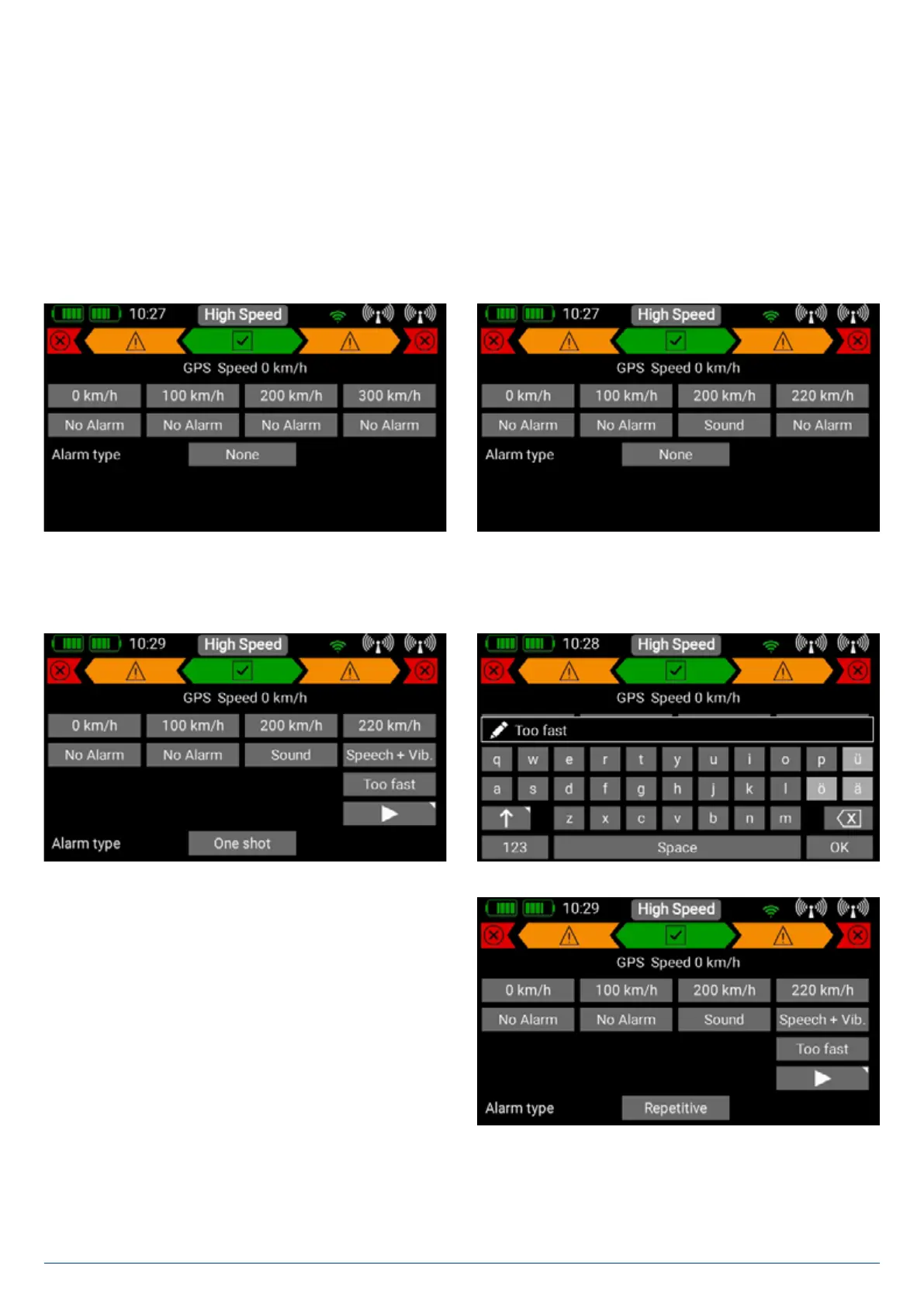
In our example we want the GPS speed value to generate a warning when the model flies too fast. When you select the alarm
screen for the first time, default values are already entered which vary according to the current sensor value. You can now change
the threshold values to meet your requirements..
The final step is to select the type of warning you want. In our example a warning tone is set to be generated at 200 km/h, while a
spoken message is generated at 220 km/h.
If you opt for speech output, you can enter any text you wish to
be spoken.
Alarm Type at the bottom of the screen lets you determine
whether the alarm is to be generated only once, or every time the
sensor value exceeds or falls below the set threshold. Press the
Back button to return to the Sensor Overview.


 To Next Page