23-CML000293 iPocket232 Technologies Inc. 9
2 Setting up the iPocket232
2.1 Connecting the Hardware
C
AUTION
: Use the 9V power adapter supplied by IPocket232, or an
! adapter conforming exactly to the specifications in Appendix E:
Pinouts and Power Supply. Use of alternate power adapters can result
in hardware damage and will render the warranty null and void!
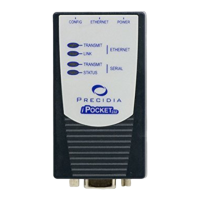
1 Connect the power adapter to the POWER port of the unit.
2 Connect the Ethernet cable to the
ETHERNET
port of the unit.
3 Connect the serial cable to the serial port of the unit.
4 Plug the power adapter into a power outlet.
5 Connect the serial cable to one of the COM ports on your PC.
6 Follow Section 2.2 to set up your terminal software and access the Configuration
screen.
7 Configure the unit (Sections 3 through 6).
N
OTE
: You must set the Remote Password locally before you can configure the
iPocket232 remotely.
After Configuration
1 Disconnect the serial cable from the COM port of your PC.
2 Connect your serial device to the serial port of the iPocket232 using the
appropriate cable. (See Section 1.4, Hardware Requirements).
3 Connect the Ethernet cable to a hub or router if you have not already done so


 To Next Page