23-CML000293 iPocket232 Inc. B-1
Appendix B:Troubleshooting and
Support
First Steps
1 Configure the unit with the correct settings. Follow the procedure in the figure on
the following page (B-2) to troubleshoot Configuration screen access.
2 Ensure that you are using the correct serial cables and that all cables are properly
connected and in good working order.
- If you are connecting the iPocket232 to a DTE (Data Terminal Equipment)
device or using it as a modem replacement, use an RS-232 serial cable.
- If you are connecting the iPocket232 to a DCE (Data Communication
Equipment) device, use a null modem serial cable.
3 If you know the IP address of the unit, you can check the network connection by
pinging the unit. (See Check IP Address (Ping) on page B-3.)
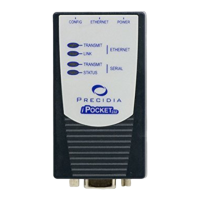
4 Check the indicator lamps on the front panel of the unit and use the indicator
lamp tables in this appendix to diagnose the problem.
5 If, after following the suggestions in this guide, you are still having problems
accessing configuration or gaining connectivity, you can contact iPocket232.
General information, User Guides and Help Guides available at:
http://www.ipocket232.com/index.php/device-networking/documentation/


 To Next Page