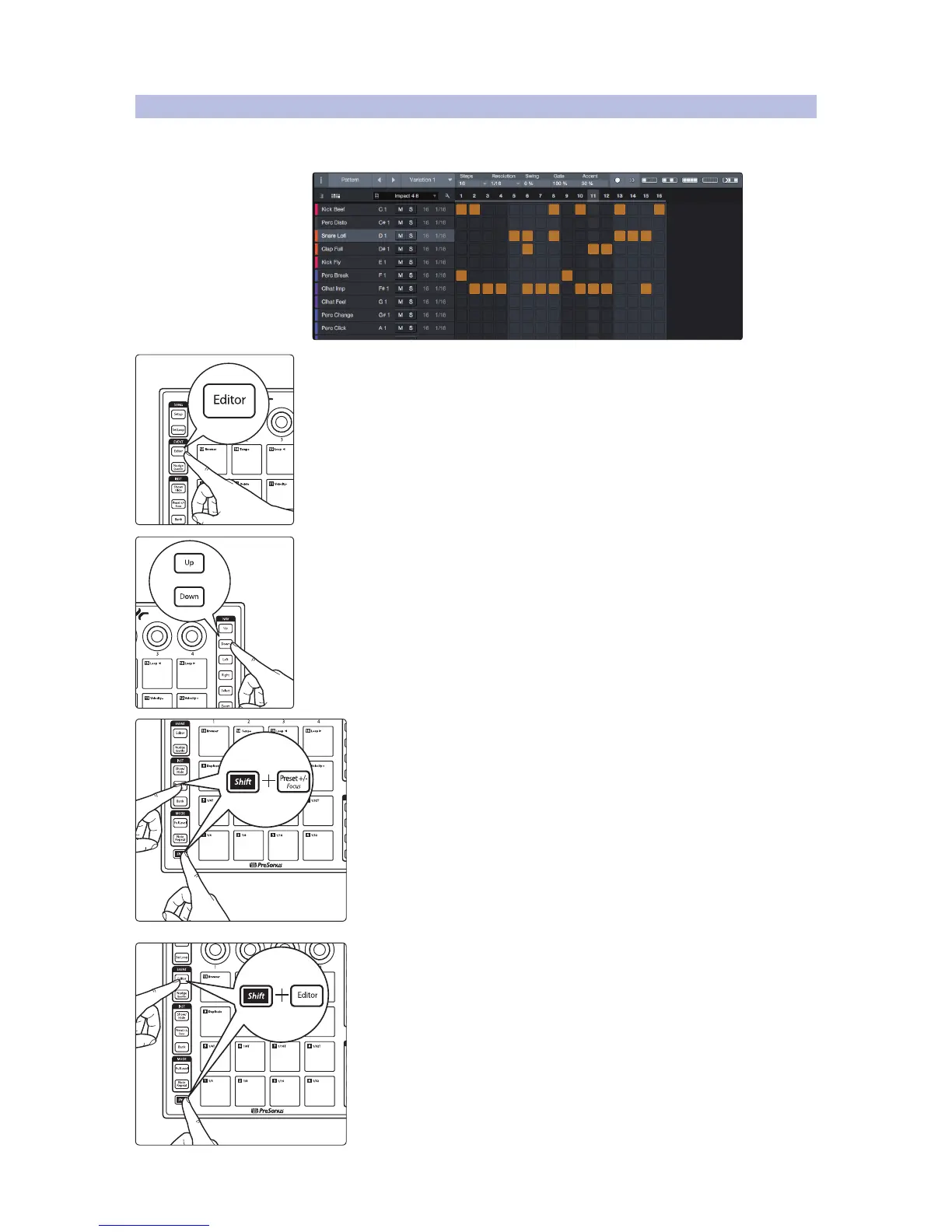
3.5 Pattern Editor
Your ATOM controller can be used to edit the Pattern Editor in Studio One.
Note: Pattern Editor control is only available for Impact XT.
With the Pattern part selected, press the Editor button on ATOM. This will enable
Pattern Editor control.
To select a new sound, use the Up and Down arrows to navigate through the list.
For faster control, enable Pad Focus mode by pressing the Shift and Preset
+/- buttons simultaneously while Pattern Editor control is inactive. This will
let you audition each pad’s sound. Press Editor again to enable Pattern
Editor control. This will automatically select the last pad touched.
Power User Tip: Pattern-based sequencing treats musical phrases as individual
elements, to be switched and swapped at will, looped and finessed. To create a
Pattern in Studio One, select an Instrument Track, and navigate to Event>Insert
Pattern, press [Ctrl]+[Shift]+P on your QWERTY keyboard, or press Duplicate on
your ATOM while Set Loop is active. An empty Pattern will be created on the
selected track.
Press Shift and Editor simultaneously to completely close the Pattern Editor.


 To Next Page