Overview Getting
Started
Controls and
Connections
Cascading
Units
Technical
Information
3 CONTROLS & CONNECTIONS PreSonus
™
FireStudio
™
Mobile
40
Overview Getting
Started
Controls and
Connections
Cascading
Units
Technical
Information
3.1 Software
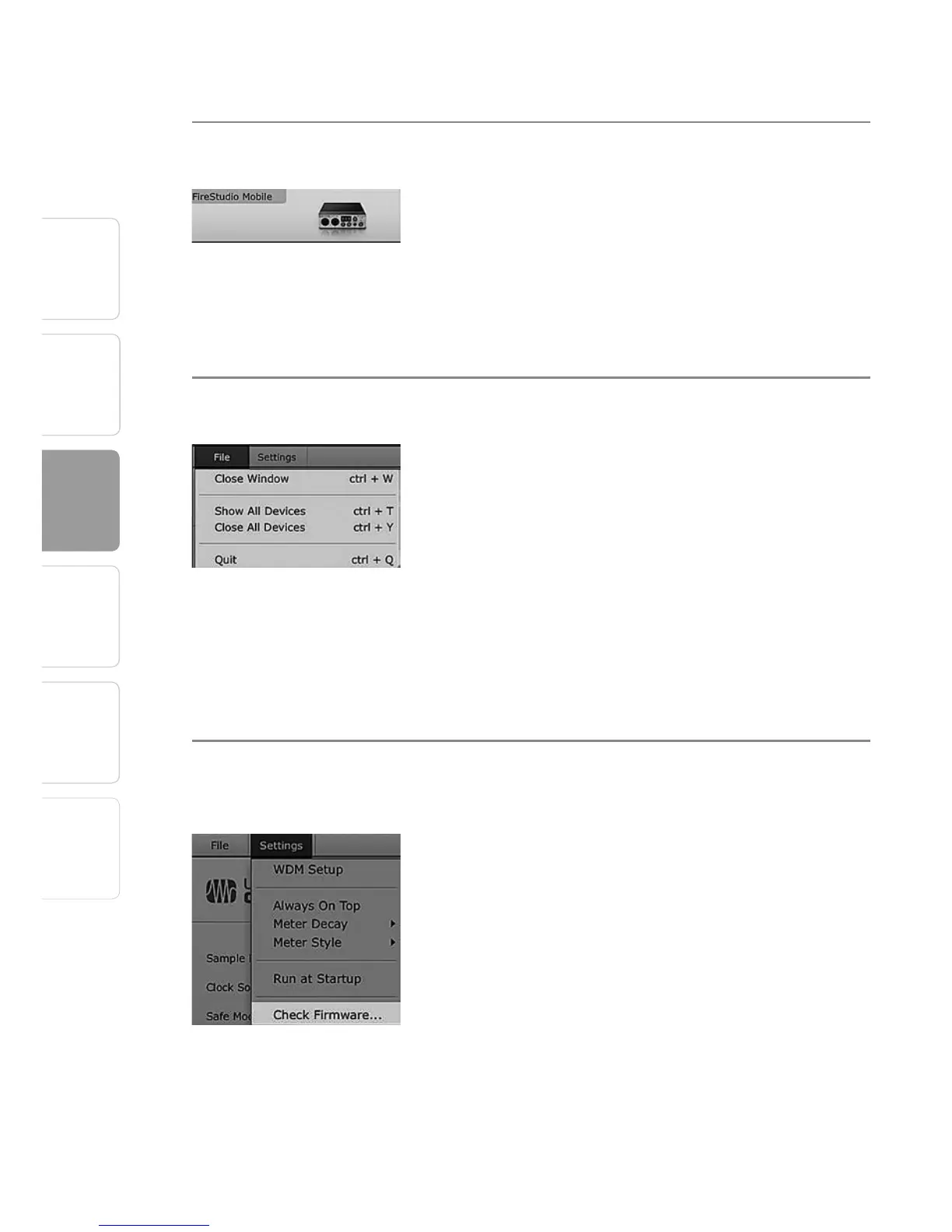
Device Window Button Opens the Device Window.
Click on this button to open the FireStudio Mobile
Mixer.
To give your FireStudio Mobile a custom name,
double-click on the default label (FireStudio Mobile)
to open a text field. When you have finished entering
your custom name, hit the Enter key.
File Menu Opens and Closes Launch and Device Windows.
From the File menu of the Launch Window, you can
open and close both windows, as well as quit the
Universal Control application.
• Close Window Closes just the Launch window.
• Show All Devices Opens the Device window for all
of the connected FireStudio-family interfaces.
• Close All Devices Closes the Device window for all
of the connected FireStudio-family interfaces.
• Quit Quits the Universal Control application.
Settings: Check Firmware Automatically Scans Your FireStudio Mobile and
Updates the Firmware.
A firmware updater is built into the Universal
Control application. Periodically, a driver update
will require that the firmware on your FireStudio
Mobile be updated. Whenever you install an update
for the Universal Control or add a new FireStudio-
family product to your system, you should use this
feature to ensure that the firmware is up to date.
If the firmware needs to be updated, the update
application will launch automatically.




 To Next Page