Chapter 5: Installing and Configuring DADman Software 21
Chapter 5: Installing and Configuring DADman Software
Installing DADman Software
Pro Tools | MTRX II is controlled over a network connection by DADman software on your computer. Your computer and all
MTRX II units must be connected on the same subnet.
To install DADman Software:
1 Download the DADman Software installer for your operating system (macOS or Windows) from your Avid Master Account.
2 Once the download is complete, launch the installer and follow the on-screen instructions to complete the installation.
3 If desired, create a shortcut for DADman on the Desktop, or in the Dock (Mac) or in the Start menu (Windows).
4 Launch DADman.
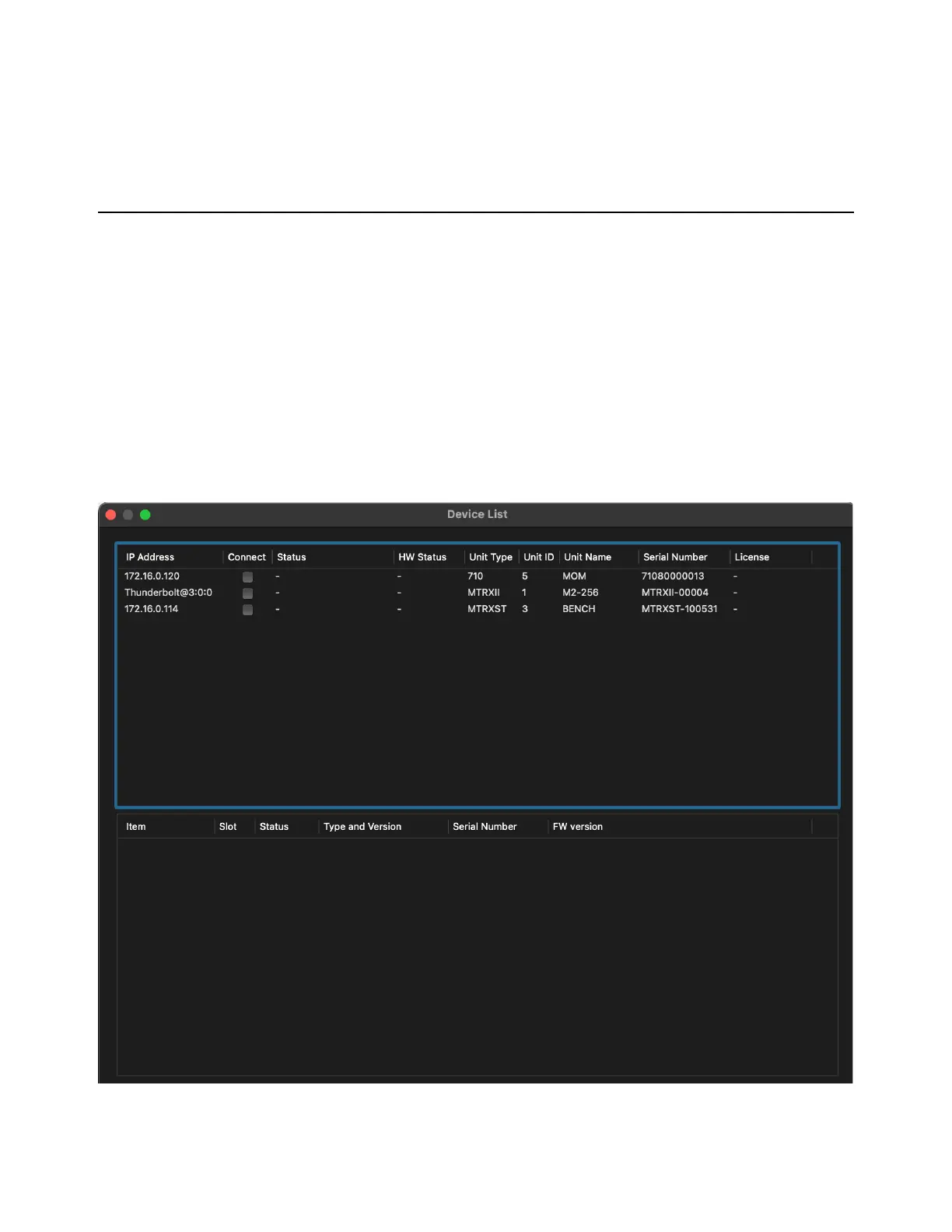
5 Choose Settings > Device List.
6 Click Refresh to discover the MTRX II on the network.
7 Right-click the MTRX II and choose Network Settings.
Device List dialog



 To Next Page