81
Appendix E: Monitoring with MTRX II and S6
Assigning Monitor Sources on S6, S4, or Avid Control
S6, S4, or Avid Control lets you assign up to 16 sources in the Monitoring screen.
To access additional sources:
1 Navigate to the Monitoring screen.
2 At the top of the screen, swipe the row of Sources to the left to display sources 9–16 (as available).
Configuring Sources for Pro Tools | MTRX II in DADman
If you are using a Pro Tools | MTRX II with S6, S4, or Avid Control, you need to first configure DADman software and then configure
sources in the S6, S4, or Avid Control Monitoring page.
To configure DADman:
1 Launch DADman and make sure you complete each of the following steps before proceeding.
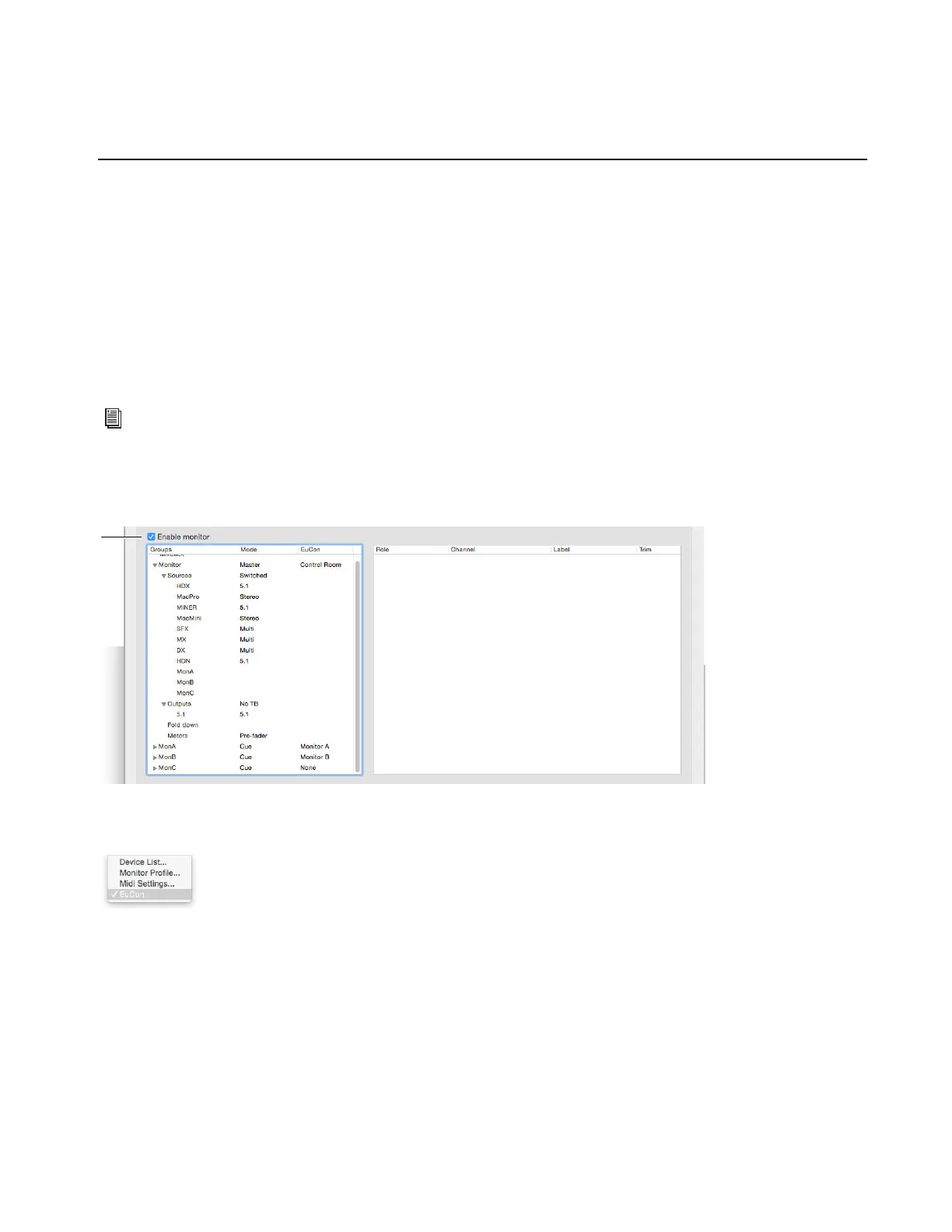
2 Choose Settings > Monitor Profile, then enable and create a monitor profile.
3 Enable EUCON by selecting it from the Settings menu.
For information on configuring DADman monitoring profiles, see Monitor Profiles.
Monitor profile enabled in DADman
EUCON enabled in DADman



 To Next Page