Chapter 9: Controlling MTRX II Preamps from Pro Tools (Mac Only)
60
10 Double click the Name PRE #1 and type MTRX II (or similar) to clearly identify MTRX II mic pres.
11 Click OK.
Controlling MTRX II from Pro Tools
(or from a Control Surface)
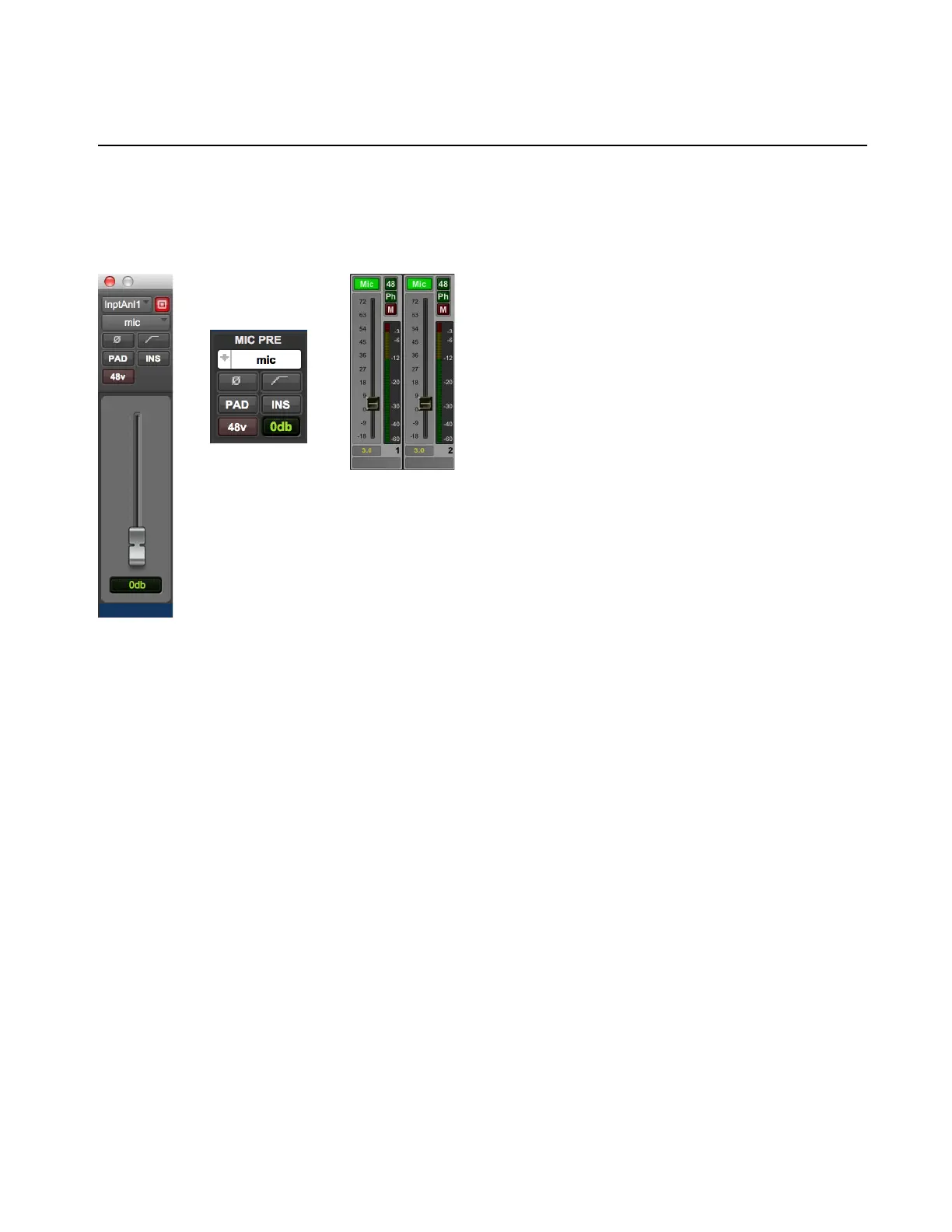
Once configured, Pro Tools can control MTRX II Mic Preamp settings on a channel-by-channel basis. Enable Mic Preamps view in ei-
ther the Edit or Mix window to access these controls (
View > Mix Window Views > Mic Preamps or View > Edit Window Views > Mic
Preamps
). All adjustments made in Mic Preamps view in Pro Tools are mirrored in DADman.
From Pro Tools Mic Preamps view you can control the following MTRX II Mic Pre parameters:
Mic/DI
Select the microphone input setting for the corresponding input channel in MTRX II (Mic or DI only, Line does nothing) .
ø
Inverts the polarity of the mic input.
Filter
No effect.
Pad
Moves the fader 18 dB down (reflected in DADman). In pad mode the level of the mic pre can be adjusted in a range from –18 dB
to +51 dB.
Insert
No effect.
48v
Enables phantom power for the mic input.
Fader
0–69 dB range.
Pro Tools Mic Pre window (left), Pro Tools Mic Pre view (middle), and DADman Channel strip (right)



 To Next Page