82
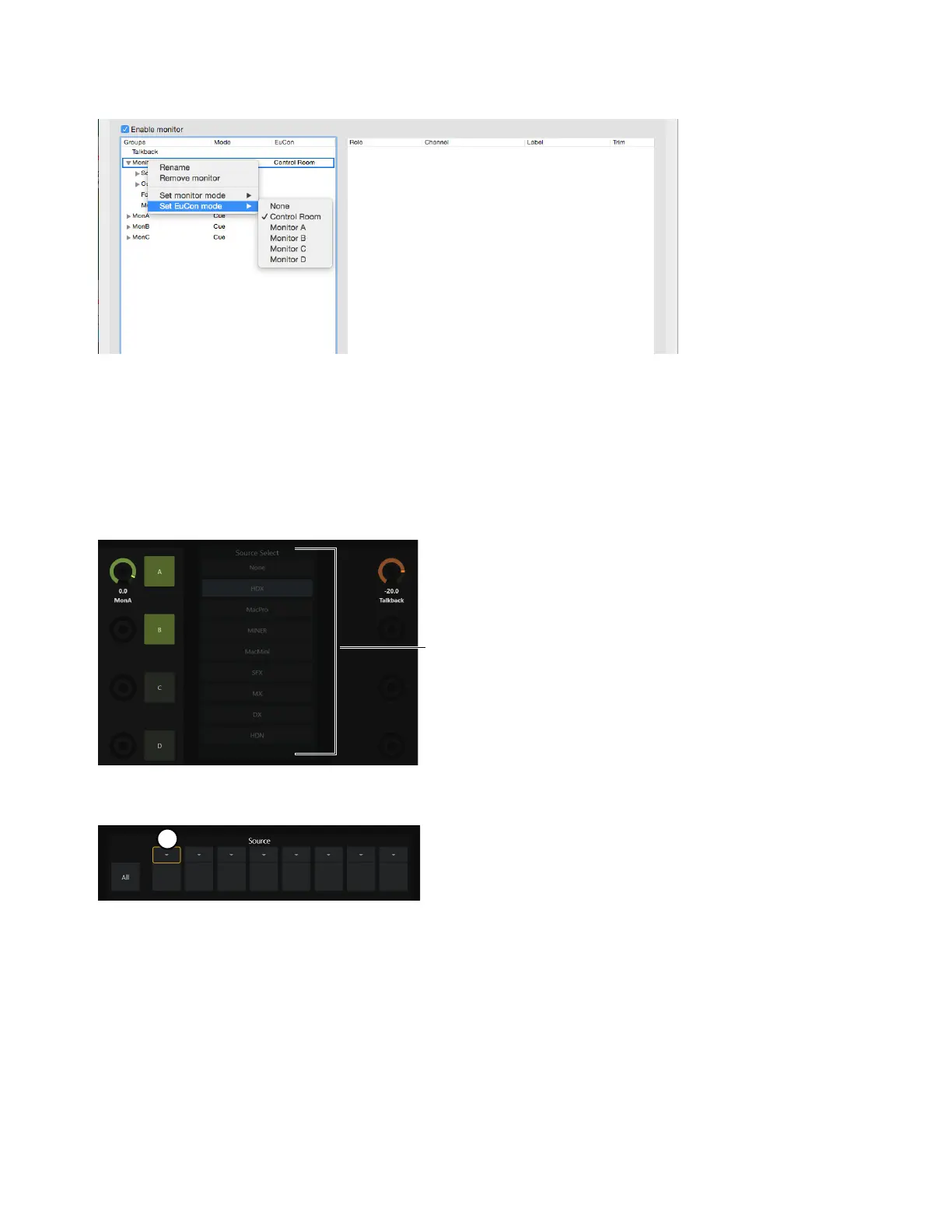
4 Right-click on any monitor in the profile and assign the EUCON mode to what you want to define as Control Room, Monitor A, Mon-
itor B, Monitor C, and Monitor D by selecting it from the sub-menu.
Configuring Sources on S6, S4, or Avid Control
To configure sources on S6, S4, or Avid Control:
1 Navigate the touchscreen to the Monitoring page (from the Home screen press Monitoring, or press the Setup 2 switch in the Mon-
itor Controls section of the Master Module).
All available sources are listed in the
Source Select section in the center of the Monitoring screen. Available sources are dark until
they are assigned.
2 In the upper Source row, touch the small arrow along the top of the first input source.
The selected input source is outlined in yellow, and the items in the Source Select list become lit (available).
Assigning EUCON mode in DADman
Available Sources in the Source Select list



 To Next Page