Chapter 8: SPQ Processing
54
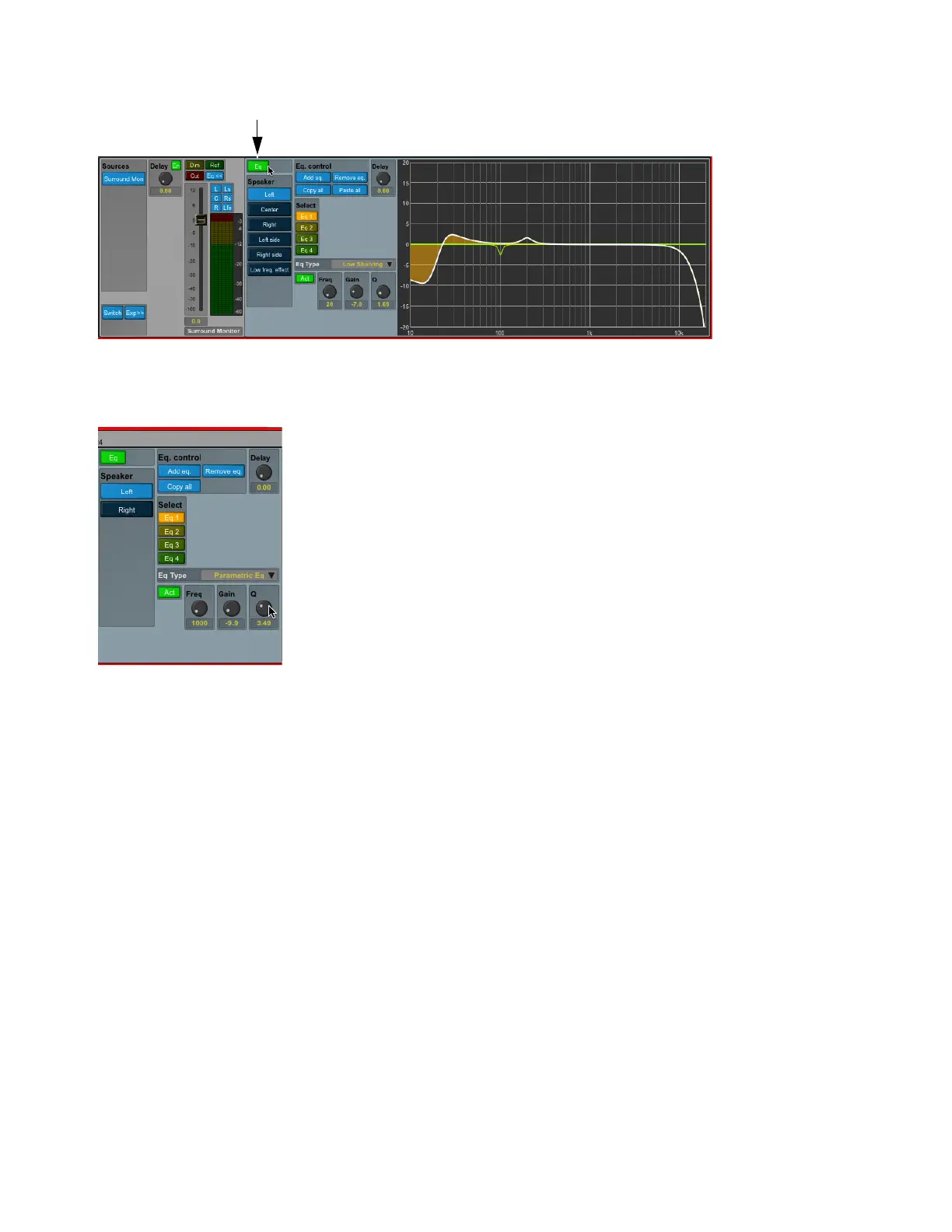
When activating the EQ>> button the filters are activated as shown in the figure below—the white curve shows the resulting frequency
response for the EQs on the selected channel.
Configuring the EQ Channel
Following are descriptions of the various EQ controls used for configuring and editing an EQ channel.
Add Eq/Remove Eq
Adds (or removes) an EQ to the view, both as a selection knob (named Eq 1 to 16), and as a flat curve. A total of
16 EQs can be added. In the same way a selected EQ can be deleted by activating
Remove Eq. When an EQ is added the EQ type can
be selected by the
Eq Type drop down menu. Frequency, Gain, and Q can be set for the selected EQ filter, and the curve in the view
will reflect the setting.
Frequency, Gain, and Q
Values can be set with the mouse or by clicking the value field and using numerical entry with the keyboard.
Act
Activates (or deactivates) the EQ filter of one particular selected EQ filter to another channel, whereas the EQ>> button referred
to above enables (or disables) a whole set of filters for the particular channel.
Copy All
The total combination of the EQ filters for a channel can be copied and pasted on at other channel. Click Copy All on the chan-
nel you want to copy. Select another channel in the speaker set and click
Paste All to paste the filter configuration. The Paste All button
is only visible when a curve has been copied.
Eq Types
The following EQ types are available:
• Parametric EQ filter
• Shelving filter: High Pass or Low Pass
• Butterworth filter: High Pass or Low Pass
• Linkwitch Riley: High Pass or Low Pass



 To Next Page