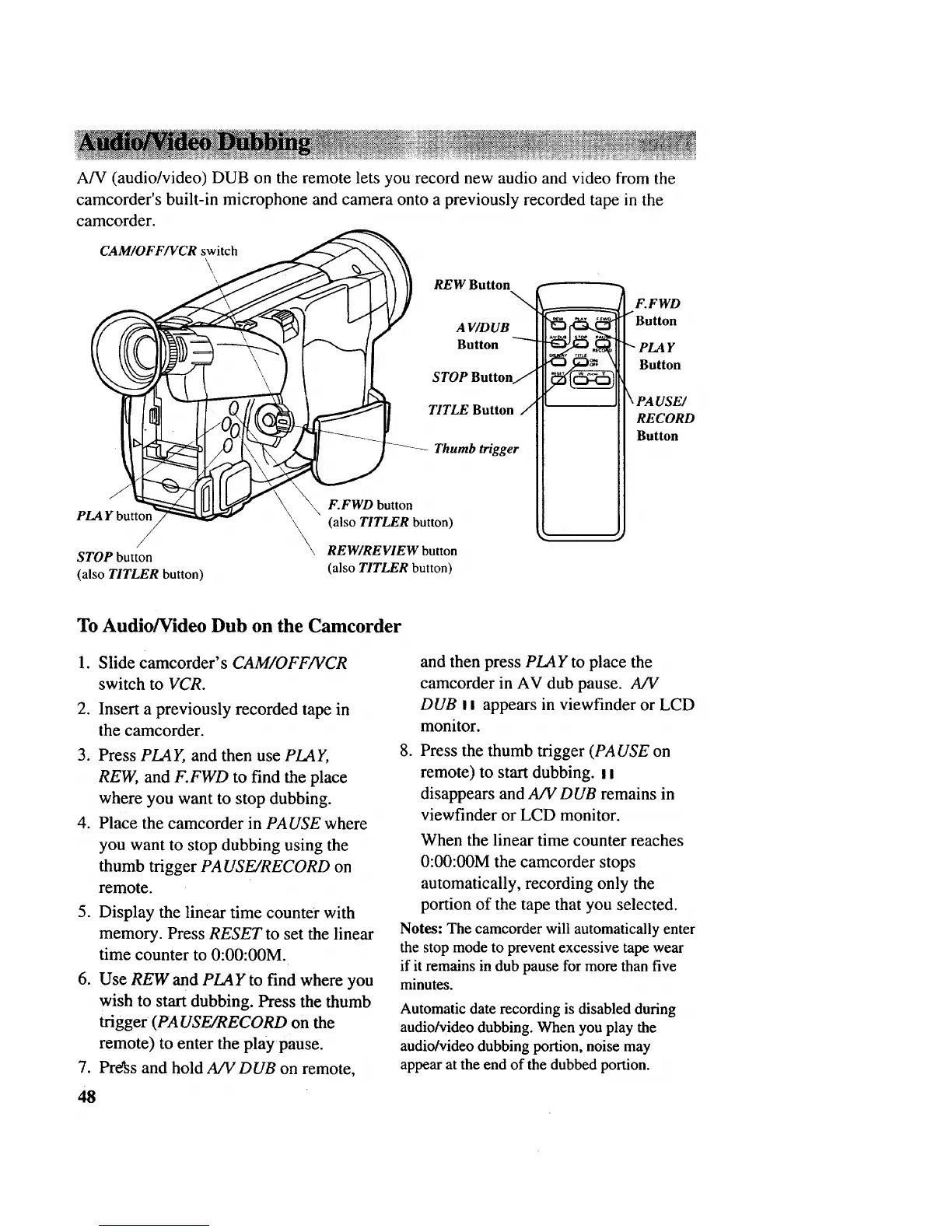
A/V (audio/video)DUB ontheremoteletsyourecordnewaudioandvideofrom the
camcorder'sbuilt-in microphoneandcameraontoapreviouslyrecordedtapein the
camcorder.
CAM/OFF/VCR switch
\
PLAY buttor
/ \,
STOP button
(also TITLER button)
REW Button
\
A V/DUB
Button "-'-'-"
STOP Button/
TITLE Button /
Thumb trigger
F.FWD button
(also TITLER button)
REW/REVIEW button
(also TITLER button)
F.FWD
/ Button
"_PLA Y
Button
\ PA USE/
RECORD
Button
To Audio/Video Dub on the Camcorder
lo
.
Slide camcorder's CAM/OFF/VCR
switch to VCR.
Insert a previously recorded tape in
the camcorder.
3. Press PLA Y, and then use PLA Y,
REW, and F.FWD to find the place
where you want to stop dubbing.
4. Place the camcorder in PA USE where
you want to stop dubbing using the
thumb trigger PA USE/RECORD on
remote.
5. Display the linear time counter with
memory. Press RESET to set the linear
time counter to 0:00:00M.
6. Use REW and PLAY to find where you
wish to start dubbing. Press the thumb
trigger (PA USE/RECORD on the
remote) to enter the playpause.
7. Prdss and hold A/VDUB on remote,
48
and then press PLAY to place the
camcorder in AV dub pause. A/V
DUB I I appears in viewfinder or LCD
monitor.
.
Press the thumb trigger (PA USE on
remote) to start dubbing, ai
disappears and A/V DUB remains in
viewfinder or LCD monitor.
When the linear time counter reaches
0:00:00M the camcorder stops
automatically, recording only the
portion of the tape that you selected.
Notes: The camcorder will automatically enter
the stop mode to prevent excessive tape wear
if it remains in dub pause for more than five
minutes.
Automatic date recording is disabled during
audio/video dubbing. When you play the
audio/video dubbing portion, noise may
appear at the end of the dubbed portion.



 To Next Page