Advanced Options 63
1006232_RevD
5. Repeat the above steps to mark all required spectral profiles available from your filtered list.
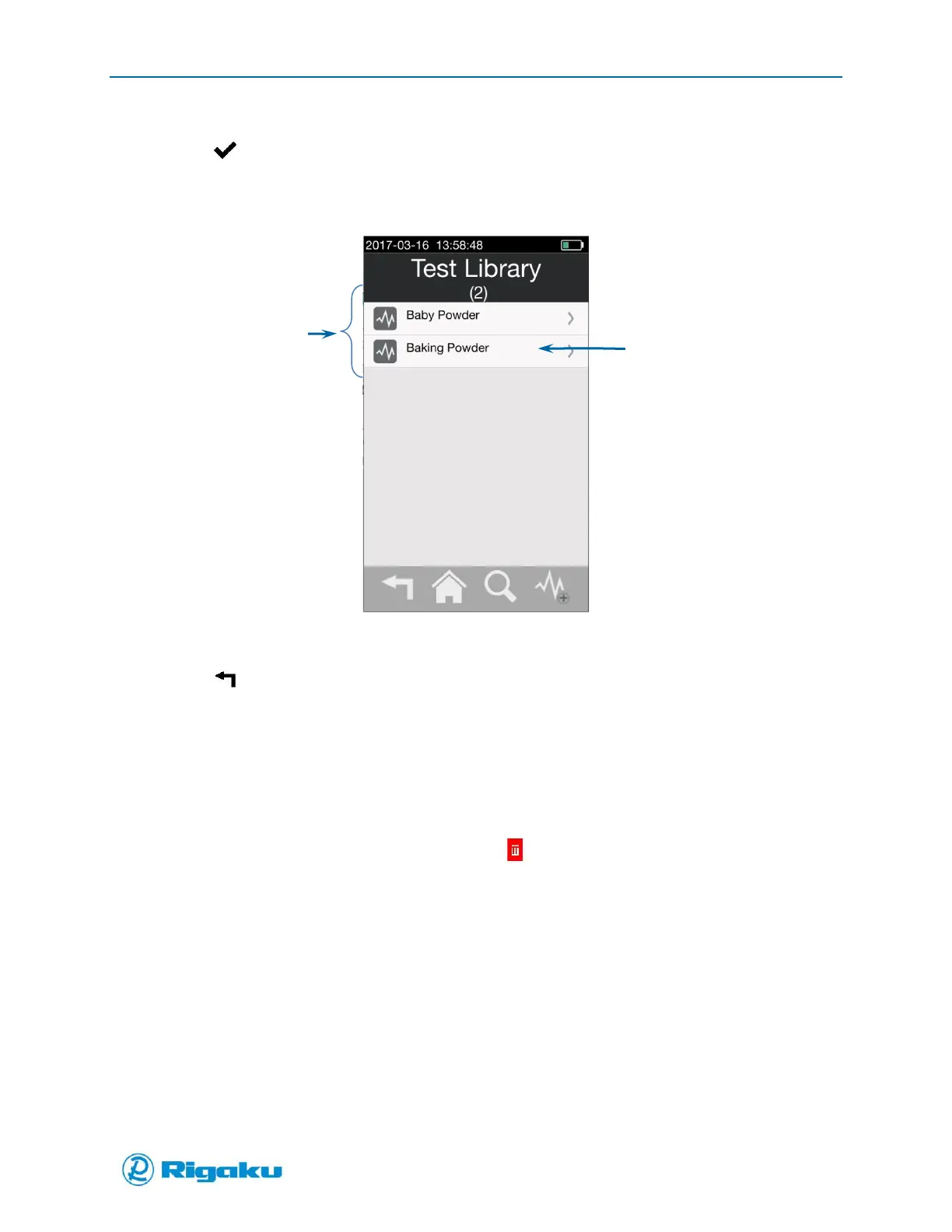
6. Select (Enter) to display the sub-library screen listing copies of the selected spectral profiles
(Figure 37).
Figure 37. Sub-Library Screen with Added Profiles
7. Repeat the above steps as required to select other profiles from the Master Library.
8. Select (Back) to return to the Instrument Settings screen.
Removing Spectral Profiles from Sub-Libraries
If you no longer run applications that verify or identify samples of specific substances included in a
spectral sub-library, you can remove the spectral profile from the sub-library. This deletes both the sub-
library’s copy of the spectral profile and any of the spectral profile’s substance detail updates or edits.
1. Navigate to the sub-library containing the spectral profile(s) to be deleted.
2. Drag the profile to be deleted left to display the (Delete) soft key (Figure 38).


 To Next Page