Sync Results to Personal Computer 92
1006232_RevD
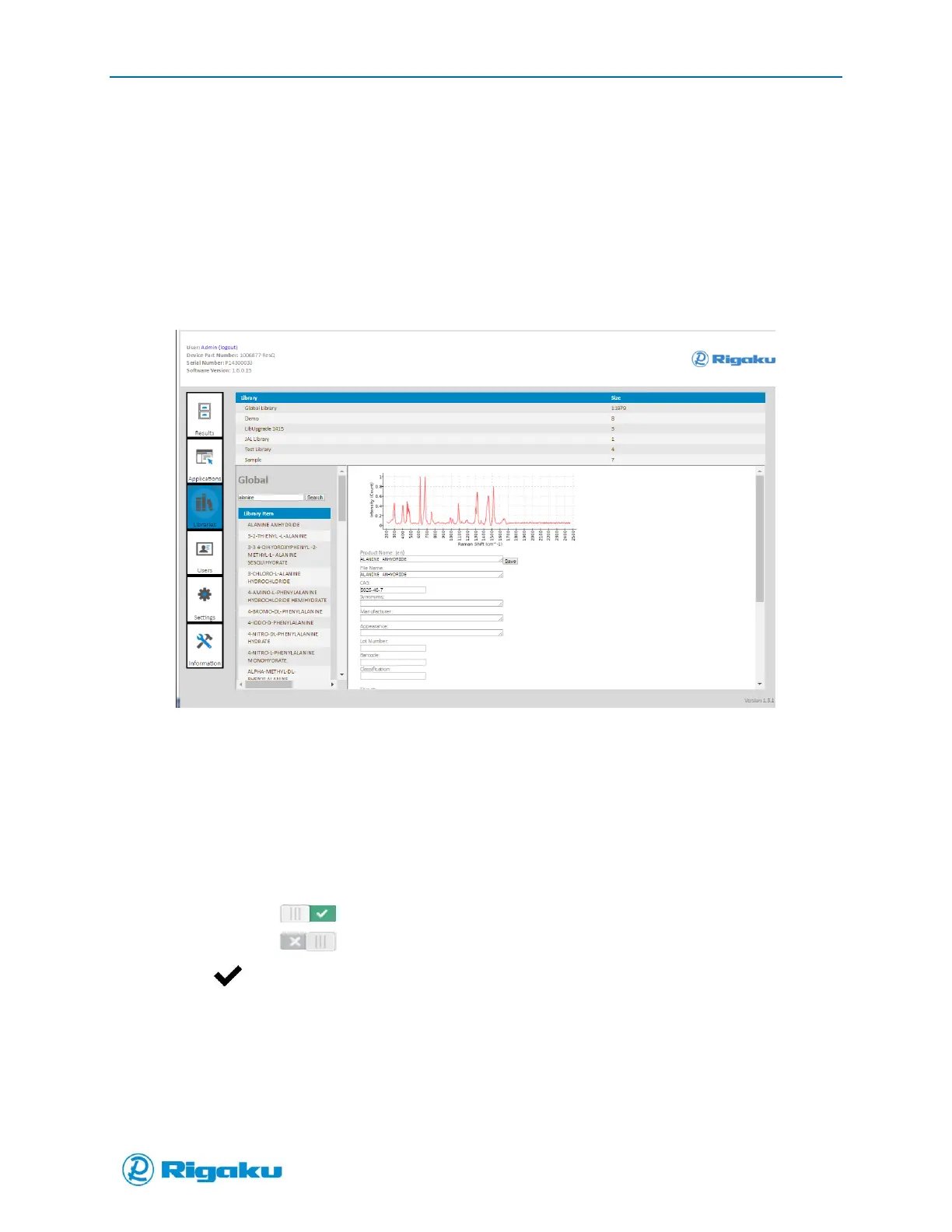
The Libraries section provides User access to view and edit items in the instrument library.
1. Requires Administrator Privileges and Administrator log in
2. Search for a specific chemical.
3. Select the chemical to view the chemical spectra and any detail information (
4. Figure 63).
5. The information fields can be edited, and saved back to the library.
Figure 63. Chemical Spectra in Library
Progeny to PC Configuration via Simple Wi-Fi connection
There are two types of Wi-Fi connection methods, simple and advanced. To connect your Progeny
Analyzer to the PC using simple Wi-Fi:
1. Navigate to Settings -> Communication -> Wi-Fi to display the Wi-Fi soft switch.
2. Select the soft switch to enable or disable the feature
(On), Wi-Fi is enabled.
(Off), Wi-Fi is disabled.
3. Select (Enter) to return the Settings screen.
4. Navigate to the Communications settings to view the list of detected available wireless
networks (Figure 64).


 To Next Page