Configuring Progeny Analyzers 72
1006232_RevD
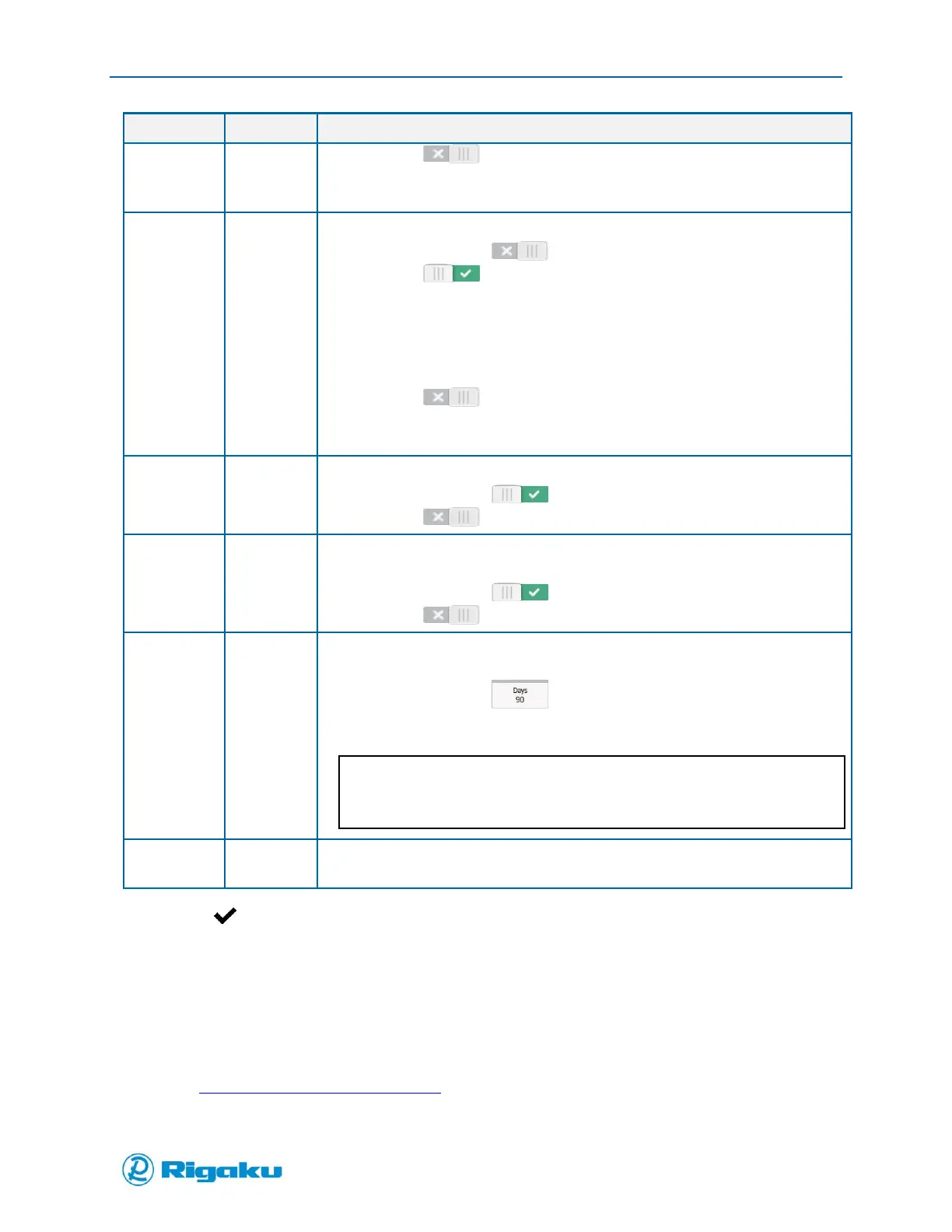
When (Off):
Login using LDAP is not available.
Other login options are not available.
Sets the login requirement.
Default setting is (Off).
When (On):
Login is required.
User List is available.
Strong Password is available.
Expiration is available.
Inactivity Logoff is available.
When (Off):
Login is not required.
Other login options are not available.
When enabled with Login Required, provides a user accounts list at login.
Default setting is (On).
When (Off), no user account list is displayed.
When enabled with Login Required, requires user accounts to use strong
passwords.
Default setting is (On).
When (Off), standard passwords are accepted.
When set with Login Required, user password expires after the specified number
of days.
Default setting is (90 days).
Click to launch the settings screen.
Available settings are intervals of 30 days, from 30 to 360.
When the lower end of the setting range is displayed on the settings screen,
only one option appears. Scroll up or down to view other options.
When set with Login Required, specifies the period of time after which the
instrument automatically logs the current user off and enters “sleep” mode.
3. Select (Enter) to set the new Login options and return to the Instrument Settings screen.
Configuring LDAP (Lightweight Directory Access Protocol) Login Method
When LDAP (Lightweight Directory Access Protocol) is enabled on the Progeny Analyzer, user access is
controlled by an LDAP server in a corporate IP network.
The Progeny software version that supports LDAP functionality is V1.4.0.0 or later. The Progeny unit
must have Wi-Fi turned on.
Refer to the Sync Results to Personal Computer section of this document for details on how to enable
and configure Wi-Fi.


 To Next Page