Configuring Progeny Analyzers 78
1006232_RevD
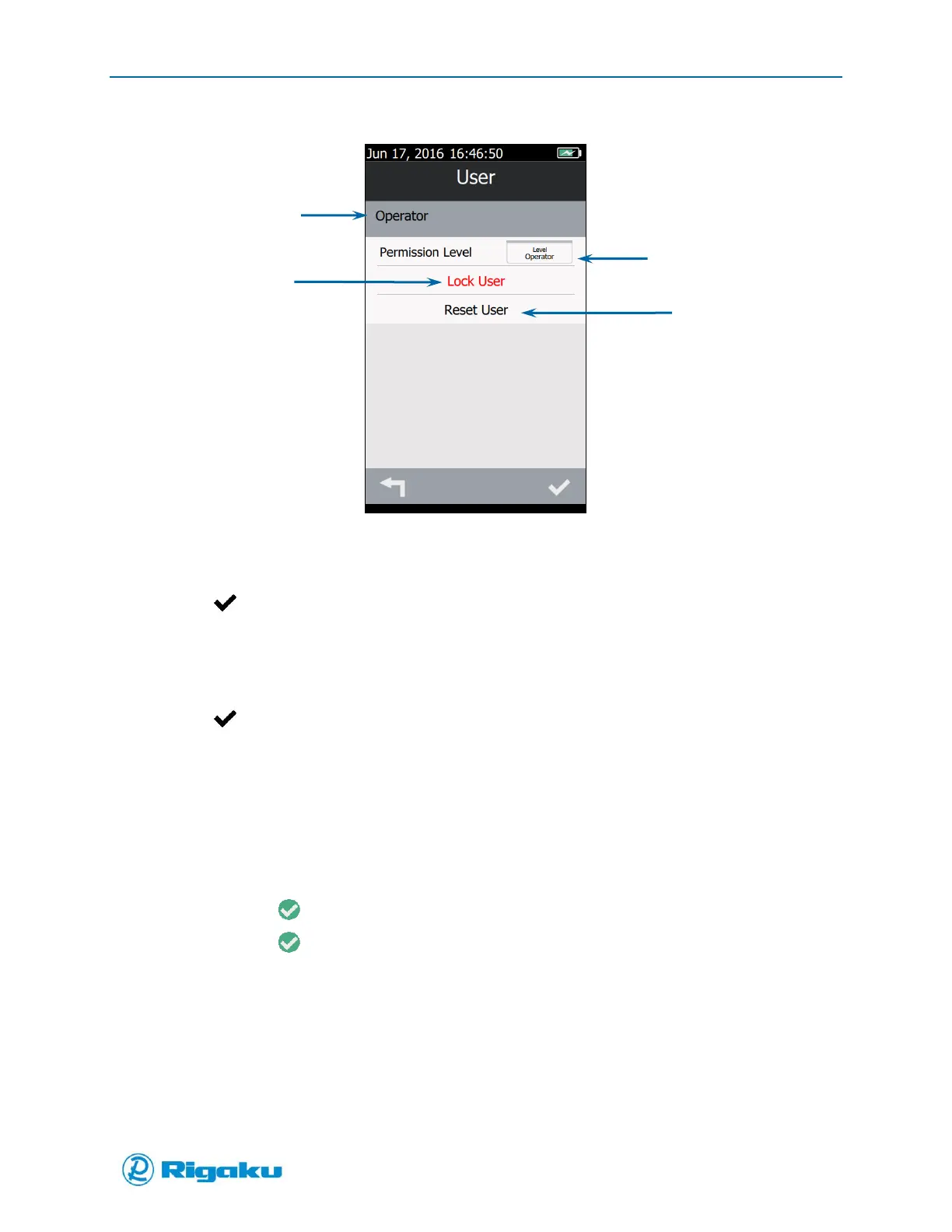
Figure 46. User Screen
2. Review the current settings and make any required changes (see “Changing User Permission
Level,” “Locking User Account,” and “Resetting User Passwords”).
3. Select (Enter) to return to the User List.
Changing User Permission Levels
1. From the User screen select Permission Level to display the Level selection screen.
2. Select Administrator, Developer, or Operator.
3. Select (Enter) to display the User screen with the updated (Level) set.
Locking User Accounts
Locking a user account restricts that users’ access to the Progeny Analyzer. This ensures that only users
with current authorization can access the instrument. It can also be used to retire specific user accounts.
When a user account is locked, it is not available in the login user account list. However, users with the
Administrator permissions level can see it on the Users screen of Instrument Settings.
1. From the User screen select Lock User to display the Lock User confirmation screen.
2. Select the valid (Enter) to display the User Locked confirmation screen.
3. Select the valid (Enter) to display the Users screen with a lock symbol showing the user
account is locked (Figure 47).


 To Next Page