Advanced Options 65
1006232_RevD
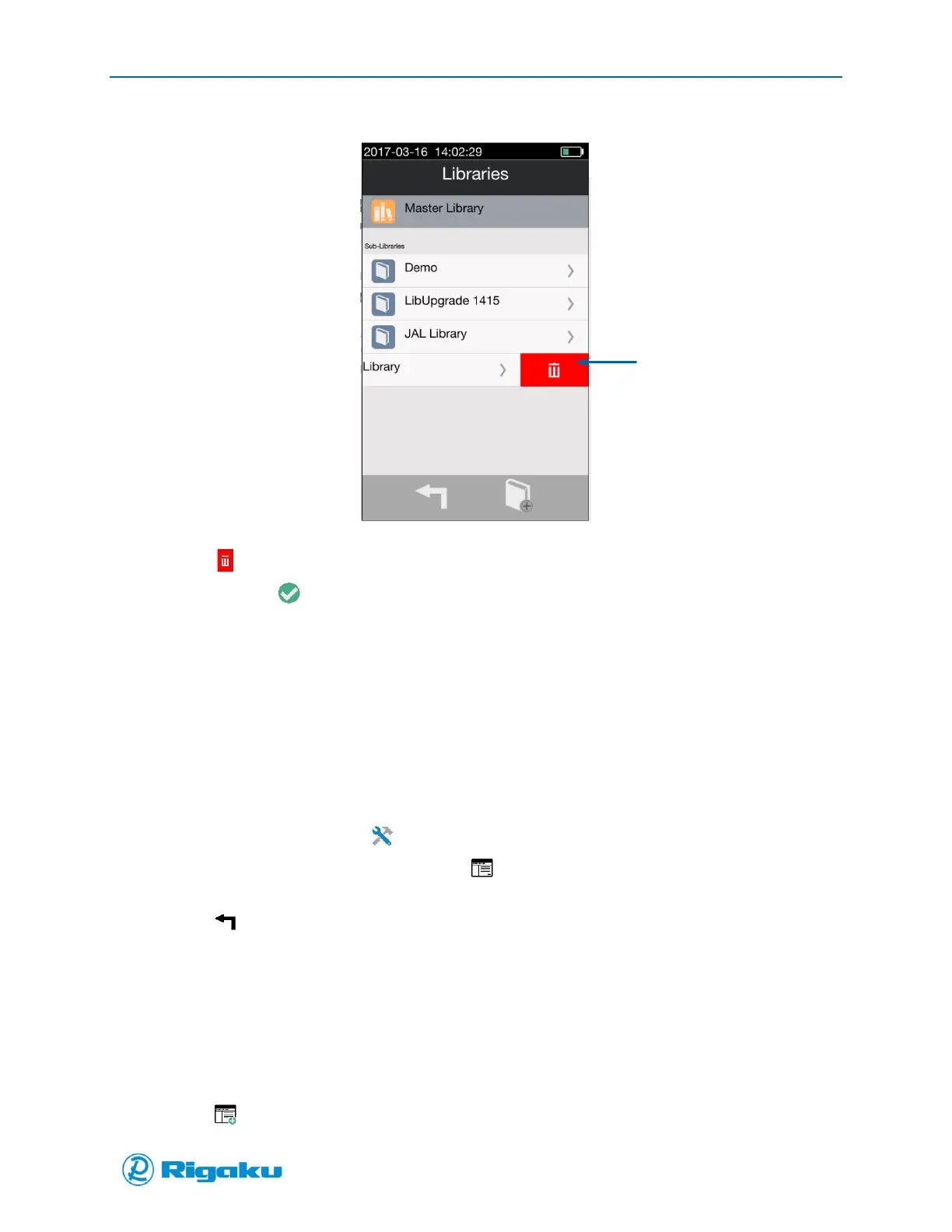
Figure 39. Delete Control on Libraries Screen
3. Select (Delete) to display the Delete Sub-Library screen.
4. Select the valid (Enter) to confirm the removal of the sub-library and display the Libraries
screen.
Managing Applications
Applications allow you to optimize instrument and analysis settings for measuring a specific substance
or substances. Once these settings have been configured, they can be used to provide consistent results
for future measurements.
For information about running applications, see “Performing Scans.”
Viewing the Applications List
1. From the Main screen select (Settings).
2. From the list of Instrument Settings, select (Applications) to display the Applications screen
listing all of the instrument’s current applications.
3. Select (Back) to return to the Instrument Settings screen.
Adding New Applications
Adding an application to the Progeny Analyzer places it into the list of current applications. By default,
the new application is a Verification sequence that has all of the default application properties listed in
Table . See “Configuring Applications” for instruction on how to change the default application
properties.
1. View the list of current applications (see “Viewing the Applications List”).
2. Select (Add Application) to display the Enter New Application Name screen.


 To Next Page