Configuring Progeny Analyzers 79
1006232_RevD
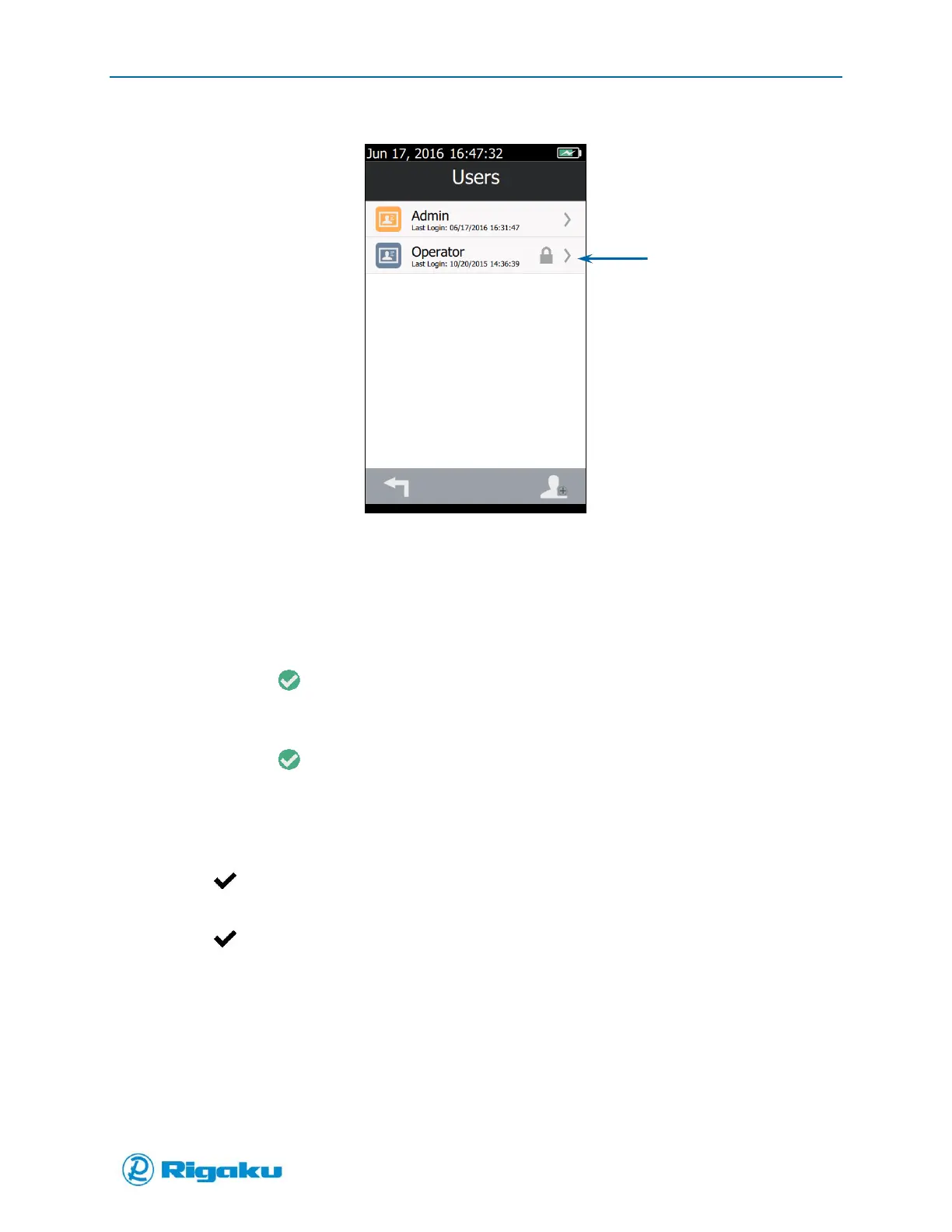
Figure 47. New User Locked Screen
Resetting User Passwords
Users with the Administrator permission level can reset a users’ password to a randomly generated
values.
1. From the User screen select Reset User to display the Reset User confirmation screen.
2. Select the valid (Enter) to display the user reset screen with a new temporary password
listed.
3. Send the temporary password to the user.
4. Select the valid (Enter).
Unlocking User Accounts
1. From the Users screen select a locked user account from the accounts list to display the Unlock
user confirmation screen.
2. Select (Enter) to display the User Unlocked screen with a new temporary password listed.
3. Send the temporary password to the user.
4. Select (Enter).
Moving User Account Data onto Your Instrument
While you can standardize your instrument setups by importing a “master” instrument settings archive
onto other instruments (see “Export and Import Settings”), to maintain 21 CFR Part 11 compliance user
accounts and activity data cannot be included in the process. If you need complete data transfers for
individual instruments, please contact RAD, or your local RAD representative.


 To Next Page