33
Printing >> Printing Operations
2
2
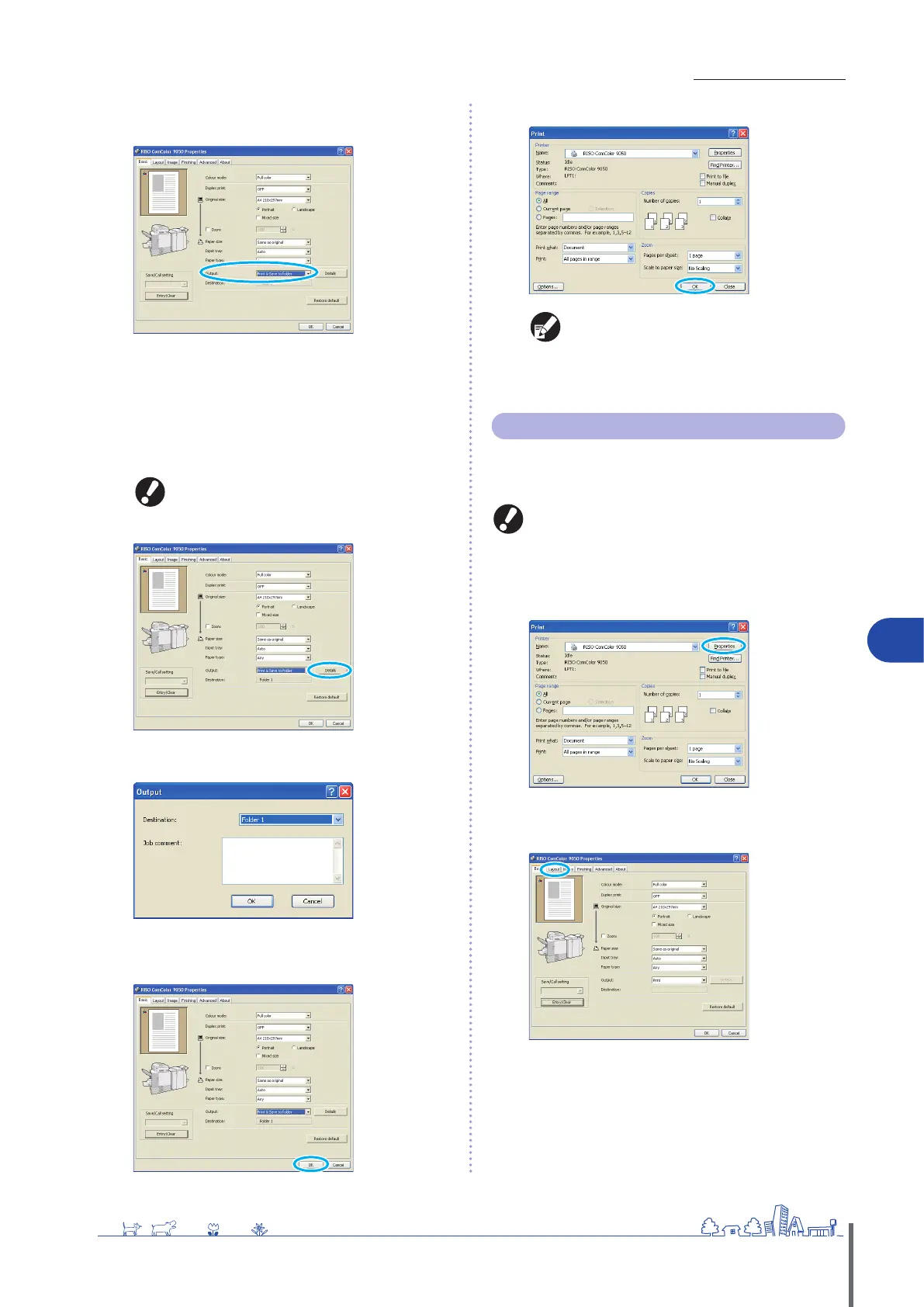
In the [Output] pull-down menu, select either [Print
& Save to folder] or [Save to folder].
[Print & Save to folder]
Print and save print jobs in a folder.
[Save to folder]
Save print jobs in a folder.
3
Click [Details] and select the destination in the pull-
down menu.
[Destination] indicates the storage destination
specied in advance by a user with administrator
rights.
You can enter notes about the job in [Job comment], as
desired.
4
After input is nished, click [OK].
Complete other settings as needed.
5
In the printing dialog box, click [OK] (or [Print]).
Jobs stored in job folders can be accessed on the
folder screen in printer mode. (S
ee p. 68.)
Printing conditions (printer driver settings) are
also saved.
•
•
Printing with Originals Rotated
The [Rotate] feature is convenient when printing on
envelopes or in other cases when changing the angle of
originals.
Always load envelopes on the standard tray.
For details, see “I
n the Standard Tray” (p. 19).
1
Click [Properties] (or [Preferences]) in the printing
dialog box of the source application.
2
Click the [Layout] tab.
ComColor Series Basic Guide 02
ComColor Series Basic Guide 02










 To Next Page