42
- Robe Universal Interface or Robe Universal interface WTX (if you want to use an USB port of PC)
After the software updating the xture will be set to default values.
To update software in the xture:
1. DSU le is available from Robe web site at WWW.robe.cz.
File with extension zip is intended for Windows (used and tested from XP to W11 on 32/64bit systems).
File with extension tbz is intended for Linux (used and tested on Debian and Ubuntu 32/64bit).
File with extension dmg is intended for
macOS (used and tested on OSX up to Sierra) XQuartz required,
install it from https://www.xquartz.org/
Save the download le to a folder on your computer.
In case that you use windows, extract les in the zip le (e.g. DSU_RobiniForte_18100828.zip)
2. Disconnect the xture from DMX controller.
3. If you use the ash cable RS232/DMX, connect a serial port of your computer with DMX input of the xture
by means of the cable.
If you use the Robe Universal Interface, connect a USB port of your computer with the Robe Universal Interface
by means of the USB cable and DMX input of the xture with the DMX output of the Robe Universal Interface
via a DMX cable.
4. Switch the xture to the update mode (tab "Service" --> Update Software).
Note: If you do not want to continue in the software update, you have to switch o and on the xture
to escape from the updating mode.
We recommend to cancel all running programs on your computer before starting the software update.
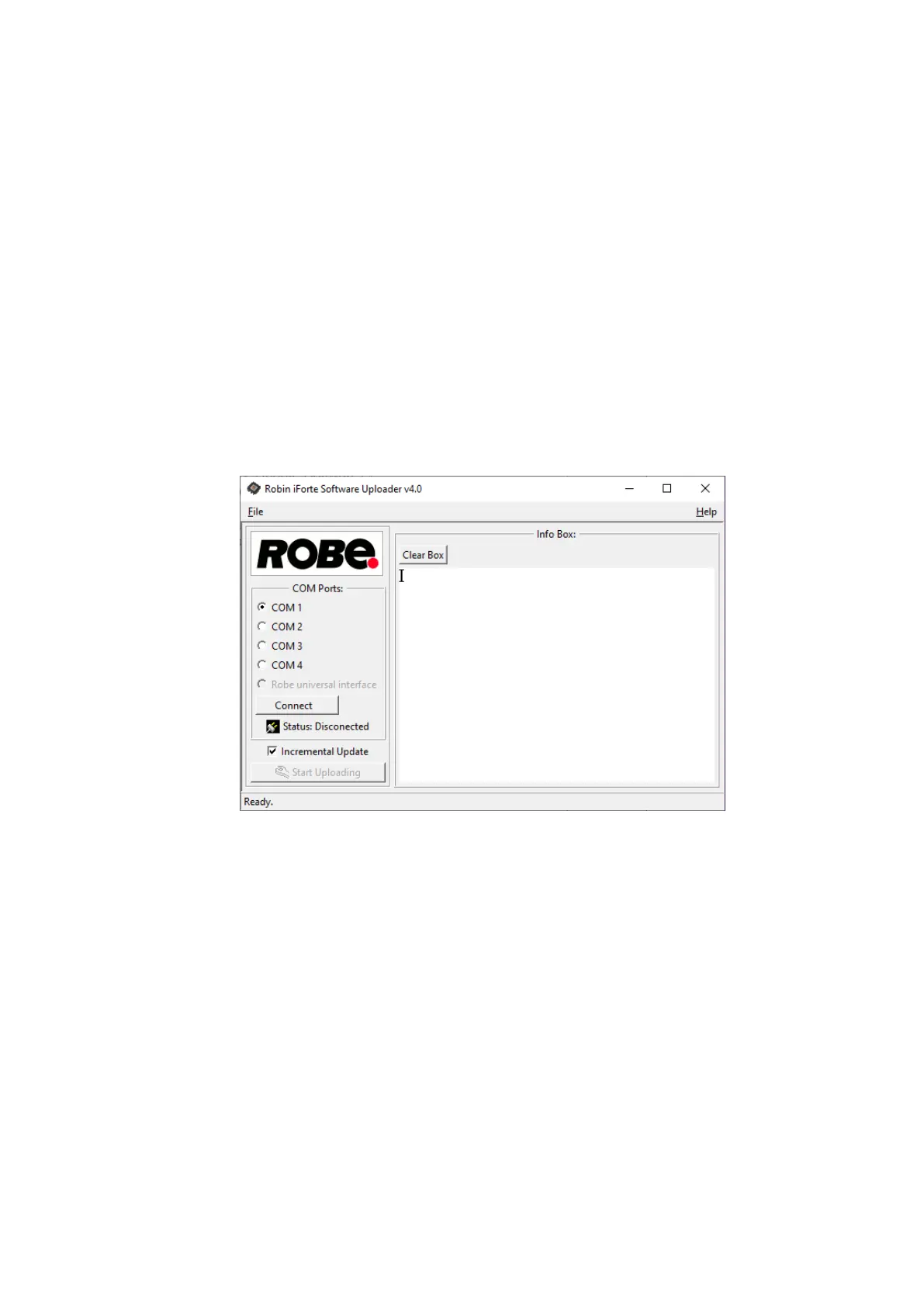
5. Double-click the software uploader le (e.g. DSU_RobiniForte_18100828.exe) in
the extracted les. The Software Uploader program will start to run.
6. Select correct "COM " number if you use a
Flash cable RS232/DMX
or select "
Robe Universal Interface "
if you use the
Robe Universal Interface/Robe Universal Interface WTX
and then click on the "Connect" button.
7. If the connection is OK, click the “Start Uploading" button to start software uploading. It will take several
minutes to perform software update.
If the option "Incremental Update" is not checked, all processors will be updated (including processors with
the same software version).
If you wish to update only processors with new version of software, check the “Incremental Update box“.
Avoid interrupting the process. Update status is being displayed in the "Info Box" window.
When the update is nished, the line with the text “Fixture is successfully updated“ will appear in
this window.
In case upload process is interrupted (e.g. power loss), the xture stays in “Updating mode” and you will have
to repeat the software update again.


 To Next Page